

Decline mappings standardize the decline messages returned by different payment gateways into common categories, so customers, API integrations and reports all see one consistent reason for the same underlying decline.
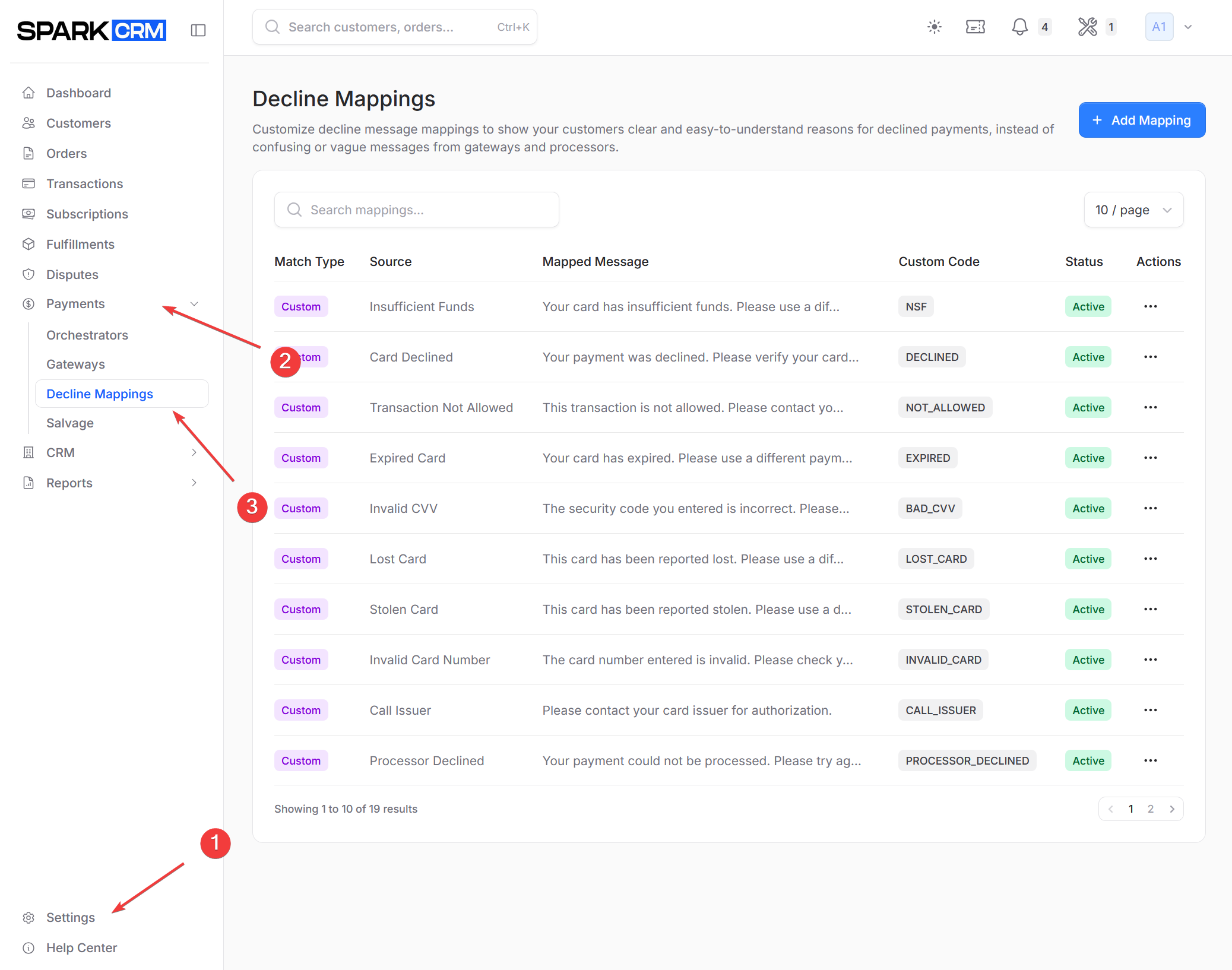
Navigation: Sidebar > Payments > Decline Mappings
Why Use Decline Mappings?
Different payment gateways return different decline codes for the same underlying issue. For example:
- Gateway A: “Transaction declined - 05”
- Gateway B: “Do Not Honor”
- Gateway C: “DECLINE_051”
All three mean the same thing, but without mapping, they appear as separate issues in reports and can’t be handled consistently.
With decline mappings:
- All similar declines show the same reason
- Customers see a clear message instead of raw processor text
- API integrations receive a stable
decline_code - The Decline Reasons report groups declines meaningfully
Decline mappings do not affect retry behavior — salvage retry rules are configured separately on your salvage profile.
Match Types
Spark CRM supports two types of decline mappings:
Custom Mappings
Match a text fragment that appears anywhere in the gateway response.
Use for:
- Gateway-specific decline codes
- Custom error messages
- Unusual decline reasons
Example:
- Original:
Transaction declined - Error Code 51 - Mapped to:
Insufficient Funds
Predefined Mappings
Match one or more standard decline categories that Spark CRM recognizes.
Use for:
- Common decline reasons
- Bulk mapping of related codes
- Consistent wording across gateways
Predefined Decline Reasons
Spark CRM recognizes these standard decline categories:
| Reason | Description | Industry guidance |
|---|---|---|
| Do Not Honor | Generic bank refusal | Sometimes |
| Suspected Fraud | Fraud detection triggered | No |
| Pick Up Card | Card reported compromised | No |
| Authentication Failed | 3DS or verification failed | Yes (after delay) |
| Bad Bin or Host | Network/processor issue | Yes |
| Invalid CVV | CVV mismatch | No (requires new info) |
| Insufficient Funds | Not enough balance | Yes (after delay) |
| Invalid Card Number | Card number incorrect | No |
| Too Many Attempts | Rate limiting | Yes (after delay) |
| Lost Card | Card reported lost | No |
| Stolen Card | Card reported stolen | No |
| BIN Blocked | BIN on block list | No |
The Industry guidance column is general industry practice only. Spark CRM does not derive any retry behavior from decline mappings — retries are governed entirely by the Excluded Decline Codes list on your salvage profile, which is empty by default. Until you configure exclusions, every decline type is retried, including suspected fraud and lost/stolen card declines.
Creating a Decline Mapping
Step 1: Navigate to Decline Mappings
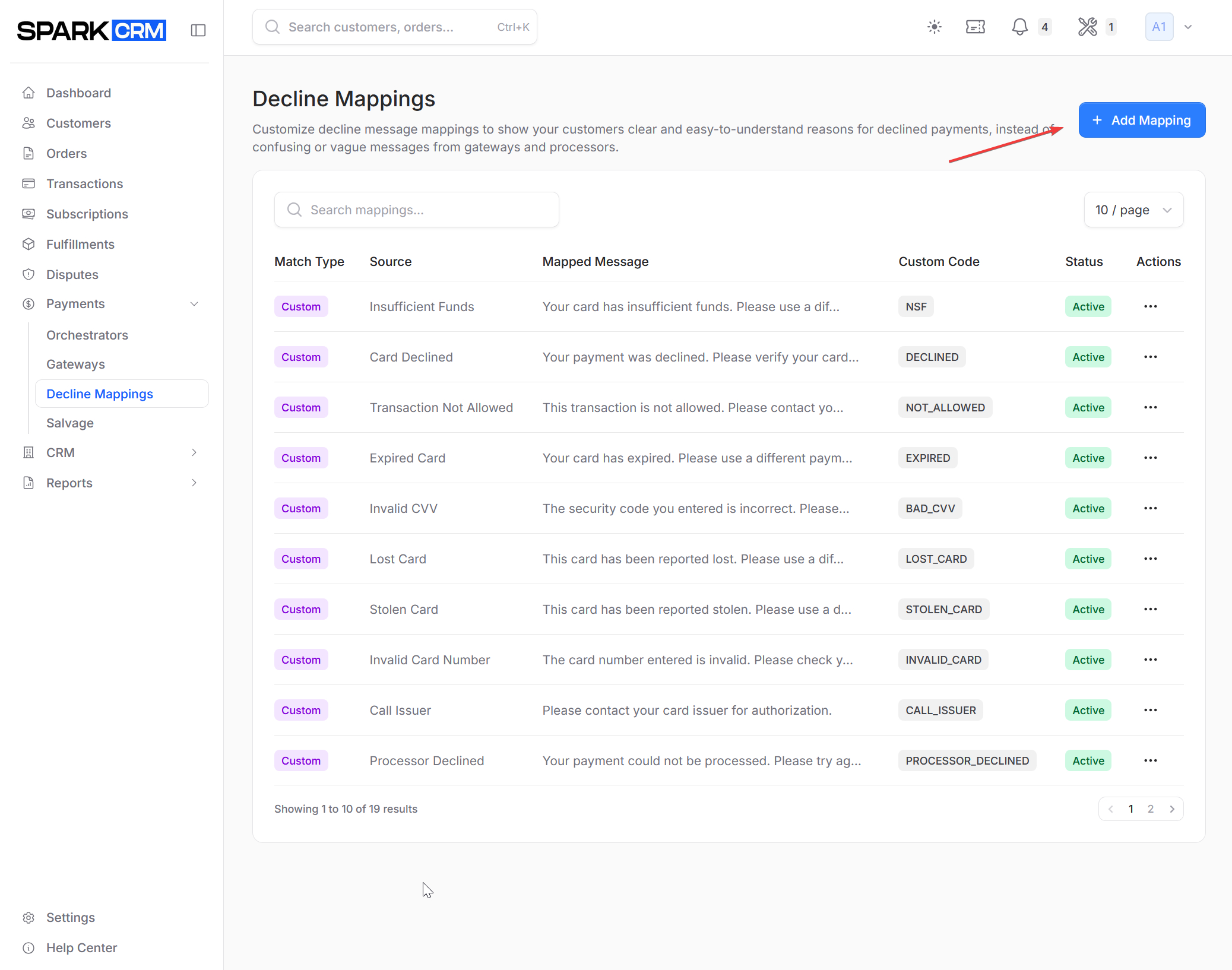
- Go to Payments > Decline Mappings in the sidebar
- Click Add Mapping button
Step 2: Select Match Type
Choose how to match the decline:
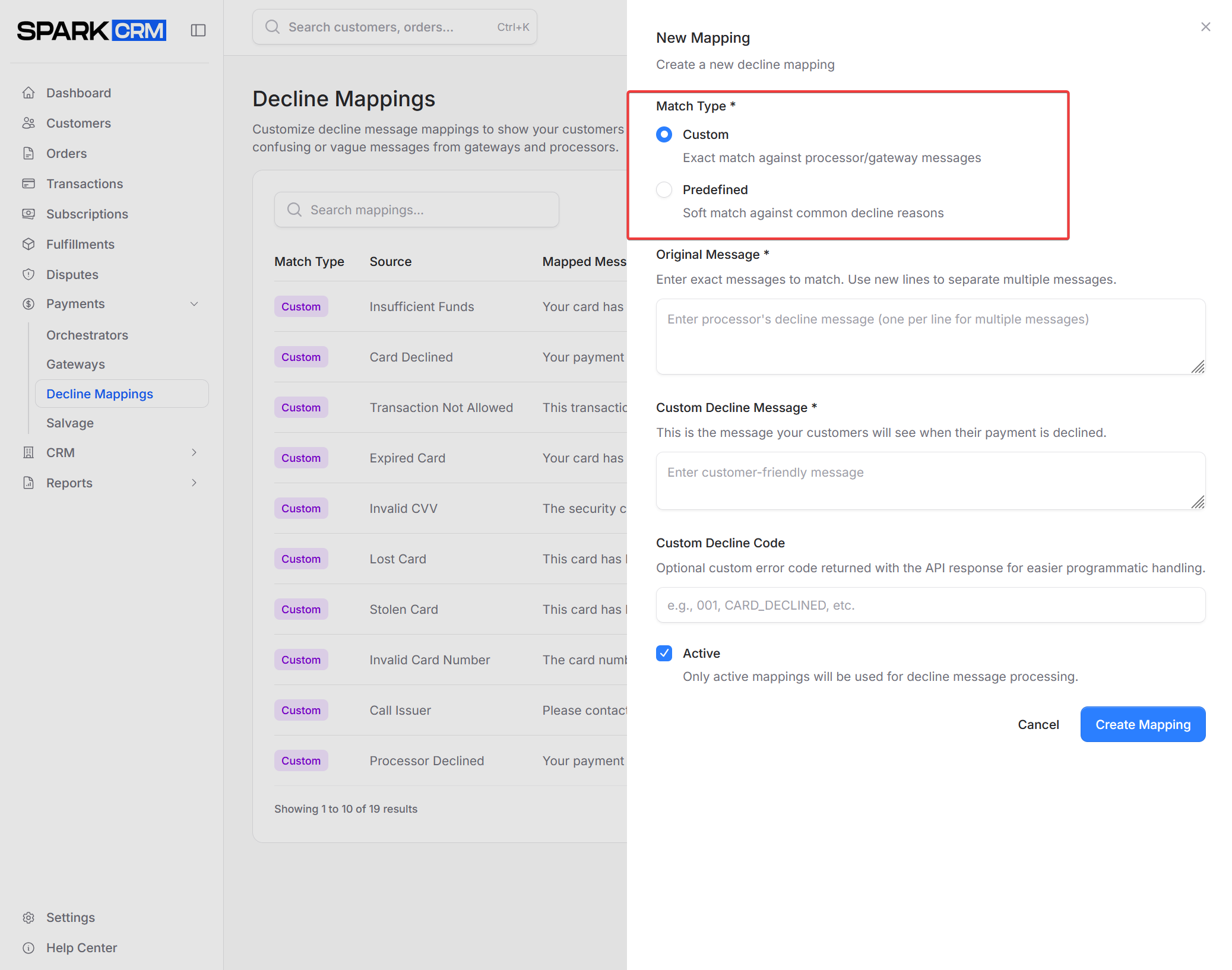
Custom:
- Enter a distinctive fragment of the processor’s decline message. Matching is a case-insensitive substring test — the mapping fires whenever your text appears anywhere in the gateway response. Wildcards and regular expressions are not supported.
- Keep the fragment specific. Because custom mappings are checked before predefined ones and the first match wins, a broad entry such as
declinedwill capture nearly every decline and override every other mapping. - Enter one message per mapping. The on-screen hint about separating multiple messages with new lines is not currently implemented — the entire field value is matched as a single string.
Predefined:
- Select one or more predefined decline reasons
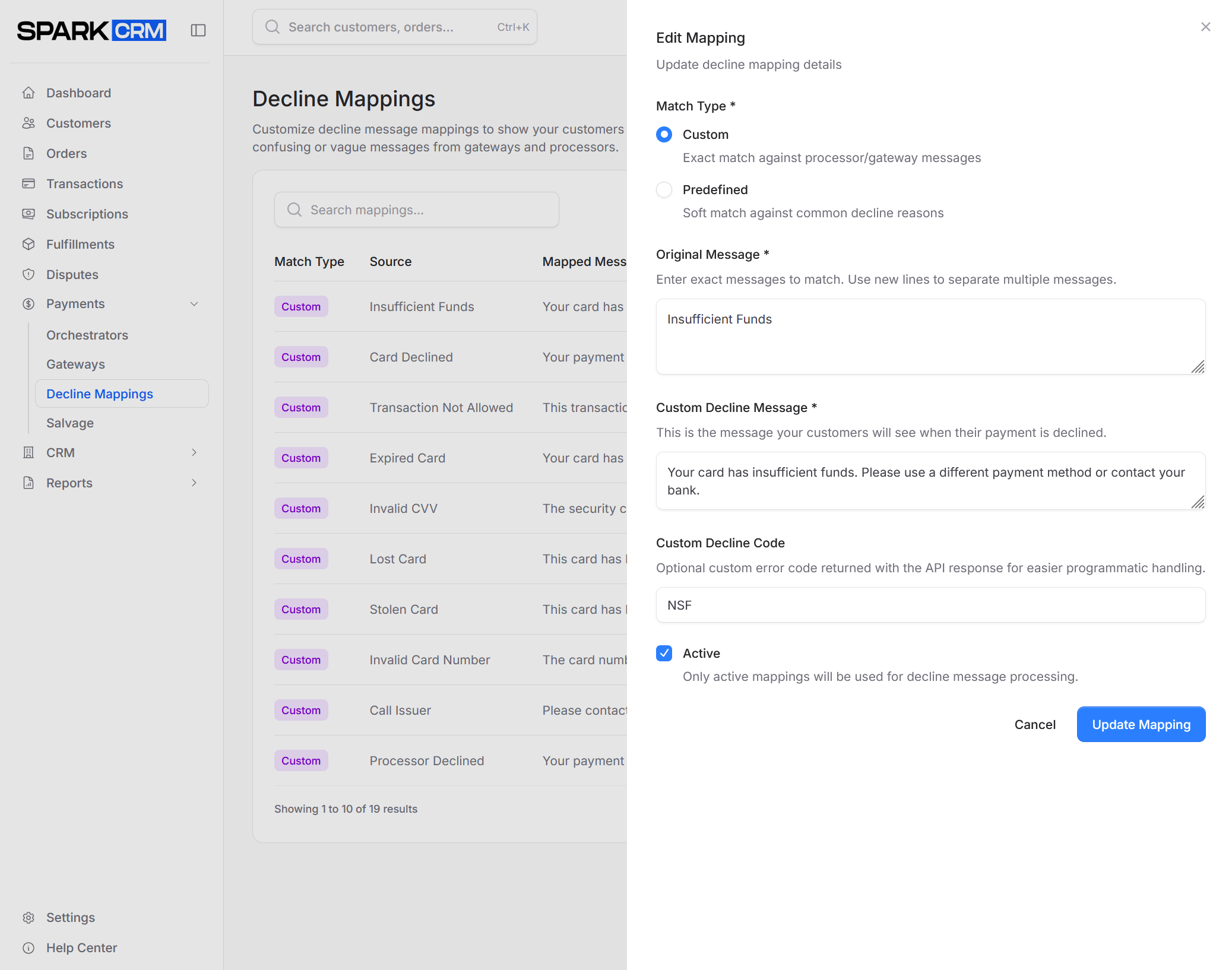
Step 3: Configure the Mapping
| Field | Description |
|---|---|
| Original Message (custom only) | Required. A case-insensitive text fragment; the mapping fires when this text appears anywhere in the gateway response. No wildcards or regex, and the value must be unique among your team’s custom mappings. |
| Predefined Reasons (predefined only) | Standard reasons to match |
| Custom Decline Message | Required. The customer-facing message shown in place of the raw gateway text. It is also returned as the message field on declined API responses and written to the customer note. Insert the token [1234] to have it replaced with the card’s last four digits. |
| Custom Decline Code | Optional, max 50 characters. Returned to API integrators as the decline_code field on declined-transaction responses so downstream systems can branch on it programmatically. It is not shown to customers and has no effect on salvage retries. |
| Active | Enable/disable the mapping. New mappings are created Active. Inactive mappings are never loaded during decline processing. |
Step 4: Save
Click Create Mapping to save. (When editing an existing mapping the same button reads Update Mapping.) A confirmation toast appears once the mapping is saved.
Managing Decline Mappings
Mapping List
The list displays every decline mapping configured for your current team.
Access to decline mappings requires the decline_mappings:view_any permission, or an admin or owner role; creating, editing and deleting require decline_mappings:create, decline_mappings:update and decline_mappings:delete. Without view permission the page shows an Access Restricted message, and without create permission the Add Mapping button is hidden. Members who reach the page through these permissions can use it only on Account-type teams.
| Column | Description |
|---|---|
| Match Type | Custom or Predefined |
| Source | What the mapping matches — the message fragment for custom mappings, or a badge per selected reason for predefined mappings |
| Mapped Message | Your customer-facing message (truncated to 50 characters in the list) |
| Custom Code | Custom decline code, or an em dash when none is set |
| Status | Active/Inactive |
| Actions | Overflow (…) menu containing Edit and Delete |
The list is paginated, with a per-page selector offering 10, 25 or 50 rows (default 10).
Searching
Use the search box to find mappings by:
- Original message text
- Mapped message
- Custom decline code
Editing a Mapping
- Find the mapping in the list
- Click the … (ellipsis) button in the Actions column and choose Edit
- Modify settings
- Click Update Mapping
Deleting a Mapping
- Find the mapping in the list
- Click the … (ellipsis) button in the Actions column and choose Delete
- Confirm in the Delete Mapping dialog by clicking Delete Mapping
Deleted mappings stop matching immediately and cannot be restored from the interface.
How Mappings Work
When a transaction is declined:
- Gateway returns a decline response. Mapping is performed against the response text stored on the transaction (
gateway_response) — numeric response codes are not matched separately. If the transaction has no gateway response recorded, the literal text “Transaction declined” is used. - Spark CRM checks your custom mappings first. Each custom mapping’s text is tested as a case-insensitive substring of the gateway response, and the first match wins. Broad or short custom text will match unrelated declines and pre-empt every predefined mapping.
- If no custom match, checks predefined mappings
- The mapped message is substituted in output — API decline responses, customer and order notes, and the Decline Reasons report. The transaction record itself is not modified: the raw gateway response is preserved on the transaction and in logs for troubleshooting.
- Salvage runs independently. Retry eligibility is evaluated by your salvage profile against the raw gateway response, using its own fixed list of decline codes. Decline mappings have no effect on whether a transaction is retried.
Matching Priority
- Custom mappings (case-insensitive substring match) — checked first. Only mappings that are Active and belong to the transaction’s team are considered.
- Predefined mappings - checked if no custom match
- Original message — used if no mapping matches. One exception: on API responses, transport-level gateway failures (timeouts, dropped connections, cURL errors) are collapsed to the generic message “Gateway failed” so integrators never see internal error detail. The full text is still preserved on the transaction and shown on internal reports.
Best Practices
Start with Predefined
Use predefined mappings for common decline reasons:
- Faster to set up
- Consistent with industry standards
- Works across gateways
Add Custom for Gateway-Specific
Create custom mappings when:
- Gateway returns unique codes
- Predefined categories don’t fit
- You need specific handling
Keep Messages Clear
Mapped messages should be:
- Human-readable
- Actionable
- Consistent in style
Good: “Insufficient Funds - Retry in 24 hours” Bad: “51” or “Error”
Review Regularly
Periodically review:
- Unmapped decline reasons in reports
- Common declines that could be categorized
- Mapping accuracy
Decline Mapping and Salvage
Decline mappings and Decline Salvage are configured independently. Mappings control the message and decline_code your customers and API integrations see; they do not affect whether a declined transaction is retried. Whether a decline type is retried comes from the salvage profile’s own Excluded Decline Codes list, which uses a separate fixed set of codes. (The profile also applies its own scope and attempt limits.)
By default a salvage profile excludes nothing, so every decline type is retried on the profile’s schedule — including suspected fraud and lost/stolen card declines. To stop retrying a decline type you must add it to Excluded Decline Codes on the salvage profile. The selectable types are: Insufficient Funds, Card Declined, Expired Card, Invalid Card, Suspected Fraud, Lost Card, Stolen Card, Invalid Expiry, Invalid CVC and Processing Error. Retry timing comes from the profile’s retry schedule, not from the decline type.
Troubleshooting
Mapping Not Matching
Check:
- Your text actually appears somewhere in the gateway response — matching is a case-insensitive substring test, not an exact comparison, and leading/trailing whitespace is trimmed
- No broader custom mapping is matching first — a short fragment like “declined” will capture most declines and override the mapping you expect
- The mapping is Active
- The mapping belongs to the same team as the transaction
Wrong Decline Showing
Check:
- Another mapping isn’t matching first
- Custom mapping priority over predefined
- Search for conflicting mappings
Decline Not Being Salvaged
Check:
- The transaction’s decline reason is not in your salvage profile’s Excluded Decline Codes list. That list is matched against salvage’s own set of decline codes derived from the raw gateway response — the Custom Decline Code on a decline mapping is not used here
- The transaction meets the profile’s criteria: the profile is active, its transaction type (initial / rebill / both) matches, and the amount falls within any minimum or maximum
- The order’s campaign does not have decline salvage disabled
Related Topics
- Decline Salvage - Configure retry logic
- Payment Gateways - Gateway configuration
- Payment Orchestrators - Routing and failover