

Validation services verify customer data during order processing, improving data quality and reducing fraud.
Navigation: Settings > Order Enrichment & QA
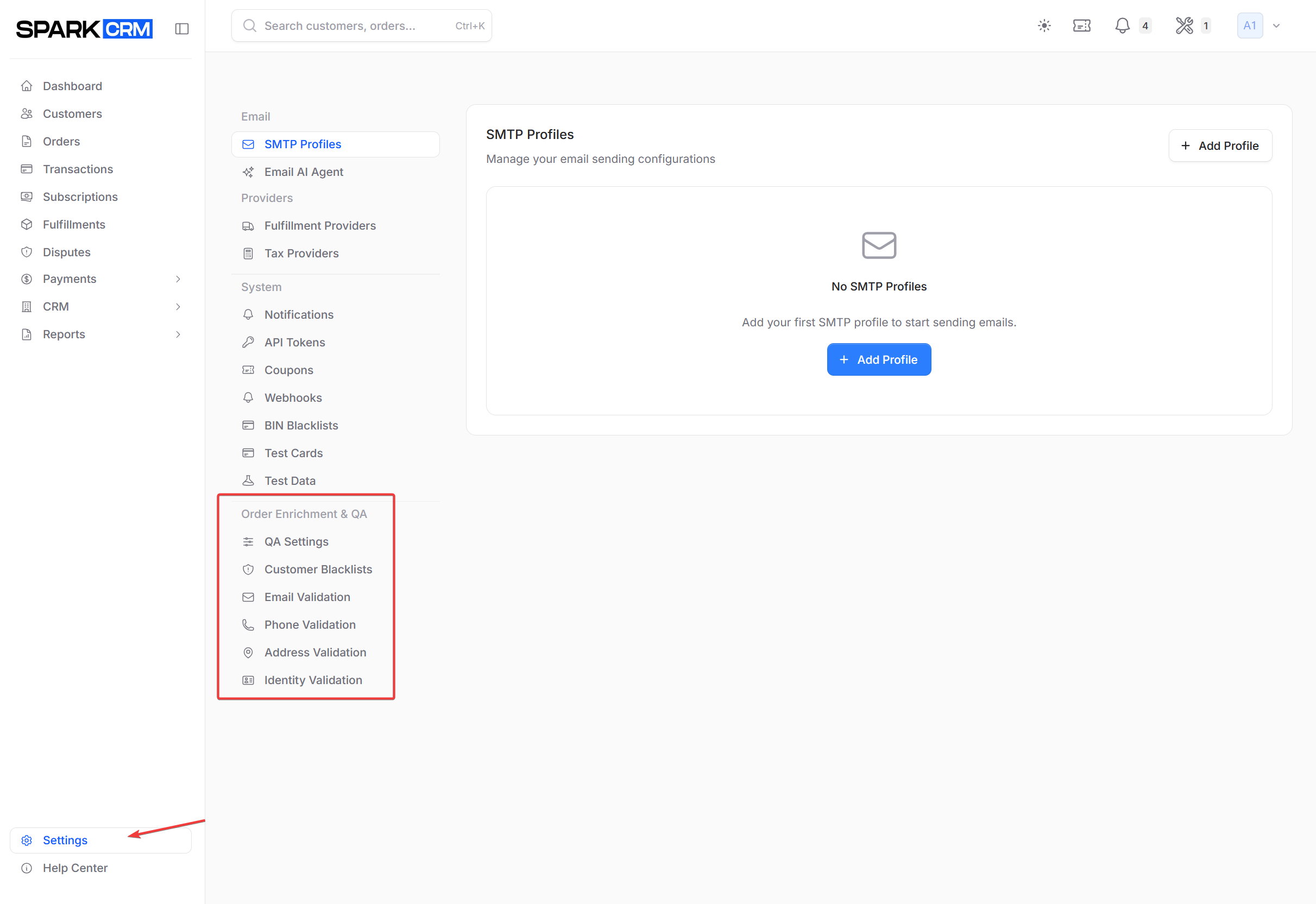
Overview
Spark CRM integrates with third-party validation providers to verify:
- Email addresses - Deliverable and not disposable
- Phone numbers - Valid and properly formatted
- Shipping addresses - Deliverable and standardized
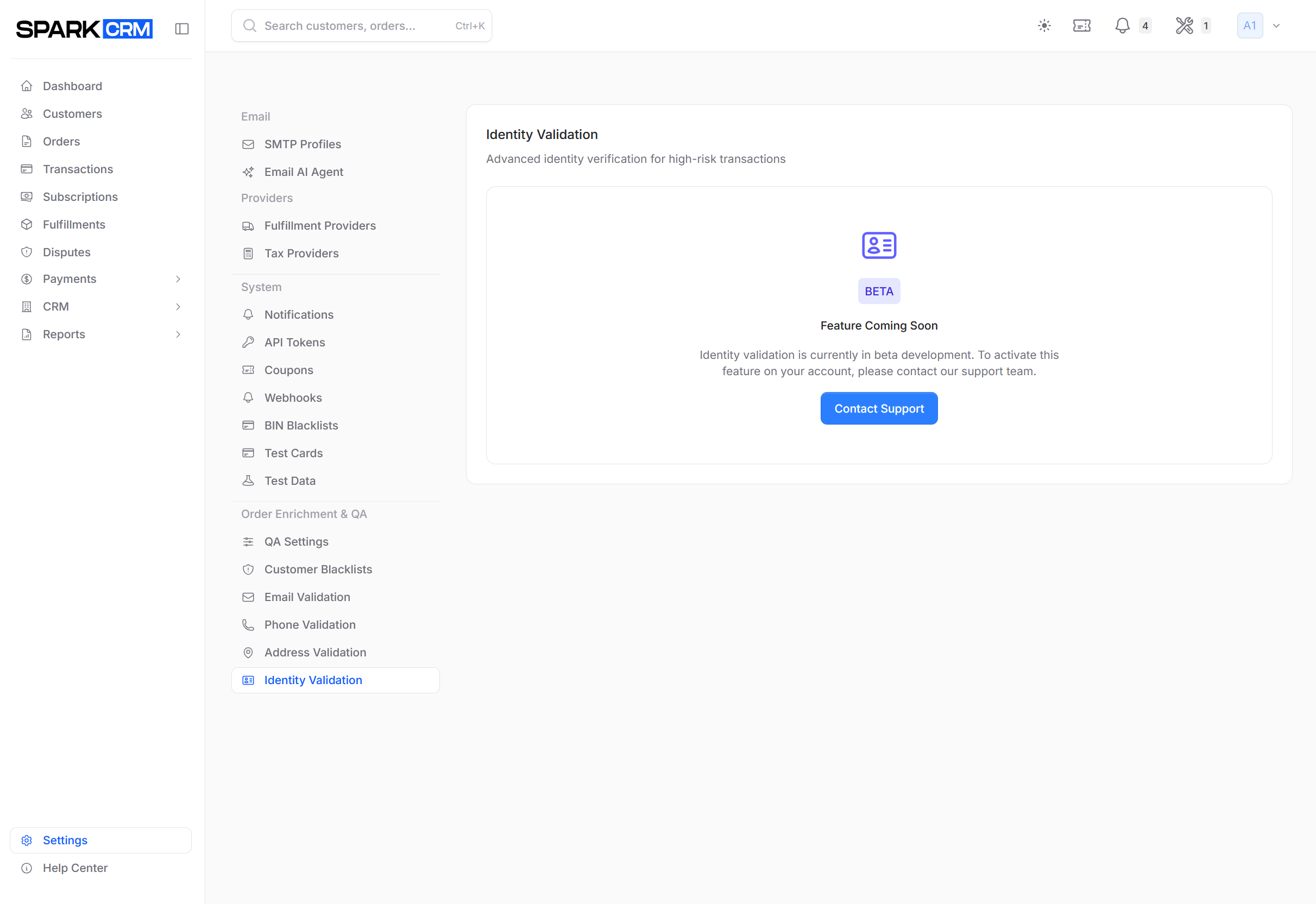
- Identity - Not yet available. Identity validation is a beta placeholder; contact support to register interest.
Email, phone, and address validation are each optional and billed per verification.
Email Validation
Navigation: Settings > Email Validation
Verify that customer email addresses are real and deliverable.
Benefits
- Reduce email bounces
- Detect disposable/temporary emails
- Identify risky email patterns
- Improve deliverability
Configuration
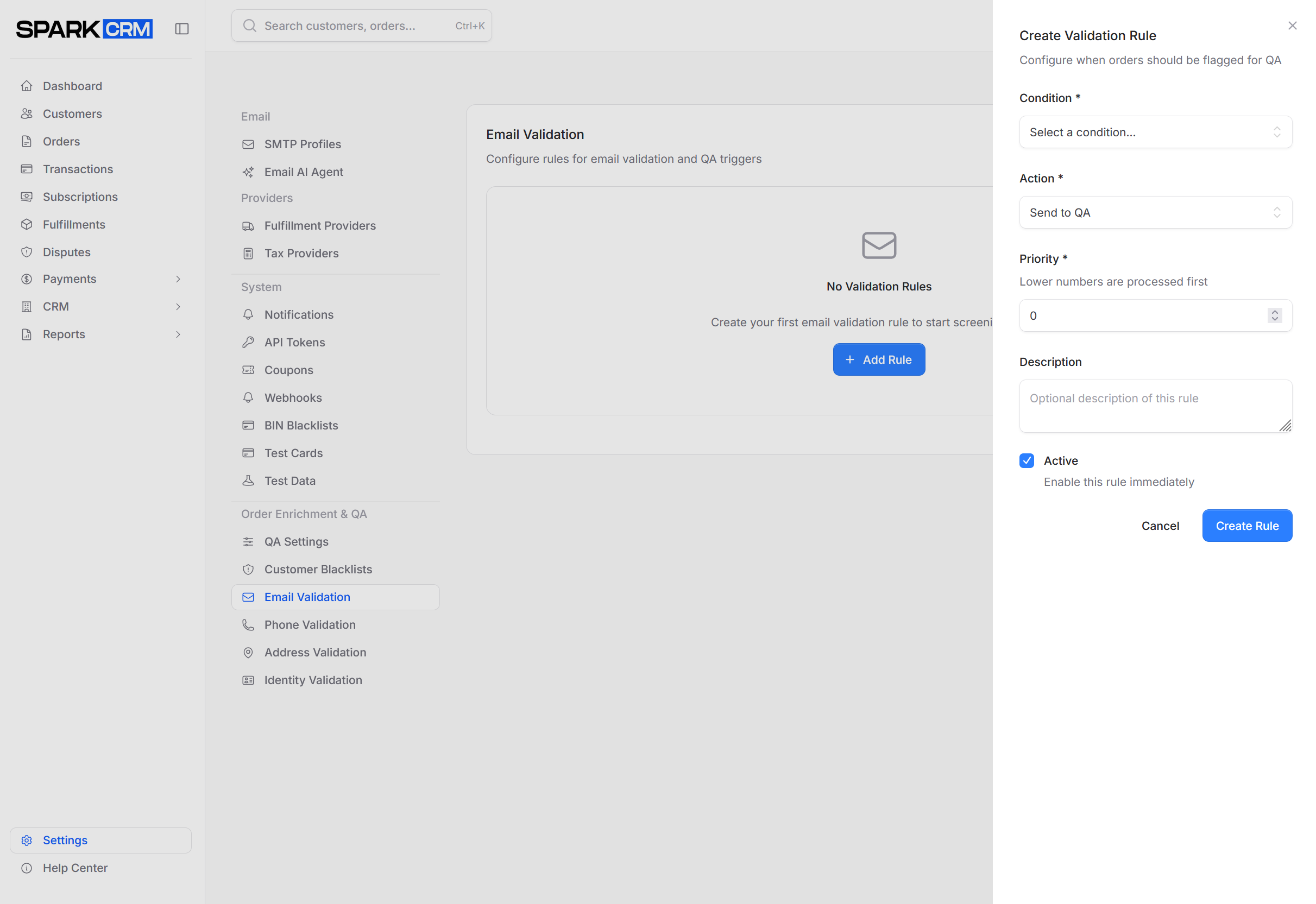
Email validation is switched on under Billing > Manage Services. Until it is enabled this screen is read-only — the rules list is blurred behind a padlock and the Add Rule / Reset to Defaults buttons are hidden.
Email validation always uses ZeroBounce; the provider is not selectable per team. Provider credentials are managed by Spark CRM at the platform level; merchants do not supply a ZeroBounce API key. Timing is not configurable either — lead-capture orders validate asynchronously on the validations queue, while full-order and payment API calls validate synchronously before the charge.
The screen manages a prioritised list of validation rules. A rule pairs a Condition with an Action:
| Field | Description |
|---|---|
| Condition | What the provider result must show. Email offers 9 conditions: Syntax/Format Error, Disposable Email, Spam Trap, Abuse/Complaint Email, Do Not Mail, Invalid Domain, Contains Typo, Role-based Email, Government Email (.gov, .mil). |
| Action | Send to QA, Decline Order, Flag Only (No Action), plus Auto Correct — offered only when the condition is Contains Typo. Changing the condition away from Contains Typo resets an Auto Correct selection back to Send to QA. Decline Order is stored on the rule but is not currently enforced by the validation engine — only Send to QA (and Auto Correct on email typos) changes what happens to the order. To make a flagged order decline, set QA Settings > QA Action to Decline Order. |
| Priority | Lower numbers are processed first. Saving a rule onto an existing priority shifts the colliding rules down automatically; deleting a rule closes the gap. |
| Active | Switch a rule on or off without deleting it (also togglable from the Status column in the table). |
| Description | Optional, max 255 characters. Used as the QA reason when the rule fires. |
Controls: Add Rule opens the flyout; the row menu offers Edit and Delete (with a confirmation modal); the up/down arrows in the Priority column reorder rules; Reset to Defaults deletes every existing email rule and reseeds the 5 email defaults — this cannot be undone. Rules are paginated 10 per page.
Validation Results
Results are stored on the customer record:
| Field | Description |
|---|---|
is_email_valid |
Whether email passed validation |
email_validated_at |
When validation occurred |
email_validation_meta |
Detailed validation response |
Use Cases
- Block orders with invalid emails (the rule sends them to QA; blocking requires QA Settings > QA Action set to Decline Order)
- Flag suspicious email patterns for QA
- Clean customer email lists
Phone Validation
Navigation: Settings > Phone Validation
Verify that customer phone numbers are valid and properly formatted.
Benefits
- Verify phone numbers are real
- Standardize phone number formats
- Identify carrier and line type
- Improve contact rates
Configuration
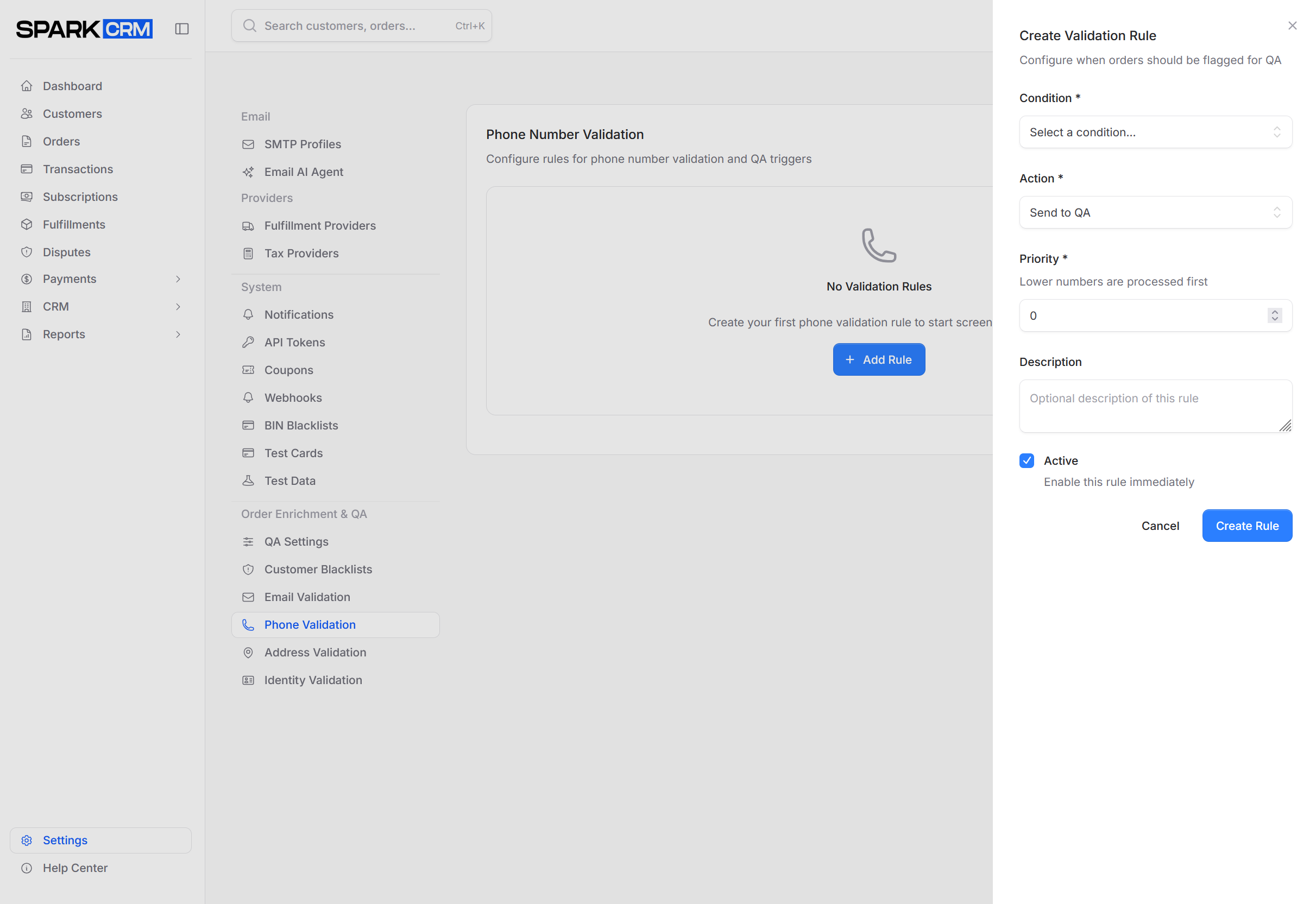
Phone validation is switched on under Billing > Manage Services; until it is enabled this screen is read-only.
Phone validation always uses Twilio Lookup; the provider is not selectable. Twilio credentials are held by Spark CRM at the platform level; merchants do not enter them.
The screen manages a prioritised list of validation rules. A rule pairs a Condition with an Action:
| Field | Description |
|---|---|
| Condition | What the provider result must show. Phone offers 6 conditions: Invalid Phone Number, Non-Fixed VOIP, Country Mismatch with Shipping, Landline Number, Prepaid Phone, Disconnected/Inactive. |
| Action | Send to QA, Decline Order, or Flag Only (No Action). Auto Correct is offered only on the email Contains Typo condition. Decline Order is stored on the rule but is not currently enforced by the validation engine — only Send to QA changes what happens to the order. To make a flagged order decline, set QA Settings > QA Action to Decline Order. |
| Priority | Lower numbers are processed first. Saving a rule onto an existing priority shifts the colliding rules down automatically; deleting a rule closes the gap. |
| Active | Switch a rule on or off without deleting it (also togglable from the Status column in the table). |
| Description | Optional, max 255 characters. Used as the QA reason when the rule fires. |
Controls: Add Rule opens the flyout; the row menu offers Edit and Delete (with a confirmation modal); the up/down arrows in the Priority column reorder rules; Reset to Defaults deletes every existing phone rule and reseeds the 3 phone defaults — this cannot be undone. Rules are paginated 10 per page.
Validation Results
Results are stored on the customer record:
| Field | Description |
|---|---|
is_phone_valid |
Whether phone passed validation |
phone_validated_at |
When validation occurred |
phone_validation_meta |
Carrier, line type, etc. |
Use Cases
- Block orders with invalid phones (the rule sends them to QA; blocking requires QA Settings > QA Action set to Decline Order)
- Format phones for SMS campaigns
- Identify VOIP vs mobile numbers
Address Validation
Navigation: Settings > Address Validation
Verify that shipping addresses are real and deliverable.
Benefits
- Reduce failed deliveries
- Standardize address formatting
- Identify residential vs commercial
- Lower shipping costs
Configuration
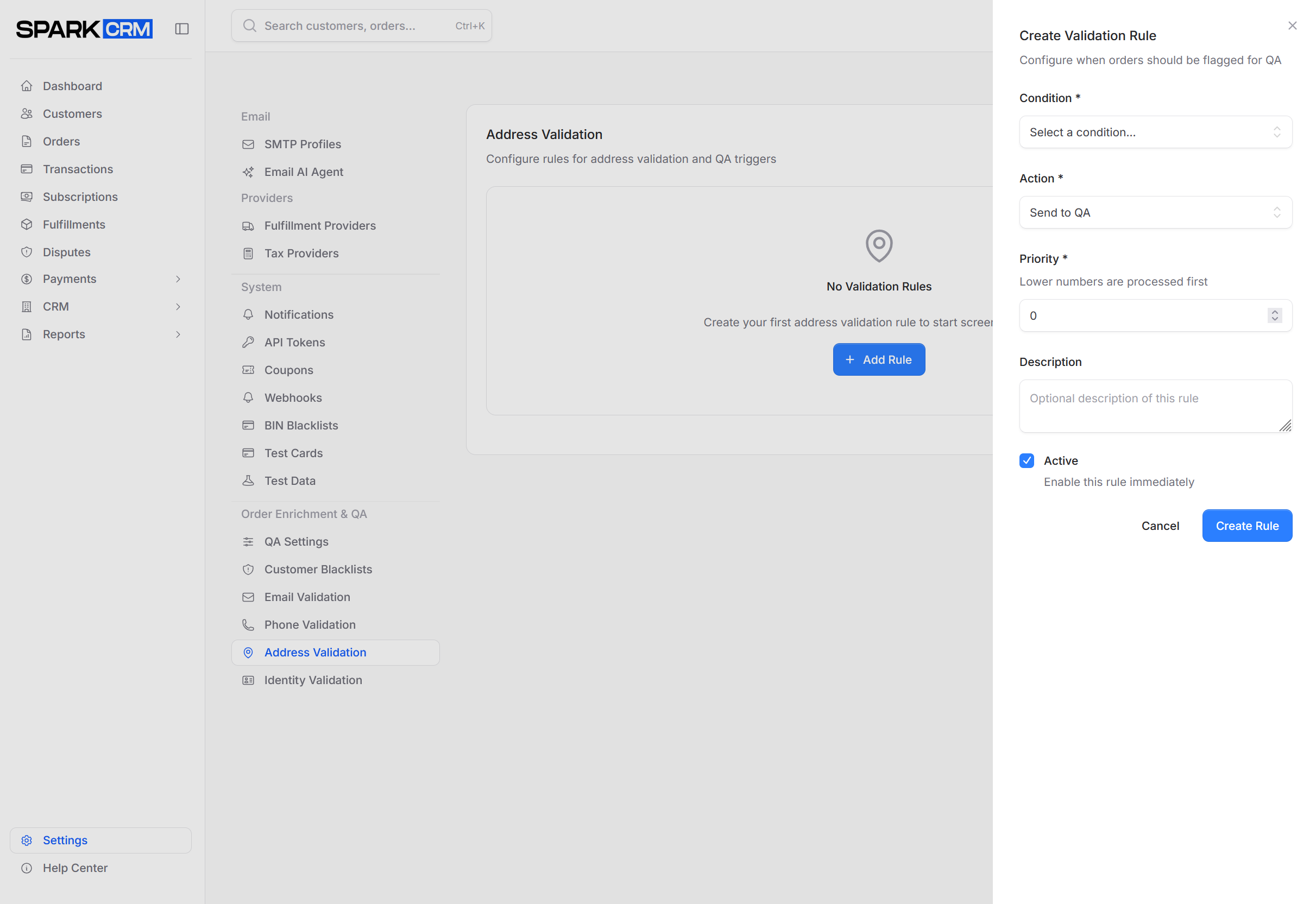
Address verification is switched on under Billing > Manage Services, where it is labelled Address Verification; until it is enabled this screen is read-only.
Address validation always uses Smarty (SmartyStreets); the provider is not selectable. Smarty credentials are held by Spark CRM at the platform level.
The screen manages a prioritised list of validation rules. A rule pairs a Condition with an Action:
| Field | Description |
|---|---|
| Condition | What the provider result must show. Address offers 7 conditions: Invalid Address, Missing Apt/Suite Number, Reship/Freight Forwarder, PO Box Address, Undeliverable Address, Commercial Address, Unknown/Unverified Address. |
| Action | Send to QA, Decline Order, or Flag Only (No Action). Auto Correct is offered only on the email Contains Typo condition. Decline Order is stored on the rule but is not currently enforced by the validation engine — only Send to QA changes what happens to the order. To make a flagged order decline, set QA Settings > QA Action to Decline Order. Address evaluation also stops at the first matching rule, so a matching rule whose action is not Send to QA suppresses every lower-priority address rule. |
| Priority | Lower numbers are processed first. Saving a rule onto an existing priority shifts the colliding rules down automatically; deleting a rule closes the gap. |
| Active | Switch a rule on or off without deleting it (also togglable from the Status column in the table). |
| Description | Optional, max 255 characters. Used as the QA reason when the rule fires. |
Controls: Add Rule opens the flyout; the row menu offers Edit and Delete (with a confirmation modal); the up/down arrows in the Priority column reorder rules; Reset to Defaults deletes every existing address rule and reseeds the 4 address defaults — this cannot be undone. Rules are paginated 10 per page.
Validation Results
Address validation can:
- Confirm address exists
- Suggest corrections
- Standardize formatting
- Add missing components (ZIP+4)
| Field | Description |
|---|---|
is_deliverable |
Whether address can receive mail |
verification_data |
Full provider response, including standardized_address (with ZIP+4 as plus4), address_type, delivery_point and is_vacant |
When the address validates successfully the standardized street, city, state and postal code are also written back over the address record itself.
Use Cases
- Block undeliverable addresses (the rule sends them to QA; blocking requires QA Settings > QA Action set to Decline Order)
- Auto-correct address typos
- Flag PO boxes if not supported
Identity Validation
Navigation: Settings > Identity Validation
Identity validation is not yet released. The tab shows a BETA card headed Feature Coming Soon: “Identity validation is currently in beta development. To activate this feature on your account, please contact our support team.” The only control is a Contact Support button.
There is nothing to configure, no provider, and no billing unit for identity validation today.
Billing
Validation services are billed per verification:
| Service | Billing Unit |
|---|---|
| Email Validation | Per email verified |
| Phone Validation | Per phone verified |
| Address Validation | Per address verified |
View current rates on the Billing page (account menu > Billing) under Manage Services, where each service shows its per-verification fee. Opening the Billing page requires permission to manage billing — the team owner, a super admin, or a member with the manage:billing team permission. Demo teams are blocked from the page entirely.
When Validation Runs
Validation timing is decided by the API endpoint that created the order:
Order Time (Synchronous)
- Runs before the charge on full-order and payment API calls
- A matching rule flags the order for QA; it does not block on its own
- Whether a flagged order is blocked depends on QA Settings > QA Action (Decline Order blocks; the default, Complete Charge, charges the card and flags the order for review)
Asynchronous (lead capture)
- Orders created through the lead/prospect endpoint queue validation on the
validationsqueue (5-second delay) instead of validating inline - A matching rule flags the order for QA once the job runs
- There is no automatic post-completion validation pass; you can, however, re-run validation manually from an order or customer record
Trigger timing is not configurable — it is determined by the API endpoint that creates the order. What you can control per type is whether it runs at all: switch each service on or off under Billing > Manage Services, or bypass a type on an individual campaign.
Integration with QA
Validation results can trigger QA review:
- Validation fails: Order flagged for review
- Risky indicators: Email is disposable, address is commercial, etc.
- QA team reviews: Approve or reject order
Configure QA rules in QA Settings.
Best Practices
Enable Gradually
- Start with email validation (highest impact)
- Add address validation for physical products
- Add phone validation if using SMS
Balance Friction
- Full-order and payment API calls validate before the charge, so they add latency to checkout
- Lead-capture orders validate on the queue, so they add none
- To cut friction on a specific funnel, bypass a validation type on that campaign rather than looking for a timing setting
Monitor Costs
- Track validation volume in billing
- Turn a service off under Billing > Manage Services, or bypass it on a campaign, if costs run high
- Only validate when valuable
Handle Failures
- Decide: block order or flag for QA?
- Provider outages are handled platform-side — contact support if validations stop returning results
- Log all validation results
Troubleshooting
Validation Not Running
Check:
- The service is switched on under Billing > Manage Services
- Billing is current
- The campaign does not set a bypass flag (
bypass_email_validation/bypass_phone_validation/bypass_address_validation) - At least one active rule exists for that validation type
Provider credential and outage problems are platform-side — contact support rather than looking for a key to fix.
High Failure Rate
Check:
- Validation rules aren’t too strict
- Provider is working correctly
- Traffic quality issues
Slow Checkout
Check:
- Bypass a validation type on the campaign (
bypass_email_validation/bypass_phone_validation/bypass_address_validation) - Or turn a type off entirely under Billing > Manage Services
- Validation calls already run concurrently with a 10-second timeout and up to 3 attempts (retried only on rate limits, provider 5xx errors, or connection failures), so a slow checkout usually means a provider is degraded — contact support
Related Topics
- QA Settings - Quality assurance workflow
- Blacklists - Block specific customers