

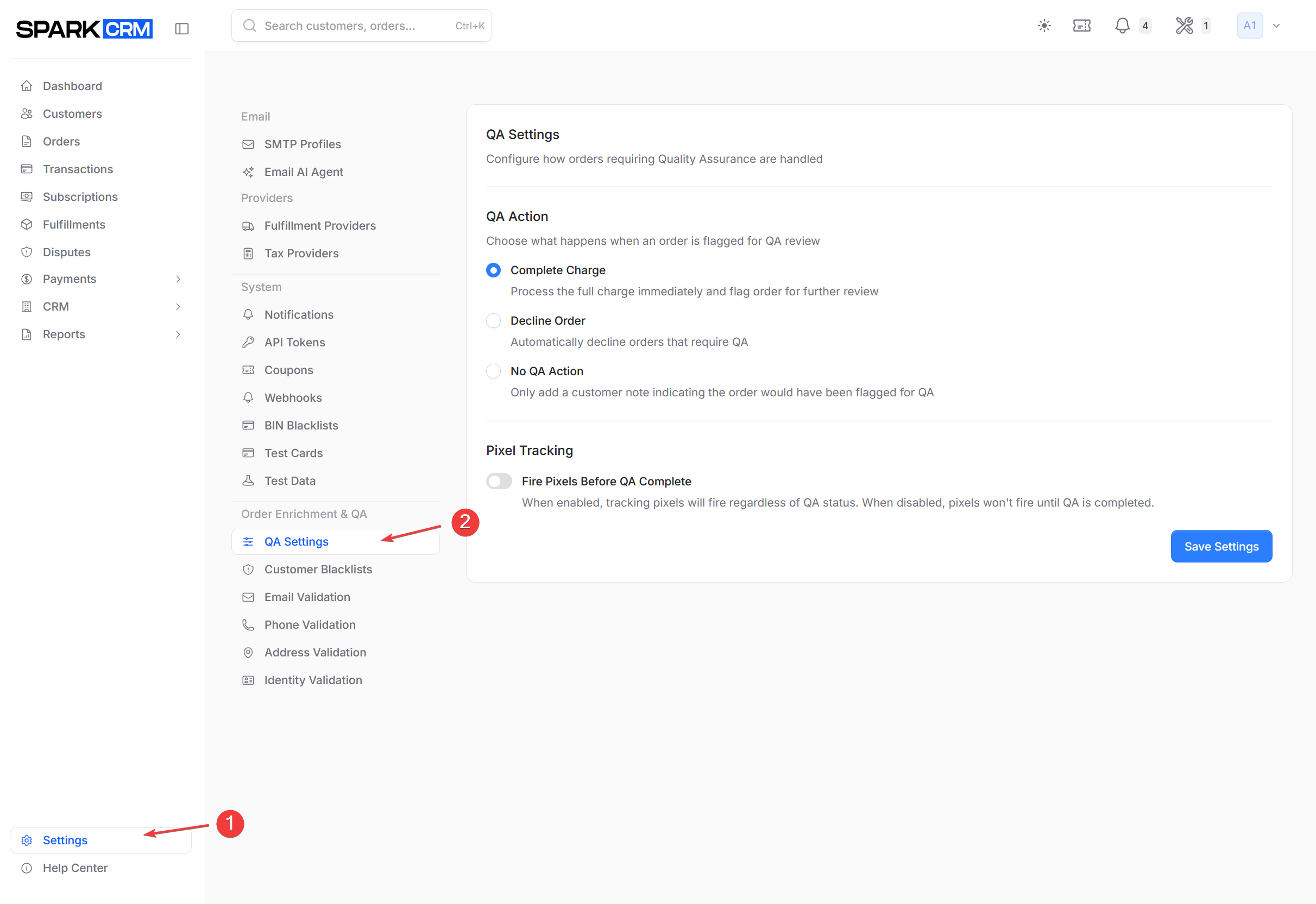
QA Settings controls what happens to orders that have already been flagged for QA — whether the charge completes, when subscriptions are created, and whether tracking pixels fire — plus one auto-flagging rule of its own: fulfillment-delay monitoring. The criteria that flag an order in the first place are configured on Settings > Email Validation, Phone Validation and Address Validation.
Navigation: Settings > QA Settings
Overview
The QA system helps you:
- Hold suspect orders for a person to check before they ship
- Decide whether an order that needs review is still charged
- Delay subscription creation until the review is done
- Catch fulfillments that have stalled at a stage
Flagged orders appear in the QA Review queue for manual review.
How QA Works
Order Flow
- Order placed - Customer completes checkout
- Validation run — the enabled validation services check the order, and any validation rule whose action is “Send to QA” flags it. Other events flag an order independently of those rules: a stalled fulfillment, a chargeback or fraud alert, a missing shipping address, or an alternative payment method.
- Order flagged - The order is marked for review and joins the QA queue
- QA review - Team reviews flagged order
- Complete QA — the reviewer confirms the order, which releases it to fulfillment and creates any deferred subscriptions. There is no reject or cancel action inside the QA flow; cancelling or refunding an order is done separately from the order detail page.
QA Queue
Flagged orders appear in:
- QA count badge in the app header (visible on every page in the desktop header; hidden on small screens)
- Orders list filtered with Only show QA orders set to True
- The QA Review queue at
/qa-review— click the QA badge in the app header to open it (there is no sidebar entry).
What Flags an Order for QA
This screen holds no flagging criteria of its own apart from fulfillment monitoring. Most flags come from the validation rules configured on the validation screens; the rest are raised automatically by the system.
Validation Rules
Validation rules are configured separately under Settings > Email Validation, Phone Validation and Address Validation — this screen does not link to them. Which validation failures send an order to QA is decided there, by giving each condition the action Send to QA. A condition can instead be set to Decline Order, Flag Only (No Action), or Auto Correct (typo conditions only).
| Validation screen | Conditions that can be set to “Send to QA” |
|---|---|
| Email Validation | Syntax/Format Error, Disposable Email, Spam Trap, Abuse/Complaint Email, Do Not Mail, Invalid Domain, Contains Typo, Role-based Email, Government Email (.gov, .mil) |
| Phone Validation | Invalid Phone Number, Non-Fixed VOIP, Country Mismatch with Shipping, Landline Number, Prepaid Phone, Disconnected/Inactive |
| Address Validation | Invalid Address, Missing Apt/Suite Number, Reship/Freight Forwarder, PO Box Address, Undeliverable Address, Commercial Address, Unknown/Unverified Address |
Geographic Rules
| Rule | Description |
|---|---|
| High Risk Country | Customer from flagged country |
Other Events That Flag an Order
These do not depend on a validation rule:
- A fulfillment stalled at a stage past its day threshold (see Fulfillment Monitoring below)
- A chargeback or fraud alert on the order
- A missing shipping address
- An alternative payment method
What Does Not Flag an Order
- Blacklist matches decline the order outright — see Blacklists — they do not create a QA review.
- AVS mismatches surface as decline categories on the transaction, not as QA flags. See Decline Mappings.
- International cards are allowed or blocked per campaign in Campaign settings, not flagged for QA.
Configuring QA Settings
Step 1: Navigate to QA Settings
- Go to Settings in the sidebar
- Click QA Settings in the left menu
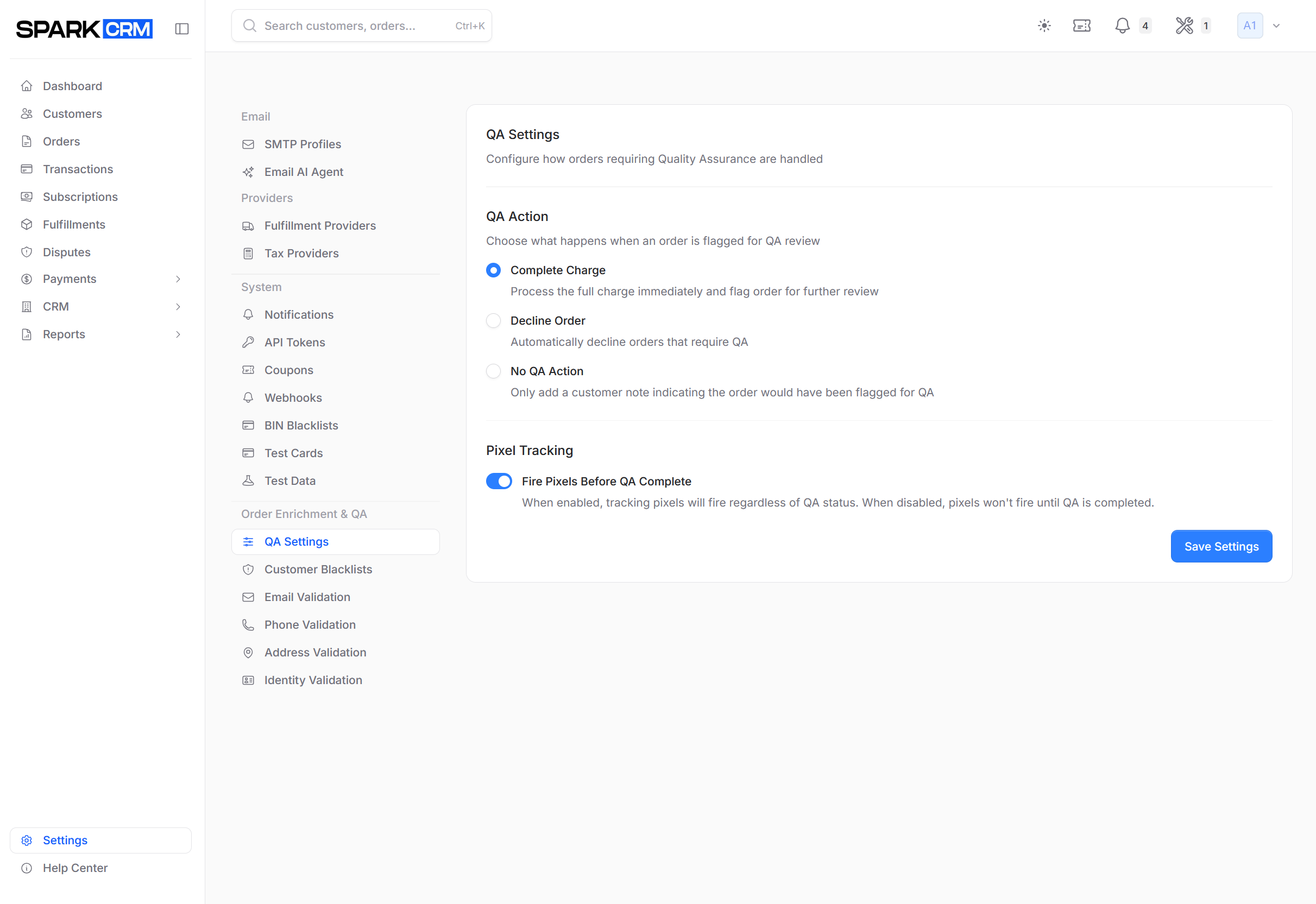
Step 2: Choose a QA Action
This decides what happens to an order that requires QA:
| Action | Description |
|---|---|
| Complete Charge (default) | The charge is processed in full and the order is flagged for review |
| Decline Order | Any order that requires QA is automatically declined — the transaction is recorded as a decline with the message “Order requires QA review and was auto-declined”, so the sale is lost outright |
| No QA Action | The order is not flagged; only a note is recorded |
Step 3: Choose When Subscriptions Are Created
| Option | Description |
|---|---|
| Create Subscription Immediately (default) | Subscriptions are created at checkout or upsell time even when the order is flagged for QA |
| Hold Subscription Until QA Complete | Subscription creation is held until the order is approved, at which point the pending subscriptions are created automatically |
Only subscription creation is deferred — the order itself still processes.
Step 4: Decide When Tracking Pixels Fire
Fire Pixels Before QA Complete (default off) controls whether affiliate postbacks and tracking pixels fire while an order is sitting in QA:
- Off — the postback is held until the QA review is completed, then fires once
- On — the postback fires immediately at order completion and is not re-fired on QA completion
Step 5: Enable Fulfillment Monitoring
Fulfillment Monitoring is the one auto-flagging rule on this screen. It offers three per-stage switches, each paired with a Days threshold between 1 and 30. All three are off by default:
| Stage | Default threshold |
|---|---|
| Sent to Fulfillment (Processing) | 2 days |
| Label Created | 3 days |
| Carrier Accepted | 2 days |
The whole section requires Enhanced Shipping/Enhanced Tracking on the team’s billing settings; without it the screen shows an Enable Enhanced Tracking prompt instead.
An hourly job checks the thresholds, force-flags the order for QA and notifies the QA team. Note that it clears a previously completed QA review, so a stalled fulfillment re-opens QA on an order that has already been reviewed.
Step 6: Save
Click Save Settings. A “Settings Saved” confirmation appears.
Managing the QA Queue
Viewing Flagged Orders
- Go to Orders in the sidebar
- In the filters panel, set Only show QA orders to True (or open
/orders?qa=1) - Or click the QA badge in the app header to open the QA Review queue at
/qa-review
Reviewing an Order
For each flagged order:
- Click to view order details
- Review the QA reasons shown
- Check customer history
- Verify payment and address information
Approving an Order
- Click Complete QA Review on the order and confirm with Confirm & Complete (or use Confirm QA from the QA Review queue, or Release from QA from the orders list row menu)
- Add an optional review note (available on the order-detail modal and the QA Review bulk-confirm modal; the single-order Confirm QA and Release from QA actions record an automatic “QA Released by {name}” note instead) — the note is stored on the order as
qa_notesand mirrored into the order’s system notes - The order continues to fulfillment, and any deferred subscriptions are created
Rejecting an Order
QA has no reject action. A reviewer who wants to kill an order completes the QA review and then refunds or cancels the order separately from the order detail page.
QA notifications go to the team (see Notifications), never to the customer.
QA Reasons
When an order is flagged, the system records why in qa_reason — a free-text field (truncated to 252 characters) describing why the order was flagged. For example:
Phone validation: invalid number, VOIP numberAddress is not deliverableDelayed Fulfillment: Processing (2d) — #12345Chargeback received — Dispute ID: ...
The QA Review page groups these into filterable categories: Address, Email, Phone, Fraud, Dispute, Fulfillment, Shipping, Manual Collection, System Error, Alt Payment.
View all QA reasons on the order detail page.
Best Practices
Balance Risk vs Friction
- Decline Order loses every flagged sale, legitimate ones included
- Complete Charge keeps the revenue, but the order ships unless someone works the queue
- Tighten or loosen the conditions set to “Send to QA” on the validation screens, and adjust over time
Work the Queue Daily
With the default Complete Charge action a flagged order has already been paid for and moves on unless a reviewer looks at it. Check the QA badge in the app header every day.
Hold Subscriptions While You Review
Use Hold Subscription Until QA Complete so a flagged order does not start a rebill cycle before a person has checked it.
Train QA Team
- Document review procedures
- Establish approval criteria
- Track reviewer decisions
Monitor QA Metrics
- Track QA queue volume
- Measure how long orders wait before QA is completed
- Identify the most common QA reason categories
Troubleshooting
Too Many Orders Flagged
Consider:
- Review which conditions on the Email, Phone and Address Validation screens use the “Send to QA” action, and switch the noisiest ones to “Flag Only (No Action)”
- Raise the Fulfillment Monitoring day thresholds, or turn off the stage that keeps firing
Fraud Getting Through
Consider:
- Set more validation conditions to “Send to QA” or “Decline Order”
- Enable additional validation services
- Use Hold Subscription Until QA Complete so flagged orders cannot rebill before review
A Reviewed Order Is Back in QA
Consider:
- Fulfillment Monitoring re-flags an order whose fulfillment has stalled and clears the earlier QA completion — check the fulfillment stage and the day thresholds
QA Queue Backlog
Consider:
- Add more reviewers
- Streamline review process
- Reduce the number of validation conditions set to “Send to QA”
Related Topics
- Validation Services - Where “Send to QA” conditions are configured
- Blacklists - Customer and BIN blocking
- Notifications - Where QA alerts are delivered