

Decline salvage automatically retries declined transactions according to a configurable schedule, recovering revenue that would otherwise be lost.
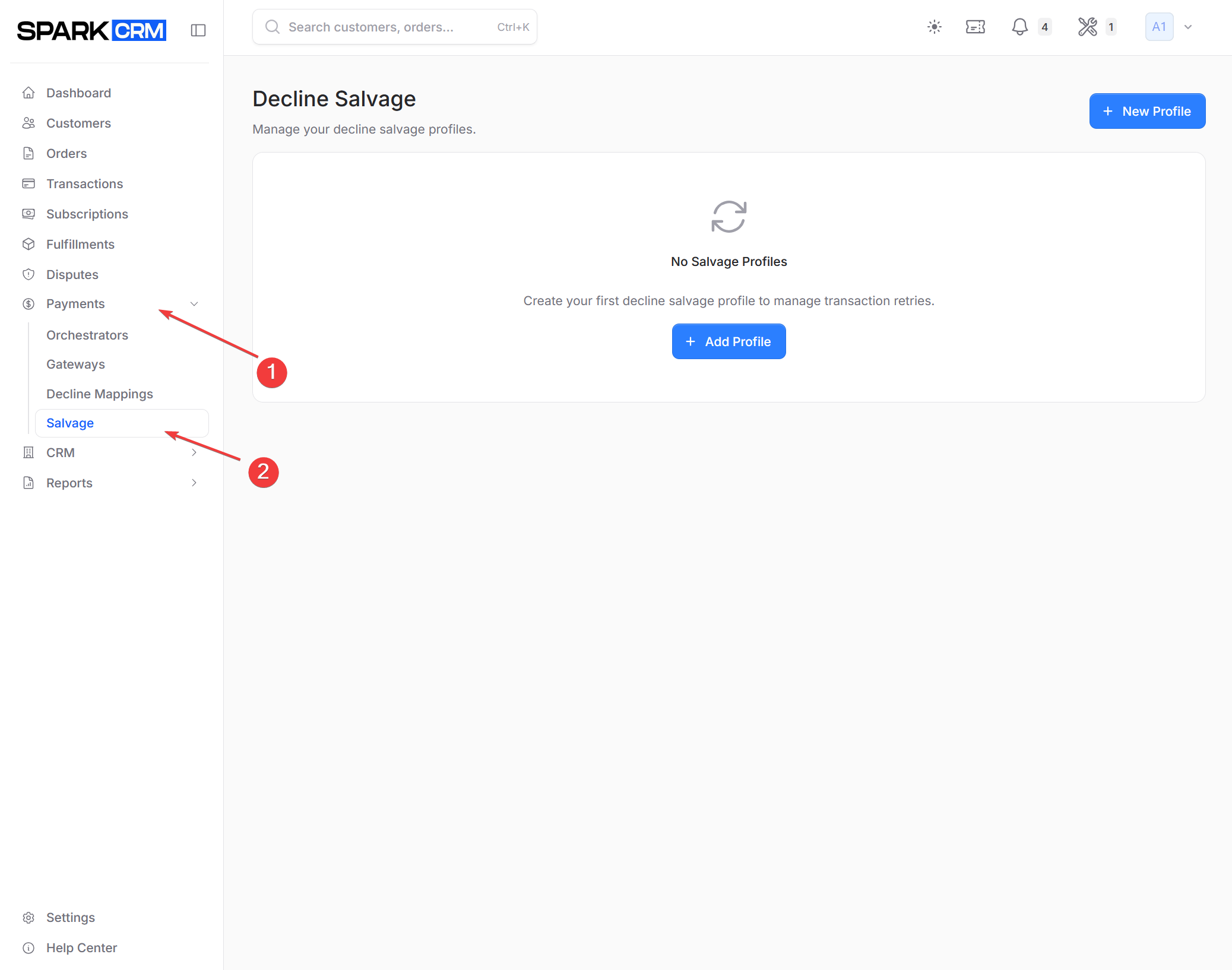
Navigation: Sidebar > Payments > Salvage
Why Use Decline Salvage?
Many legitimate transactions decline for temporary reasons:
- Insufficient funds - Customer’s balance is low
- Network issues - Temporary processor problems
- Bank holds - Temporary fraud prevention
- Rate limiting - Too many recent attempts
By intelligently retrying these transactions, you can recover revenue that would otherwise be lost — track your actual rate in the Decline Salvage report.
How Salvage Works
When a transaction declines:
-
Evaluate eligibility
- Confirm the profile is active and its Transaction Type covers this charge (initial or rebill)
- Check the transaction amount against the profile’s Minimum/Maximum Amount
- Check that the transaction’s decline code is not in the profile’s Excluded Decline Codes list
There is no built-in notion of a “non-retryable” decline. Every decline reason is retried unless you explicitly exclude its code on the profile.
-
Schedule retry
- Queue the original declined transaction on the dedicated
salvagequeue - Wait the greater of the delay configured for that attempt and the profile’s Min Retry Interval (default 15 minutes) - a custom 5-minute first attempt actually runs at 15 minutes
- The gateway is resolved when the retry runs, not when it is scheduled
- Queue the original declined transaction on the dedicated
-
Execute retry
- Re-charge the order’s full cart total - the whole cart including shipping and tax, not just the amount of the charge that declined - and re-attach every cart product to the new transaction
- Record the result
This full-cart re-charge is why upsell transactions are never salvaged: retrying one would re-bill items the initial charge already covered.
-
Handle result
- Success: Transaction completes normally
- Decline: Schedule next retry or mark as failed
Salvage Profile Types
Standard
Pre-configured retry schedule optimized for common scenarios.
Default Schedule:
| Attempt | Delay |
|---|---|
| 1 | 45 minutes |
| 2 | 3 hours |
| 3 | 6 hours |
| 4 | 1.5 days |
Best for:
- Getting started quickly
- Most transaction types
- General use
Custom Schedule
Define your own retry timing.
Best for:
- Specific business requirements
- Different product types
- Subscription vs one-time optimization
Creating a Salvage Profile
Step 1: Navigate to Salvage
- Go to Payments > Salvage in the sidebar
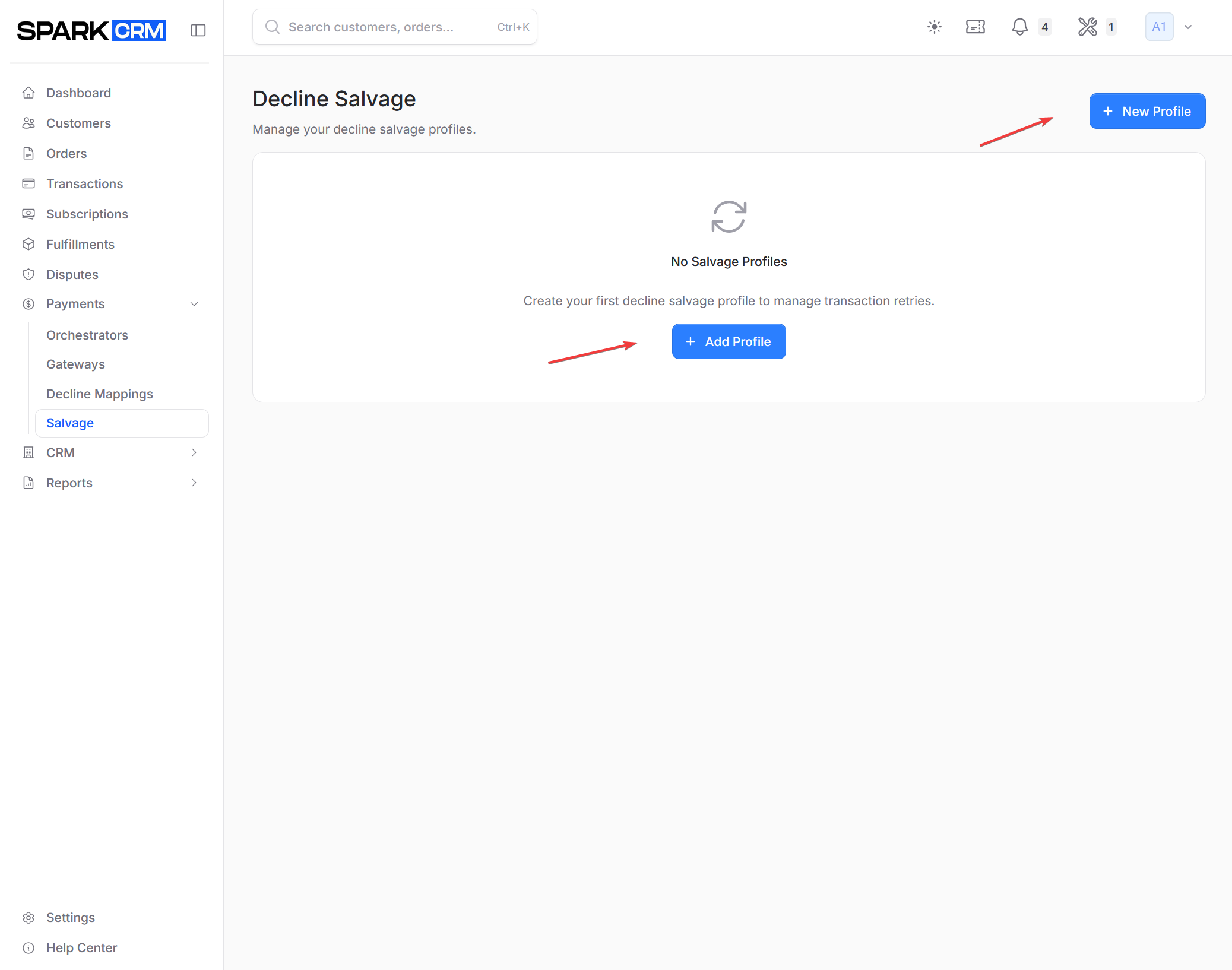
- Click New Profile or Add Profile button
Step 2: Configure Basic Settings
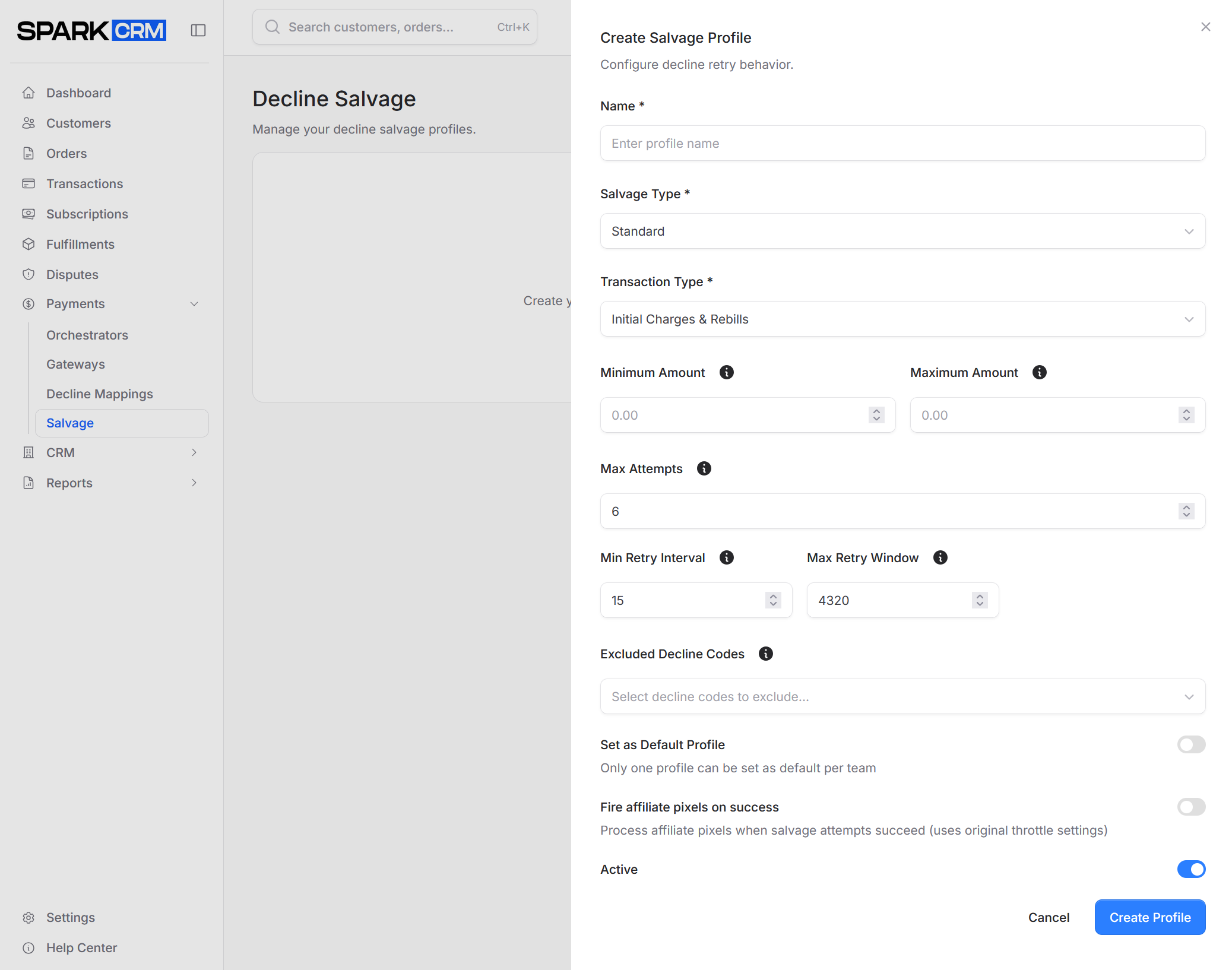
| Field | Description |
|---|---|
| Name | Descriptive profile name |
| Salvage Type | Standard or Custom Schedule |
| Transaction Type | Initial, Rebill, or Both |
| Active | Enable/disable the profile |
| Set as Default Profile | Makes this the team-wide fallback used by any campaign - new or existing - that has no salvage profile of its own. Only one profile per team can be default; turning it on here clears the flag on the previous default. |
| Auto-apply to new campaigns & stores | Stamps this profile onto newly created campaigns. The switch appears only once Set as Default Profile is enabled, and it takes effect only while the profile is both default and active. Despite the label, only campaigns are auto-assigned - no store creation path uses this setting. |
| Fire affiliate pixels on success | Off by default. When on, a salvaged order goes through your normal affiliate throttling rules and can fire affiliate postbacks. When off, every successfully salvaged order is force-marked throttled (throttle source: System), so no affiliate postback fires and the recovery is excluded from the Salvage Report’s totals. |
Transaction Type Options
| Type | Description |
|---|---|
| Initial | Only salvage first-time transactions |
| Rebill | Only salvage subscription rebills |
| Both | Salvage both initial charges and rebills. Note: upsell transactions and alternative-payment transactions (e.g. PayPal) are never salvaged on any profile, and a salvage retry is itself never re-salvaged. |
Step 3: Configure Retry Schedule
For Custom Schedule type, define your retry attempts:
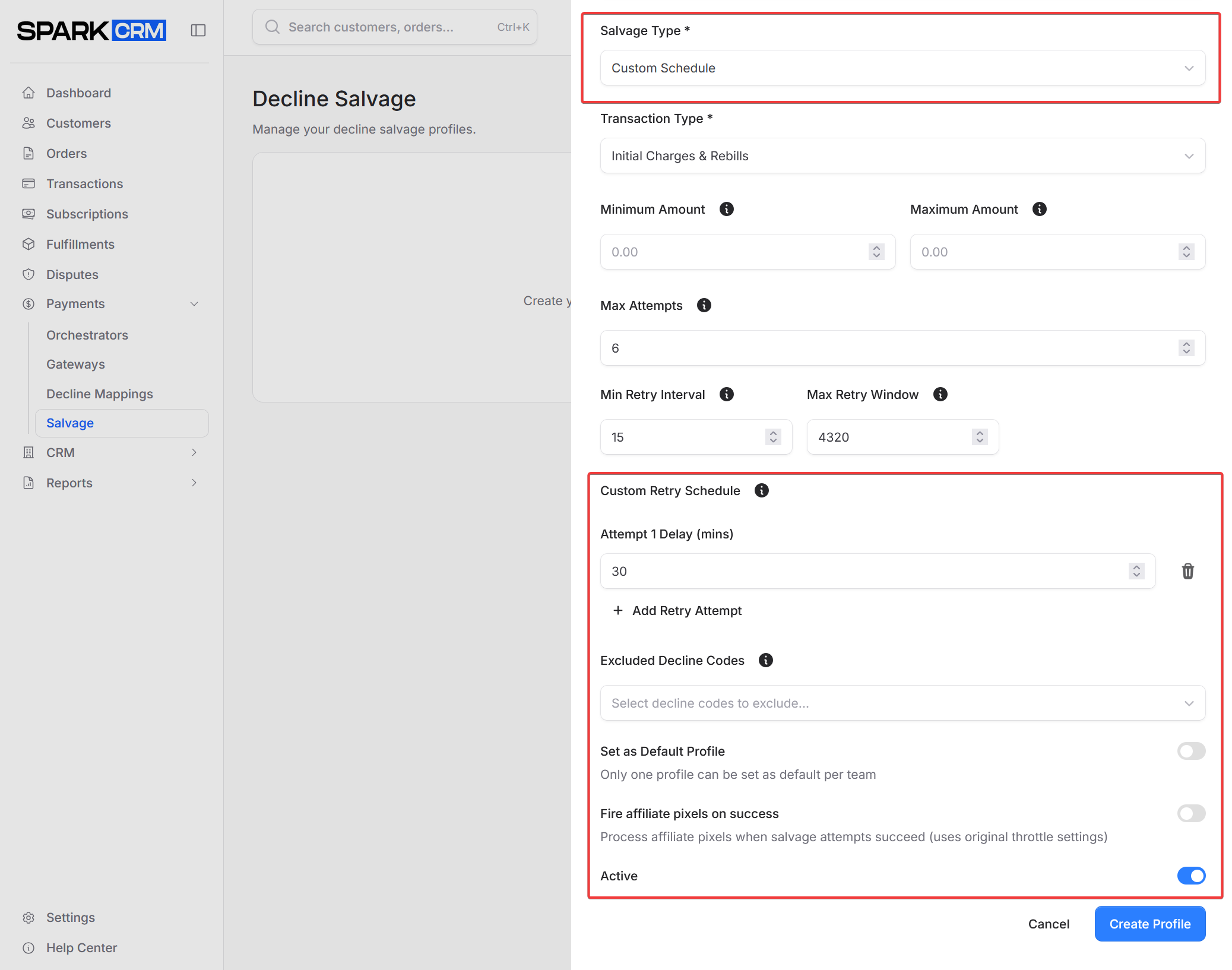
- Click Add Retry Attempt to add an attempt
- Set the delay (in minutes) for each attempt
- Attempts are numbered in the order you add them. Remove one with the trash icon - the first attempt cannot be removed - and the remaining attempts renumber automatically. There is no way to reorder attempts; delete and re-add them to change the order.
Example Custom Schedule - each delay is the wait after the previous attempt, not an offset from the original decline:
| Attempt | Delay | Runs approximately |
|---|---|---|
| 1 | 30 min | 30 min after the decline |
| 2 | 120 min | ~2.5 hours after the decline |
| 3 | 1440 min | ~26.5 hours after the decline |
| 4 | 2880 min | ~3.1 days after the decline |
Because the delays are cumulative, check the running total against Max Retry Window (default 4320 minutes / 3 days), which is measured from the original declined transaction.
Step 4: Configure Limits
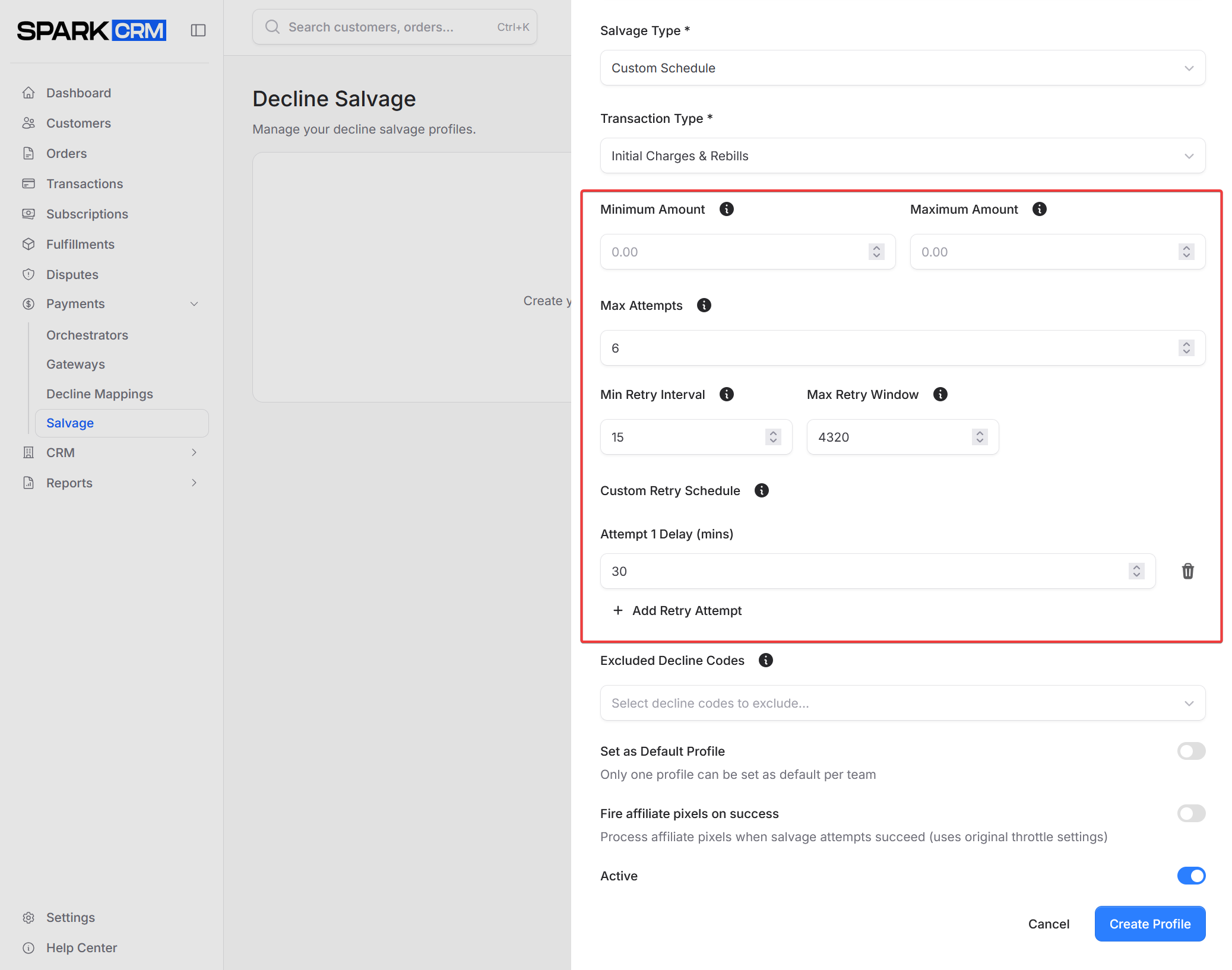
| Field | Description |
|---|---|
| Max Attempts | Maximum retry attempts (default: 6) |
| Min Retry Interval | Minimum minutes between retries |
| Max Retry Window | Maximum minutes for salvage attempts (e.g., 4320 = 3 days) |
| Minimum Amount | Only salvage transactions above this amount |
| Maximum Amount | Only salvage transactions below this amount |
Step 5: Configure Exclusions
Exclude certain decline codes from salvage:
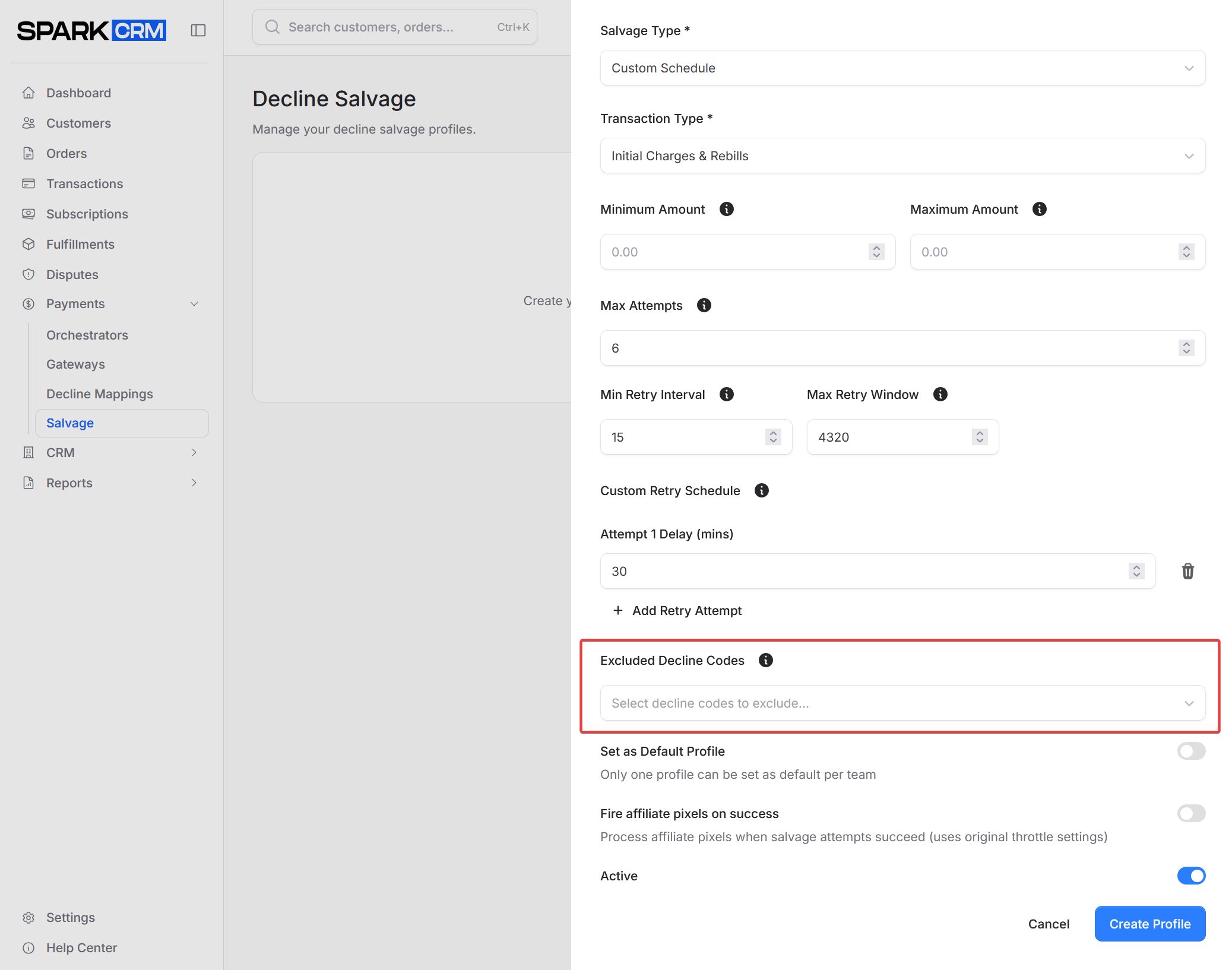
Select decline codes that should never be retried. The available options are:
- Insufficient Funds
- Card Declined
- Expired Card
- Invalid Card
- Suspected Fraud
- Lost Card
- Stolen Card
- Invalid Expiry
- Invalid CVC
- Processing Error
The usual hard declines to exclude are Lost Card, Stolen Card, Suspected Fraud and Invalid Card.
Step 6: Save
Click Create Profile to save the new profile (the same button reads Update Profile when you are editing an existing one).
Managing Salvage Profiles
Profile List
The list shows all configured profiles:
| Column | Description |
|---|---|
| Name | Profile name (sortable) |
| Type | Standard or Custom Schedule |
| Transaction Type | Initial Charges Only, Rebills Only, or Initial Charges & Rebills |
| Max Attempts | Configured attempt cap, or “No limit” |
| Amount Range | The minimum-maximum amount filter, or a “No limits” badge |
| Default | A “Default” badge on the team’s default profile |
| Status | Active/Inactive |
| Actions | Row ⋯ menu with Edit and Delete |
The list paginates at 10 profiles per page.
Editing a Profile
- Find the profile in the list
- Open the row’s ⋯ (ellipsis) menu and choose Edit
- Modify settings
- Click Update Profile
Deleting a Profile
- Find the profile in the list
- Open the row’s ⋯ (ellipsis) menu and choose Delete
- Type the profile name in Confirm Profile Name (case-insensitive)
- Click Delete Profile
Deletion is a soft delete: creating a profile with the same name later restores and updates the old record.
Warning: Ensure no campaigns are using this profile before deleting.
Assigning Profiles to Campaigns
To point a campaign at a specific salvage profile:
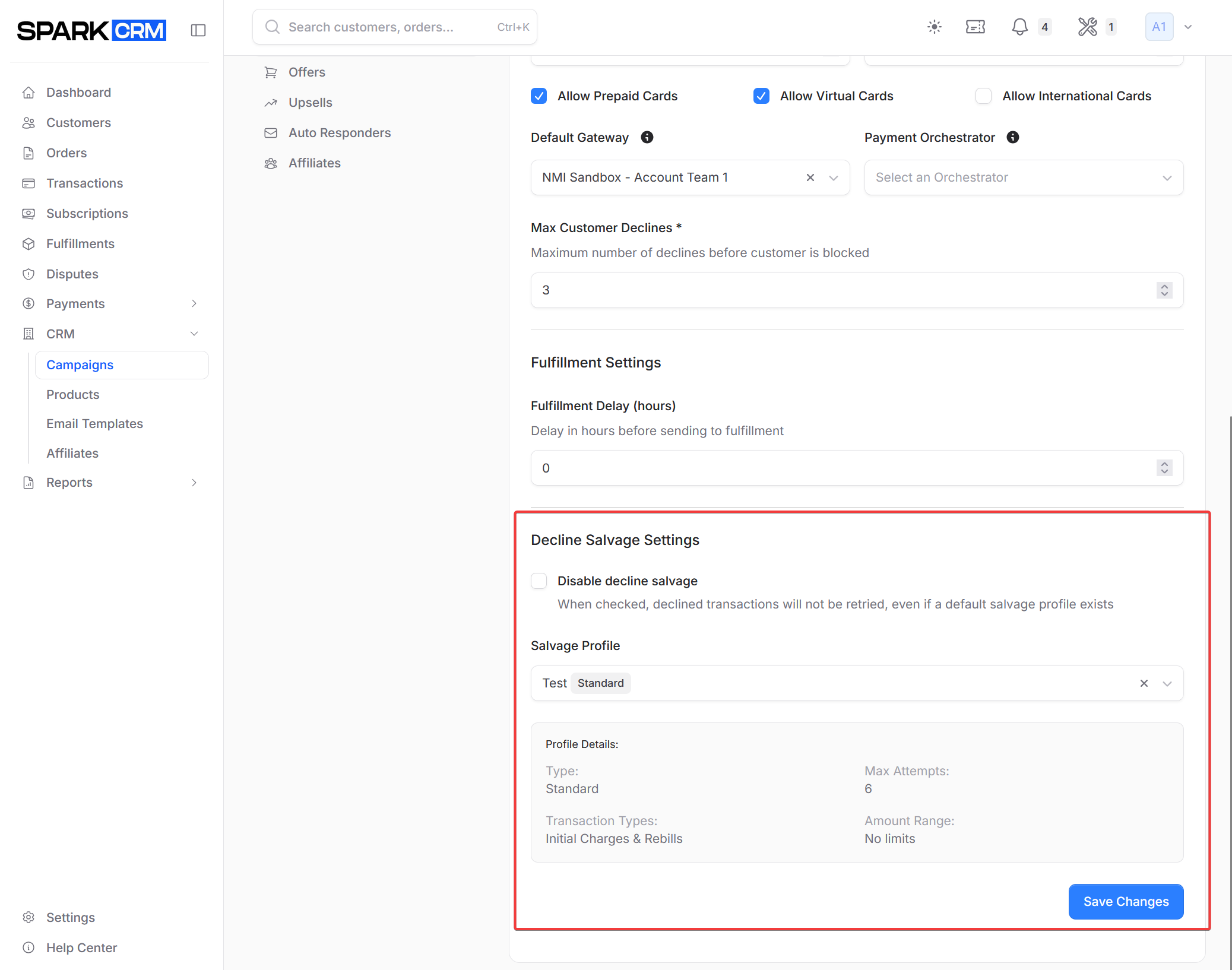
- Go to CRM > Campaigns
- Edit the campaign
- In the Settings tab, under Decline Salvage Settings, choose a Salvage Profile
- Save the campaign
Assigning a profile is optional - a campaign with no profile selected falls back to the team’s default salvage profile. To stop salvage for a campaign entirely, tick Disable decline salvage in Decline Salvage Settings; that overrides the team default and hides the profile dropdown.
Salvage Reporting
Track salvage effectiveness:
Salvage Report
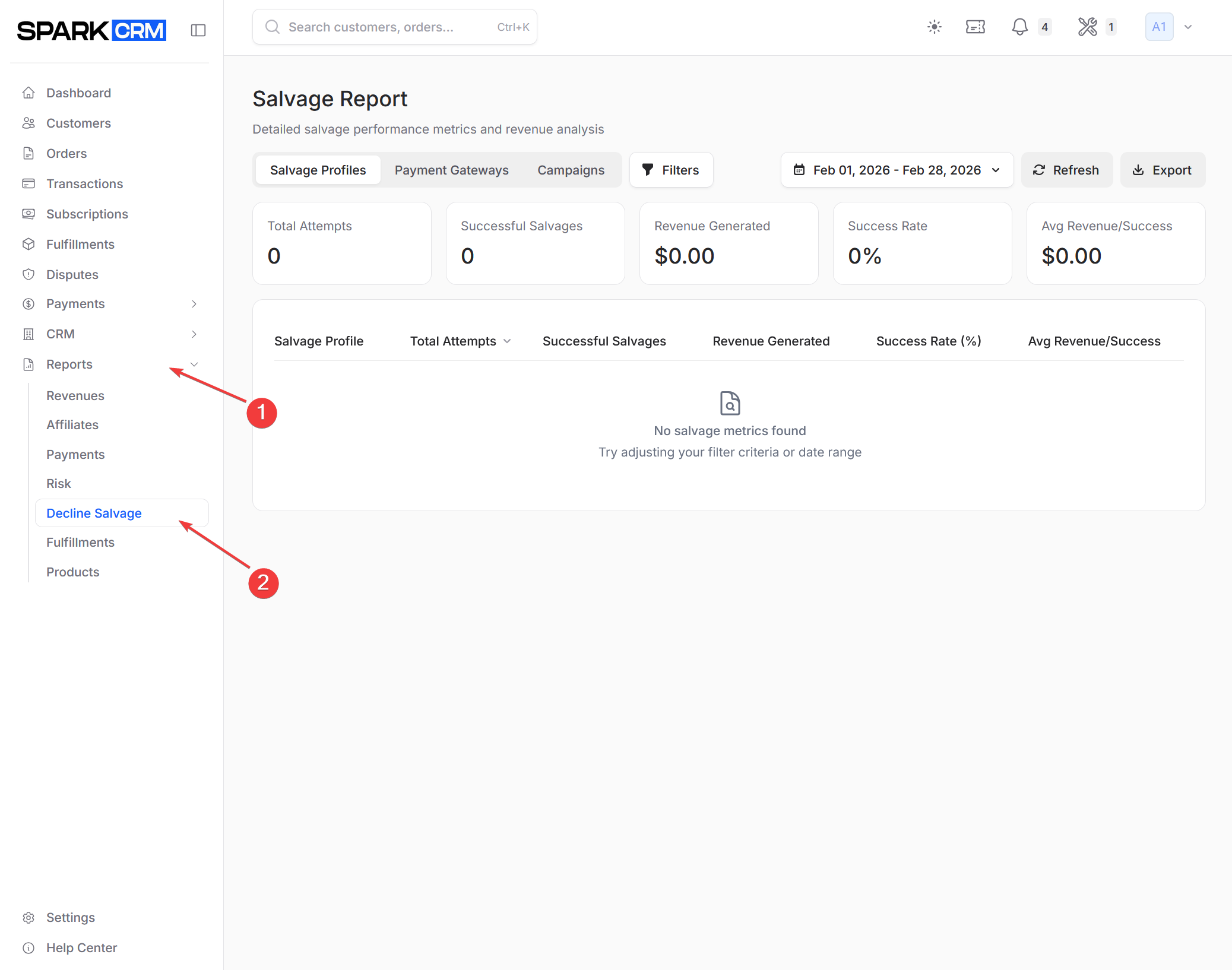
Navigation: Reports > Decline Salvage
The report shows five summary cards:
- Total Attempts
- Successful Salvages
- Revenue Generated
- Success Rate
- Avg Revenue/Success
It counts salvage retry transactions only (retry_attempt > 0) - the pool of original declines eligible for salvage is not reported here. The report also excludes test orders and any order marked throttled, so its totals can sit below what you see elsewhere.
Key Metrics
| Metric | Description |
|---|---|
| Success Rate | Successful salvage attempts ÷ total salvage attempts, as a percentage. A single decline retried four times contributes four attempts to the denominator, so this is not a per-decline recovery rate. |
| Revenue Generated | Total amount of approved salvage transactions in the period. Warning: salvage successes on profiles with Fire affiliate pixels on success turned off are automatically marked throttled and excluded from this report, so this figure can read $0 while salvage is recovering money. Test orders are excluded as well. |
| Avg Revenue/Success | Revenue Generated ÷ Successful Salvages |
Best Practices
Profile Configuration
Start with Standard:
- Use Standard type initially
- Monitor results for 2-4 weeks
- Create Custom only if data supports changes
Set Reasonable Limits:
- Max Attempts: 4-6 (more can annoy banks)
- Retry Window: 3-7 days max
- Minimum Interval: 15+ minutes
Exclude Hard Declines:
- Never retry stolen/lost cards
- Never retry fraud declines
- Never retry Invalid Card declines
Transaction Types
Initial Transactions:
- More aggressive salvage acceptable
- Customer expects the charge
- Higher recovery potential
Rebills (Subscriptions):
- More conservative approach
- Customer may have forgotten
- Balance retry with communication
Monitoring
Review weekly:
- Success rate by profile
- Revenue generated
- Decline reasons being salvaged
Adjust based on data:
- Increase delays if recovery low
- Reduce attempts if lots of failures
- Add exclusions for stubborn declines
Salvage and Gateway Selection
When a salvage retry occurs:
Same Gateway Retry
Unless a Custom Schedule sets a gateway for that attempt, the retry is submitted to the same gateway that received the original decline.
Why:
- Card may be on file
- Bank may approve second attempt
- Simplest approach
Retrying on a different gateway
Salvage retries do not re-run orchestrator routing. The retry is submitted with an explicit gateway - the gateway that took the original decline, or the per-attempt gateway from a Custom Schedule - and an explicit gateway bypasses the orchestrator entirely.
To move a retry to a different processor, set the Gateway on that attempt in a Custom Schedule. If the configured gateway is missing, belongs to another team, or is not Active, the retry falls back to the original decline’s gateway.
Benefits:
- Different processor may approve
- Avoids same-gateway rate limiting
- Optimizes for approval
Troubleshooting
Salvage Not Running
Check the profile:
- Profile is Active
- Transaction amount is within the profile’s Minimum/Maximum Amount
- Transaction Type covers this charge (initial vs rebill)
- Decline code is not in Excluded Decline Codes
- The retry schedule defines a delay for this attempt number, and Max Attempts / Max Retry Window are not exhausted
Check the campaign:
- The campaign has a profile assigned, or the team has an active default profile
- Disable decline salvage is unchecked on the campaign
Check the transaction - these are never salvaged:
- Upsell transactions
- Alternative-payment transactions (e.g. PayPal)
- Salvage retries themselves
- Transactions on an order that already has a completed or authorized charge, or whose status is already Completed or Processing
- Declines that are not the most recent declined charge on the order
- Subscriptions no longer in Salvaging status (or already Salvage Failed)
- Transactions with no stored payment method to re-charge
Low Recovery Rate
Consider:
- Retry delays may be too short
- Wrong decline types being retried
- Card data may be fundamentally bad
Too Many Retries
Check:
- Max attempts setting
- Retry window setting
- Exclusion list completeness
Related Topics
- Decline Mappings - Standardize decline codes
- Payment Gateways - Gateway configuration
- Payment Orchestrators - Failover routing
- Cascade Profiles - Immediate retries, before the customer leaves