

Webhooks allow you to receive real-time HTTP notifications when events occur in Spark CRM.
Navigation: Settings > Webhooks
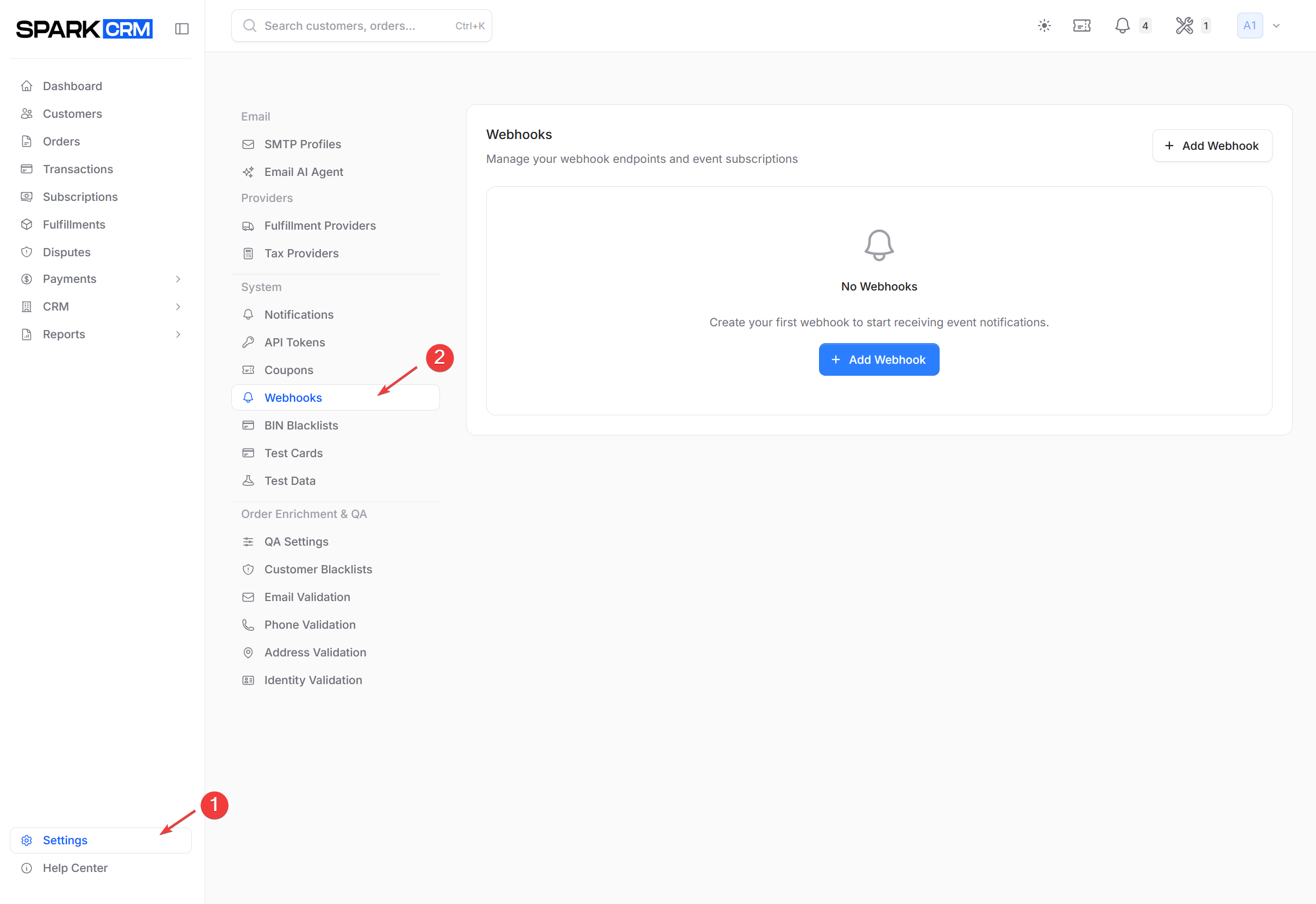
Overview
When a configured event occurs, Spark CRM calls your endpoint using the HTTP method selected on the webhook (Method — POST or GET; the create form opens with GET preselected). POST deliveries carry a JSON body; GET deliveries send no body at all, so any data must be passed through {token} placeholders in the Endpoint URL.
Creating a Webhook
Prerequisites
Webhooks are available on Account-type teams only. You also need the relevant webhook permissions: webhooks:view_any to see the list, webhooks:create to add one, webhooks:update to edit, webhooks:delete to remove, and webhooks:view_logs for logs and statistics. Account owners and administrators have them all.
Without view permission the panel shows an Access Restricted card; without both update and delete permission the row menu shows only a disabled View Only item.
Step 1: Navigate to Webhooks
- Go to Settings in the sidebar
- Click Webhooks in the left menu
Step 2: Add Webhook
- Click Add Webhook button
- Configure the webhook settings:
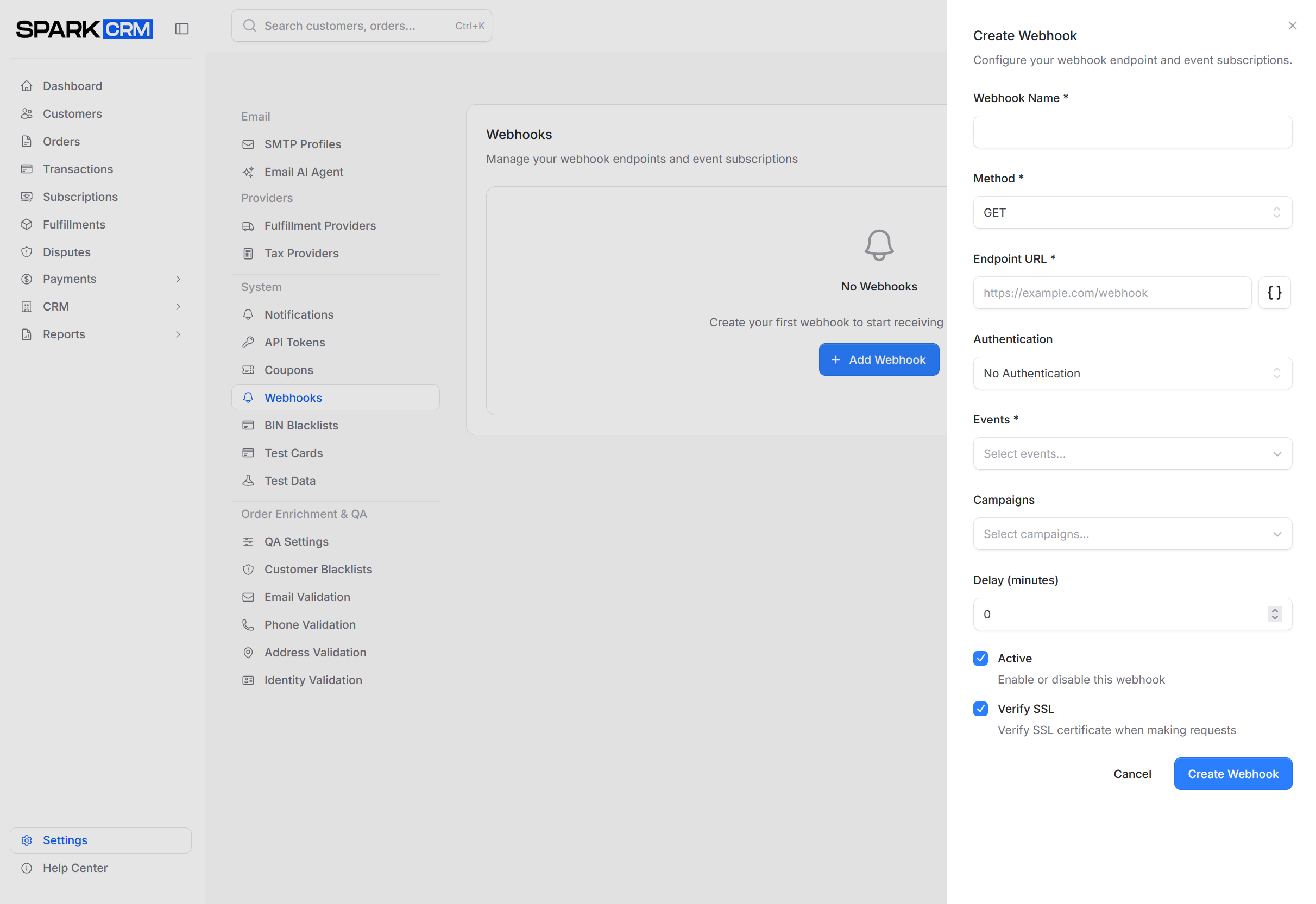
| Field | Description |
|---|---|
| Webhook Name * | A label for the webhook; shown in the list and in the logs flyout |
| Method * | POST or GET. Defaults to GET. POST sends a JSON body; GET sends none |
| Endpoint URL * | The destination URL, e.g. https://example.com/webhook. Supports {token} placeholders — click the braces button beside the field to browse and copy available tokens. HTTPS is strongly recommended, since the signature header and any configured authentication credentials travel as request headers, but http:// URLs are accepted and not rejected by validation |
| Authentication | How Spark CRM authenticates to your endpoint: No Authentication (default), Bearer Token (Authorization: Bearer …), API Key (X-API-Key: …), Custom Header (you supply the header name), or Basic Authentication (Authorization: Basic …, base64-encoded). Any option other than No Authentication requires a credential value; Custom Header also requires a Header Name. Basic Authentication expects user:password and is masked in the form |
| Secret | Optional shared secret for verification |
| Events * | Searchable multi-select. Choose at least one trigger; the webhook fires on any selected event, subject to the campaign scoping below |
| Select All Campaigns | Fire for every campaign, including campaigns created later |
| Campaigns | Shown when Select All Campaigns is unchecked. Restrict this webhook to the selected campaigns — events from other campaigns are not delivered. Leaving it empty applies no campaign filter. Customer-level events have no campaign and are never filtered |
| JSON Payload Parameters | POST only. Custom key/value pairs (token placeholders supported) that replace the default payload |
| Delay (minutes) | Hold the delivery for this many minutes after the event fires (0 = send immediately; maximum 10,080 = 7 days). Ignored for Cart Abandoned, which is already scheduled. Delayed deliveries re-check the record’s state when they are finally sent and are skipped if it no longer matches the event |
| Active | Enable or disable this webhook (checked by default) |
| Verify SSL | Validate the endpoint’s TLS certificate (checked by default) |
Fields marked * are required.
Step 3: Select Events
Choose which events should trigger the webhook. The Events field is a single searchable multi-select containing every trigger in one flat list — the groupings below are a documentation aid only, so type to filter rather than looking for headings. At least one event is required.
Transaction Events:
- Transaction Approved
- Transaction Declined
Order Events:
- Order Created
- Order Updated
- Order Complete
- Order Canceled
- Order Declined
- Refund Created
There is no transaction-level refund trigger — refunds are covered by Refund Created, whose payload names the refund transaction, the original charge and the refunded products.
Subscription Events:
- Subscription Created
- Subscription Updated
- Subscription Canceled
- Subscription Process Reminder
- Subscription Past Due
- Subscription Expired
- Trial Started
- Trial Ended
- Subscription Rebill Complete
- Subscription Rebill Declined
Customer Events:
- Customer Created
- Customer Updated
- New Customer Added
- Customer Blacklisted
Cart Events:
- Cart Abandoned
Fulfillment Events:
- Fulfillment Created
- Tracking Updated
- Out for Delivery (requires Enhanced Shipping Notifications)
- Delivered (requires Enhanced Shipping Notifications)
Dispute Events:
- Dispute Opened
- Dispute Won
- Dispute Lost
Out for Delivery and Delivered require the Enhanced Shipping Notifications add-on. Without it, both appear in the Events list greyed out and labelled “(Requires Enhanced Shipping Notifications)” and cannot be selected. Fulfillment Created and Tracking Updated are always available.
Selecting an event is not the only condition for delivery — campaign scoping applies as well. See Select All Campaigns and Campaigns in the field table above.
GET https://api.sparkcrm.io/v1/webhooks/events returns every trigger with its label and available tokens if you need the authoritative list.
Step 4: Save
Click Create Webhook to save the new webhook (on the edit flow the same button reads Update Webhook).
A Webhook Created (or Webhook Updated) confirmation appears and the panel closes. Saving replaces the webhook’s entire event subscription set — any event you deselect is removed. The signing secret is generated when the webhook is first created and is not regenerated by later edits.
Webhook Payload
What is sent depends on the webhook’s Method:
- GET — no body. Only the Endpoint URL is sent, with any
{token}placeholders substituted. - POST with no JSON Payload Parameters — a flat JSON object containing every available field for that event (null fields omitted).
- POST with JSON Payload Parameters defined — a JSON object containing exactly the parameters you defined, with
{token}placeholders substituted. The same parameter set applies to every event selected on the webhook.
Default POST body
{
  "event_type": "order_created",
  "timestamp": "2026-02-02T12:00:00Z",
  "order_number": "ORD-260202-00001",
  "order_uuid": "9f8c1d2e-3a4b-4c6d-8e8f-9a0b1c2d3e4f",
  "status": "processing",
  "total_amount": 99.99,
  "subtotal": 89.99,
  "tax": 5.00,
  "shipping": 5.00,
  "currency": "USD",
  "customer_number": "CUST-260202-00001",
  "customer_email": "jane@example.com",
  "items": []
}
There is no envelope — every field is top level, and fields with no value are omitted entirely.
Event values are always the snake_case trigger key (transaction_approved, subscription_rebill_complete, refund_created, and so on), matching the values returned by GET https://api.sparkcrm.io/v1/webhooks/events. There is no event key and no dot notation.
Order payload fields
order_number, order_uuid, status, total_amount, subtotal, tax, shipping, currency, customer_number, customer_email, customer_first_name, customer_last_name, phone and items[] (each item annotated with is_subscription and billing_interval), plus the shipping_* and billing_* address fields and the attribution fields affiliate_id, sub1-sub5, utm_source, utm_medium and utm_campaign. utm_term and utm_content appear on transaction payloads only.
Customer details are flat fields, not a nested customer object, and the line-item array is items[] — a products[] array appears on transaction, subscription and fulfillment payloads, not on order payloads.
URL tokens
The Endpoint URL supports {token} placeholders, e.g. https://example.com/hook?order={order_number}&email={customer_email}. Values are URL-encoded when the webhook is sent; tokens that have no value for that event are left in the URL as-is. Click the braces button beside the Endpoint URL field to browse and copy the available tokens.
Verifying Webhooks
If you configure a webhook secret, Spark CRM includes a signature header for verification:
X-Webhook-Signature: 9f86d081884c7d659a2feaa0c55ad015a3bf4f1b2b0b822cd15d6c15b0f00a08The value is the raw lowercase hex HMAC-SHA256 digest — there is no sha256= prefix.
Verification process:
- Compute HMAC-SHA256 of the raw request body using your secret
- Compare with the value in
X-Webhook-Signature - If they match, the webhook is authentic
Example (PHP):
$payload = file_get_contents('php://input');
$signature = $_SERVER['HTTP_X_WEBHOOK_SIGNATURE'] ?? '';
$expected = hash_hmac('sha256', $payload, $your_secret);

if (hash_equals($expected, $signature)) {
    // Webhook is verified
}
Managing Webhooks
Webhook List
The list shows your team’s webhooks, newest first, 10 per page:
| Column | Description |
|---|---|
| Name | Webhook name; shows a CS badge when created by a Customer Service provider, and an Nmin delay subtitle when a delay is configured |
| URL | Endpoint URL (truncated, monospace) |
| Events | Badges naming the first two subscribed events, plus a +N more badge when there are others |
| Method | GET or POST |
| Status | Active / Inactive |
| Created By | Team or CS |
| (actions) | The row’s ⋯ menu: Edit, Test Webhook, View Logs, View Statistics, Delete |
Last-delivery information is not shown in the list — open the row’s ⋯ menu and choose View Logs for per-delivery history, or View Statistics for the last successful and failed call and the success rate.
Webhooks created for you by a Customer Service provider also appear here, marked with a CS badge beside the name and shown as CS in the Created By column. An information callout appears above the table when any are present; these webhooks may have different access permissions than ones your team created.
Editing a Webhook
- Open the ⋯ menu at the end of the webhook’s row and choose Edit (the item appears only if you have webhook update permission; when you have neither update nor delete permission the menu shows only a disabled View Only item)
- Modify settings
- Click Update Webhook
Deleting a Webhook
- Open the ⋯ menu at the end of the webhook’s row and choose Delete (shown only if you have webhook delete permission)
- Confirm deletion in the Delete Webhook dialog
Testing a Webhook
Open the ⋯ menu and choose Test Webhook, then Send Test. The configured endpoint is called with dummy data substituted for any tokens, and the result modal shows the status code, final URL, payload, response body and response headers.
Viewing Delivery Logs
Open the ⋯ menu and choose View Logs for the per-delivery history: search, a status filter (Completed / Failed / Pending / Skipped), a per-page selector, View Details and Resend on each row, and Resend Selected for bulk redelivery.
Viewing Statistics
Open the ⋯ menu and choose View Statistics for the success rate, total, successful and failed call counts, average processing time, last successful and failed call, trigger distribution and the most common failure reasons.
View Logs and View Statistics require webhook log-viewing permission.
Delivery & Retries
Successful Delivery
- Your endpoint returns HTTP 200-299
- The delivery is recorded in the webhook’s logs with status Completed, along with the response code, response body and processing time
Log statuses are Pending, Completed, Failed and Skipped.
Failed Delivery
- Your endpoint is unreachable or times out
- The delivery is retried up to 3 attempts in total, waiting 30 seconds and then 60 seconds
- Retries apply only to connection-level failures. If your endpoint answers with an error status (4xx/5xx), the delivery is marked Failed immediately and is not retried — redeliver it manually from ⋯ > View Logs > Resend
- A webhook is switched off automatically only once it has been failing continuously for at least 3 hours and has accumulated at least 10 consecutive failures with no successful delivery in between
- When that happens its Status flips to Inactive, you are notified, and it stops firing until you edit it and re-check Active — re-enabling resets the failure streak
- Any single successful delivery resets the counter
Skipped Delivery
A queued delivery is skipped — logged with status Skipped and a reason — when the record it describes has changed state before it was sent. This is most likely on webhooks with a Delay configured, or on a retry. Examples: an order that recovered from Declined, a cart that is no longer abandoned, a reactivated subscription, an un-blacklisted customer, or a fulfillment whose delivery status changed.
Deliveries are also dropped entirely, with no log entry, if the webhook is deactivated or deleted while its jobs are still queued.
Timeout
- Your endpoint has 10 seconds to accept the connection and 20 seconds in total to respond
- Slower than that and the delivery is recorded as failed (and retried, since a timeout counts as a connection-level failure)
- Manual Test Webhook sends allow 30 seconds
- Return 2xx immediately and process data asynchronously if needed
Best Practices
Endpoint Design
- Respond quickly: Return 200 immediately, process async
- Idempotent handling: Same event may arrive multiple times
- Secure endpoints: use HTTPS and verify signatures. Verify SSL is enabled by default and validates your endpoint’s TLS certificate on every delivery — leave it on. Turning it off (for example for a self-signed staging certificate) means deliveries, including the signature header and any configured authentication credentials, are sent without certificate validation
- Log payloads: Store for debugging
Reliability
- Handle retries: every delivery carries an
X-Webhook-IDheader containing a UUID. Automatic retries of the same delivery reuse the same value, so store it and ignore IDs you have already processed. The same value appears as the Event column in ⋯ > View Logs - Monitor failures: Alert on repeated delivery failures
- Keep endpoints healthy: 100% uptime ideal
Security
- Use HTTPS only:
http://endpoints are accepted by validation but never expose one — the signature header and any configured authentication credentials would travel in cleartext - Verify signatures: Always check webhook authenticity
- Restrict IP: Allowlist Spark CRM IPs if possible
Troubleshooting
Webhooks Not Arriving
Check:
- Webhook is Active, and was not auto-disabled after a failure streak
- Endpoint URL is correct
- Events are selected
- The event’s campaign is in scope — either Select All Campaigns is checked or the campaign is in the Campaigns list
- A Delay is not still holding the delivery
- Firewall allows incoming requests
- Endpoint returns 2xx status
- The delivery was not logged as Skipped — check ⋯ > View Logs
Invalid Signature
Check:
- Secret matches exactly
- Using raw request body (not parsed JSON)
- HMAC algorithm is SHA256
- Comparing against the bare lowercase hex digest — the header carries no
sha256=prefix
Duplicate Events
This is expected: implement idempotent handling keyed on the X-Webhook-ID header. Automatic retries reuse the same ID, so ID-based dedupe suppresses them. A manual Resend from the logs is issued with a new X-Webhook-ID and will look like a new event to your handler — dedupe on your own business key if that matters.
Related Topics
- API Tokens - API authentication
- API Reference - Full API documentation