

Payment orchestrators intelligently route transactions across multiple payment gateways to maximize approval rates and provide failover protection.
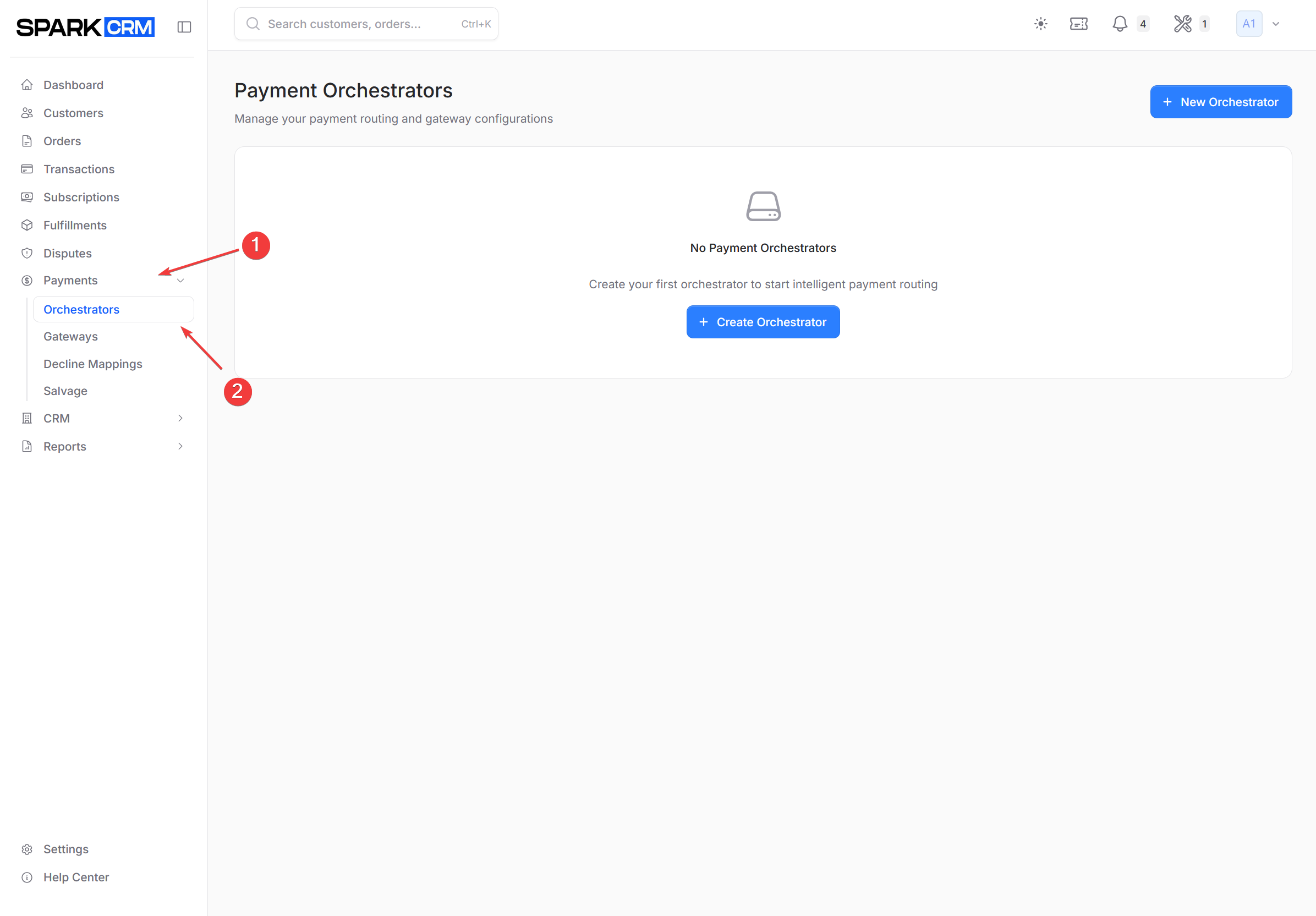
Navigation: Sidebar > Payments > Orchestrators
Why Use Orchestrators?
Without an orchestrator:
- All transactions go to a single gateway
- If that gateway fails, all transactions fail
- No optimization based on card brand, amount, or gateway health
With an orchestrator:
- Transactions route to the best gateway automatically
- Hard failures (timeouts, connection and gateway errors) retry on an alternate gateway
- Custom rules target specific gateways based on conditions
Routing Algorithms
Orchestrators support three routing algorithms:
Highest Approval Rate
Routes transactions to the gateway with the highest likelihood of approval based on recent and historical data.
Best for:
- Maximizing overall approval rates
- General use when you want smart routing
How it works:
- System analyzes recent approval rates per gateway
- Considers the card brand, the transaction amount, and gateway health (current decline/fail counts, and how long since the gateway last processed). Card type (credit/debit/prepaid) is not used by this algorithm — only by routing rules
- Adds a small random boost, weighted toward gateways with little history, so newer gateways keep receiving traffic
- Routes to gateway with best predicted success
Round Robin
Evenly distributes transactions across all eligible gateways.
Best for:
- Spreading volume across processors
- Meeting volume commitments
- Testing new gateways
How it works:
- Rotates through gateways in sequence
- Skips disabled or capped gateways
- Maintains even distribution
Ruleset Only
Routes using custom rules exclusively. If no rule matches, the transaction falls back to the campaign’s Default Gateway when one is configured; it fails outright only when the campaign has no Default Gateway.
Best for:
- Complete control over routing
- Complex business requirements
- Specific compliance needs
How it works:
- Evaluates rules in priority order
- Uses first matching rule’s target gateway
- If no rule matches, falls back to the campaign’s Default Gateway when one is set — the order gets a “Payment processed using campaign default gateway (fallback)” system note. It fails only when the campaign has no Default Gateway
Note: If you are using Ruleset Only to guarantee a closed set of MIDs, leave the campaign’s Default Gateway empty — otherwise unmatched transactions will charge on it.
Creating an Orchestrator
Step 1: Navigate to Orchestrators
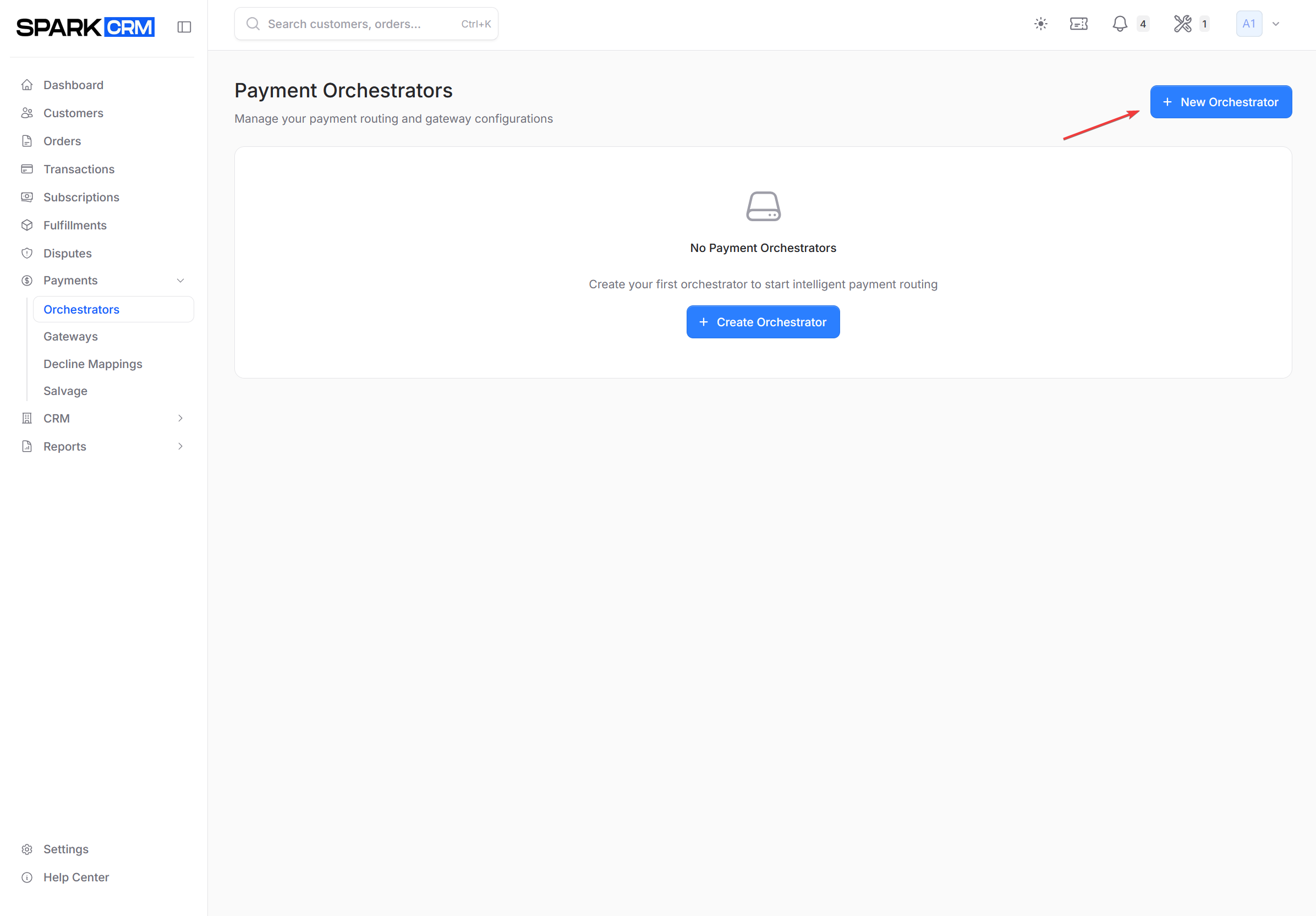
- Go to Payments > Orchestrators in the sidebar
- Click New Orchestrator button
Step 2: Configure Basic Settings
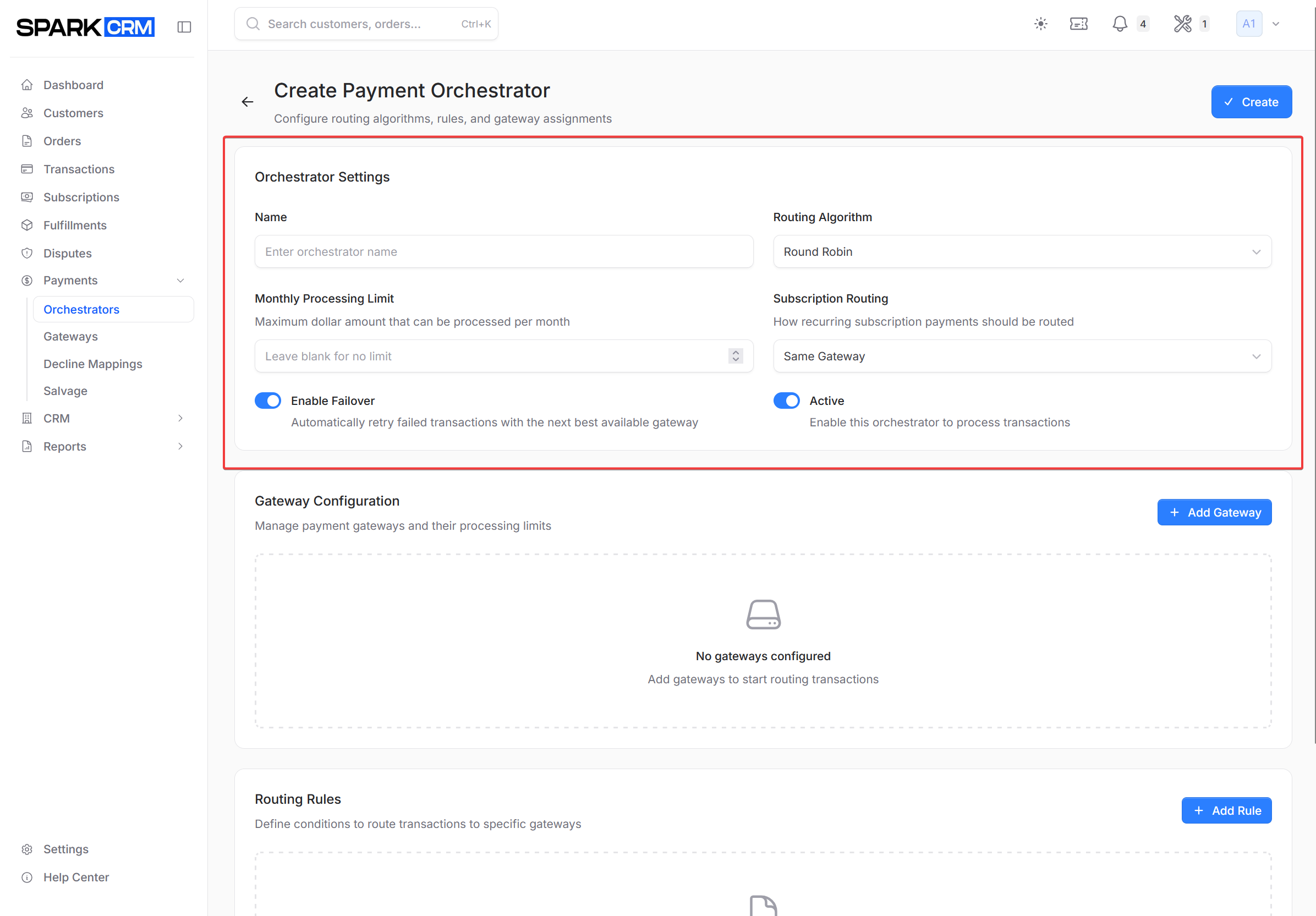
| Field | Description |
|---|---|
| Name | Display name for the orchestrator |
| Routing Algorithm | Routing algorithm (see above). API/DB field: algorithm_type |
| Monthly Processing Limit | Optional combined monthly volume figure used only for capacity alert notifications — it does not stop routing. To actually cap volume, use the per-gateway Monthly Cap |
| Enable Failover | Retry the charge on the next eligible gateway when a gateway returns a connection or processing error (timeout, authentication/credential error, gateway error). Normal card declines are not retried — use Cascade Profiles or Decline Salvage for those |
| Active | Enable/disable the orchestrator (defaults to on). API/DB field: is_active |
| Subscription Routing | How to route subscription rebills. API/DB field: subscription_routing_strategy |
| Sticky MID on Reattempt | When an initial sale is reattempted, send it back to the gateway its first attempt used instead of re-evaluating rules and the algorithm. This deliberately bypasses that gateway’s decline and fail limits, so a declined customer keeps landing on the same MID. Failover still applies if the gateway is down, and an explicit gateway_id on the API request still overrides it |
Subscription Routing Strategy
For recurring subscription charges:
| Strategy | Description |
|---|---|
| Same Gateway | Route rebills to the same gateway as the initial charge |
| Re-evaluate Each Time | Route rebills back through the orchestrator like new charges. API/DB value: payment_orchestrator |
Recommendation: Use “Same Gateway” for best approval rates on rebills, since the card is already on file with that processor.
Step 3: Add Gateways
Add the gateways that should be part of this orchestrator’s pool.
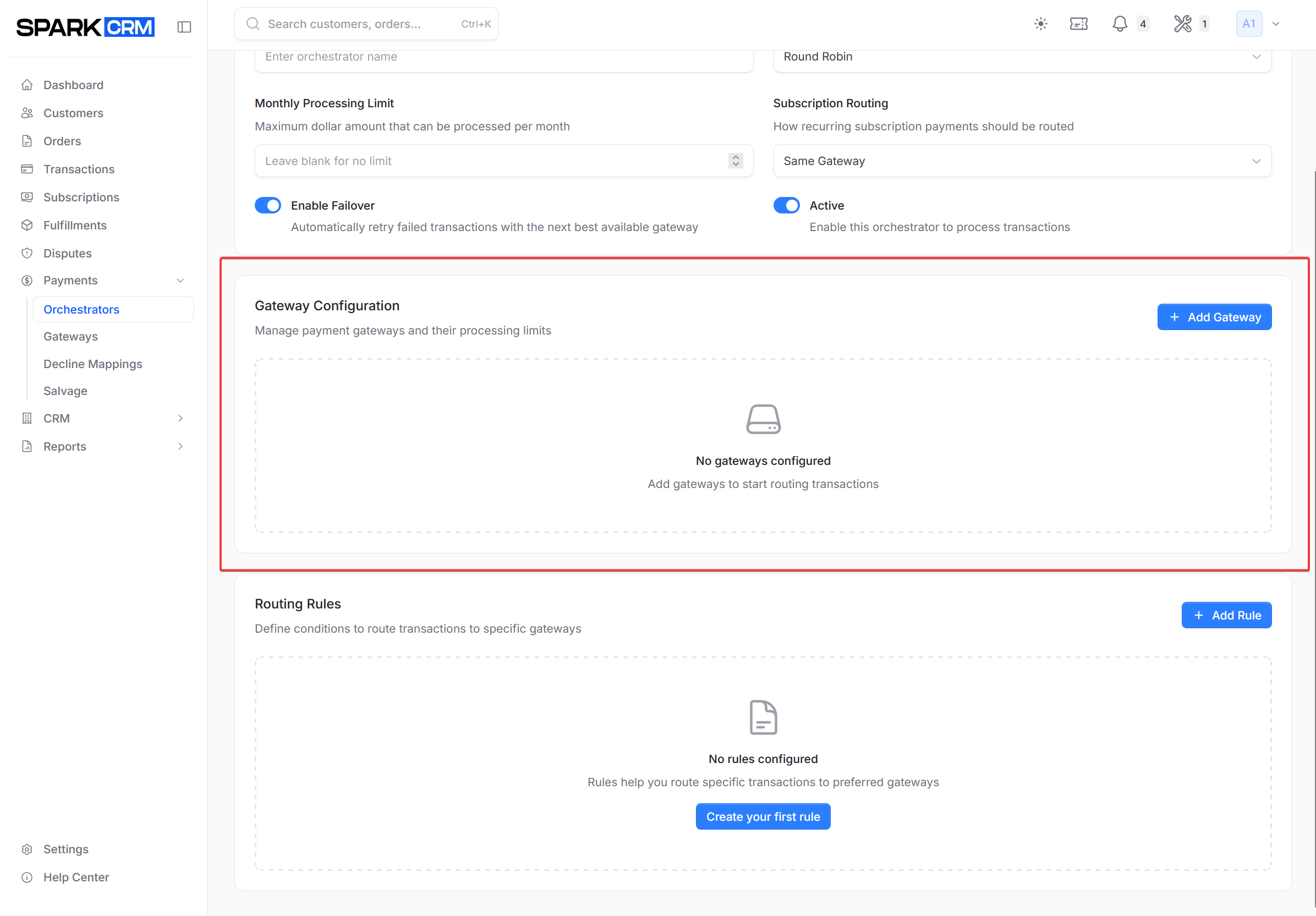
- Click Add Gateway or select from available gateways
- Configure per-gateway settings (see below)
- Repeat for all gateways to include
Per-Gateway Settings
Each gateway in an orchestrator has individual settings:
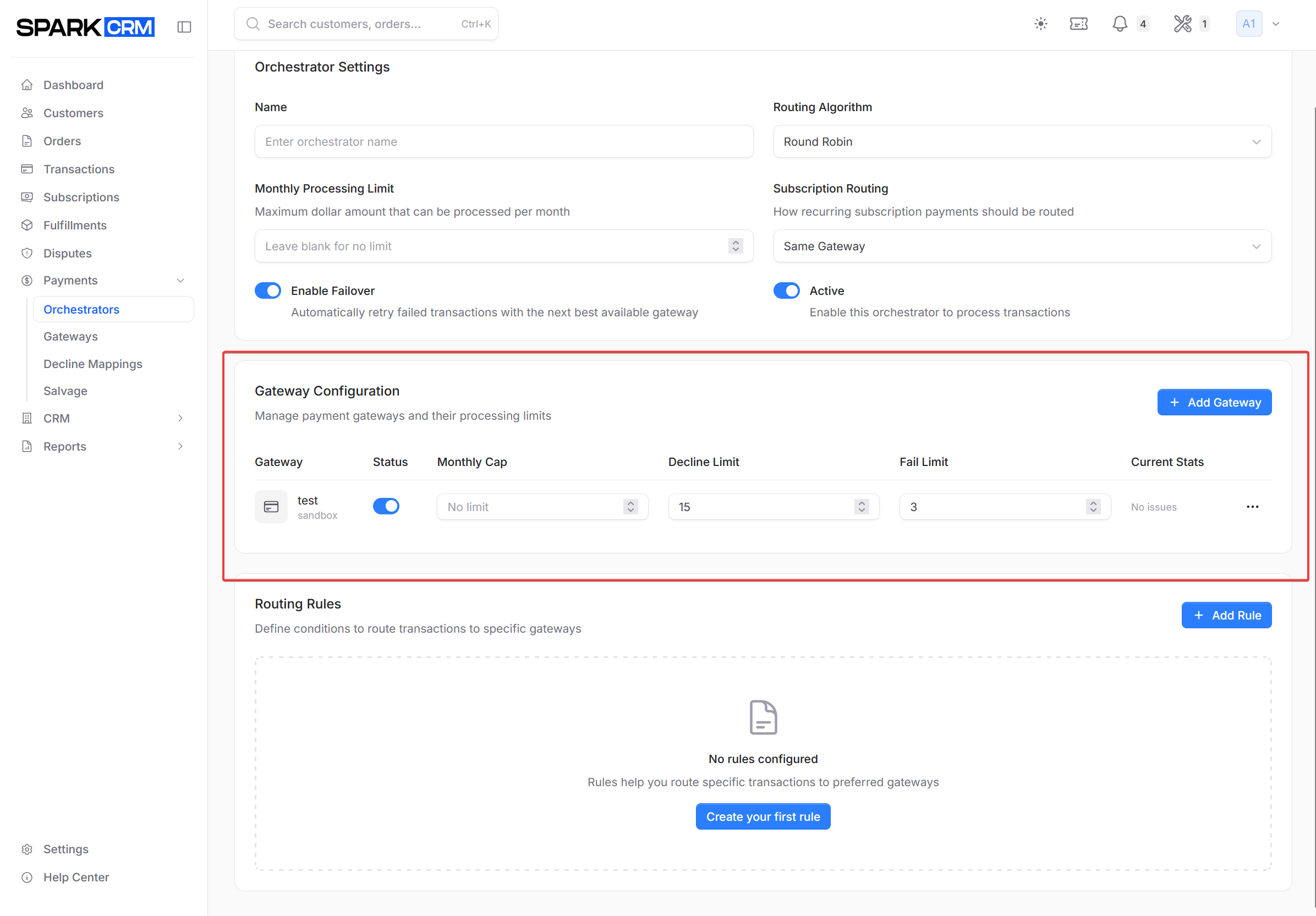
| Setting | Description |
|---|---|
| Status | Toggle switch that includes or excludes this gateway from routing (read-only users see an Active/Inactive badge) |
| Monthly Cap | Maximum monthly volume for this gateway |
| Supported Currencies | Copied from the gateway’s Accepted Currencies at the moment the gateway is added to the pool, then enforced during routing when the orchestrator picks the gateway by algorithm — a gateway whose pool list excludes the transaction currency is skipped, while a gateway targeted by a routing rule is checked against the gateway's own Accepted Currencies instead. It is not editable from the orchestrator page (REST API only), and changing the gateway’s Accepted Currencies afterwards does not update an existing pool entry: remove the gateway from the orchestrator and re-add it |
| Decline Limit | Max consecutive declines before the gateway is switched off in this orchestrator |
| Fail Limit | Max consecutive failures before the gateway is switched off in this orchestrator |
Also applies: the gateway’s own Daily Processing Limit (set on Payments > Gateways) removes it from routing once the day’s completed new-sale volume plus the pending charge would exceed it. Subscription rebills are excluded from that daily total when the orchestrator picks the gateway by algorithm. When a routing rule targets the gateway directly - always the case under Ruleset Only - the cap is applied without the rebill exemption.
Decline and Fail Limits
These protect against sending too much traffic to a struggling gateway:
- Decline Limit (default: 15): After this many consecutive declines, the gateway is automatically switched off inside this orchestrator and stays off — there is no timer and nothing re-enables it on a schedule
- Fail Limit (default: 3): After this many consecutive failures (errors, timeouts), the gateway is automatically switched off inside this orchestrator and stays off
Both counters are consecutive: a successful transaction through the gateway resets them to zero, so it takes an unbroken run of declines or failures to reach a limit. They can also be reset by hand.
Once a limit is reached and the gateway is switched off, it is no longer offered for routing — so it cannot clear itself with a later success. Bringing it back is a manual step.
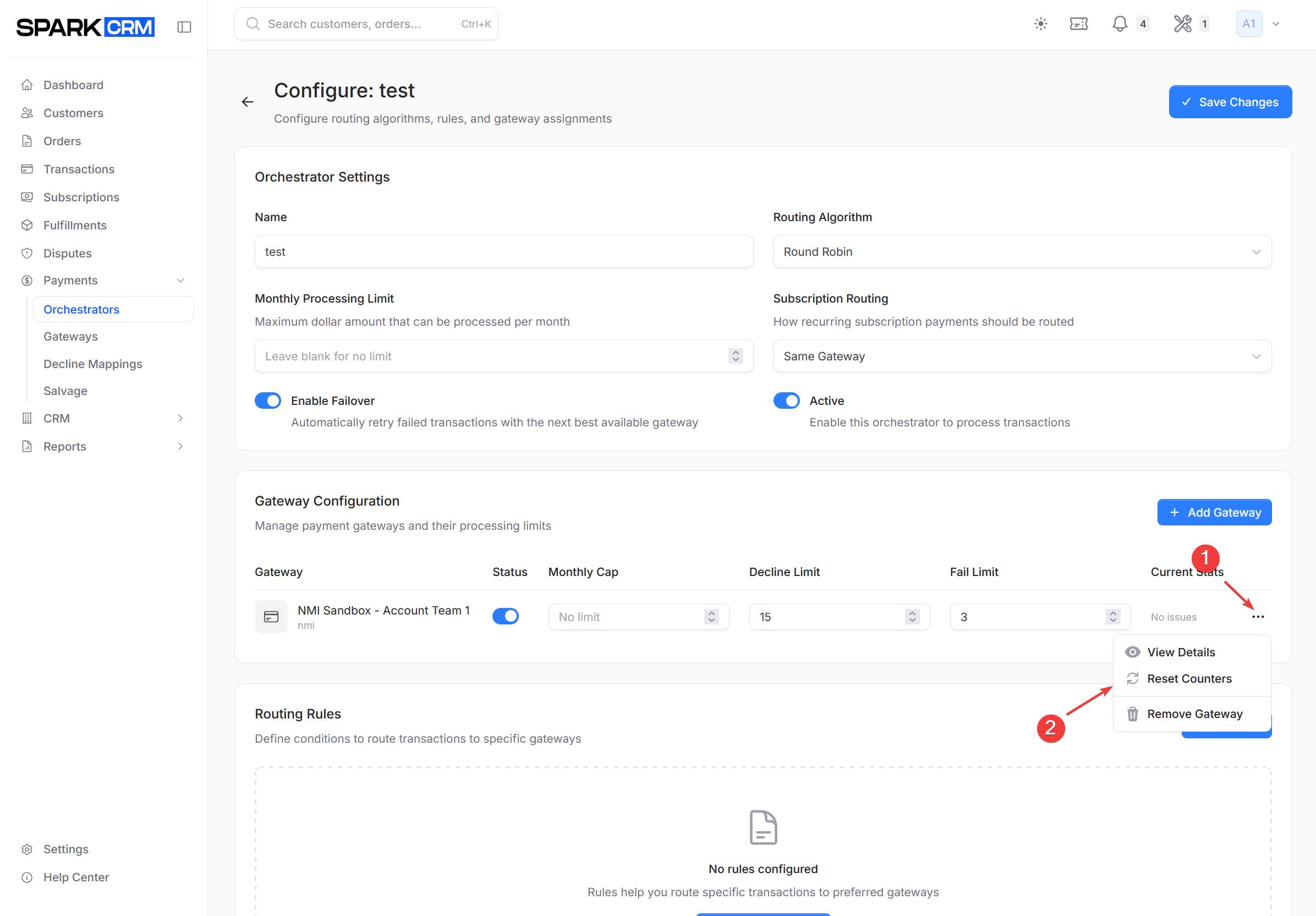
To bring a switched-off gateway back: open the three-dot menu on the gateway’s row, click Reset Counters (this clears the counters and the disabled flag), turn the row’s Status switch back on, then click Save Changes.
Step 4: Configure Routing Rules (Optional)
Custom rules override the algorithm for specific conditions.
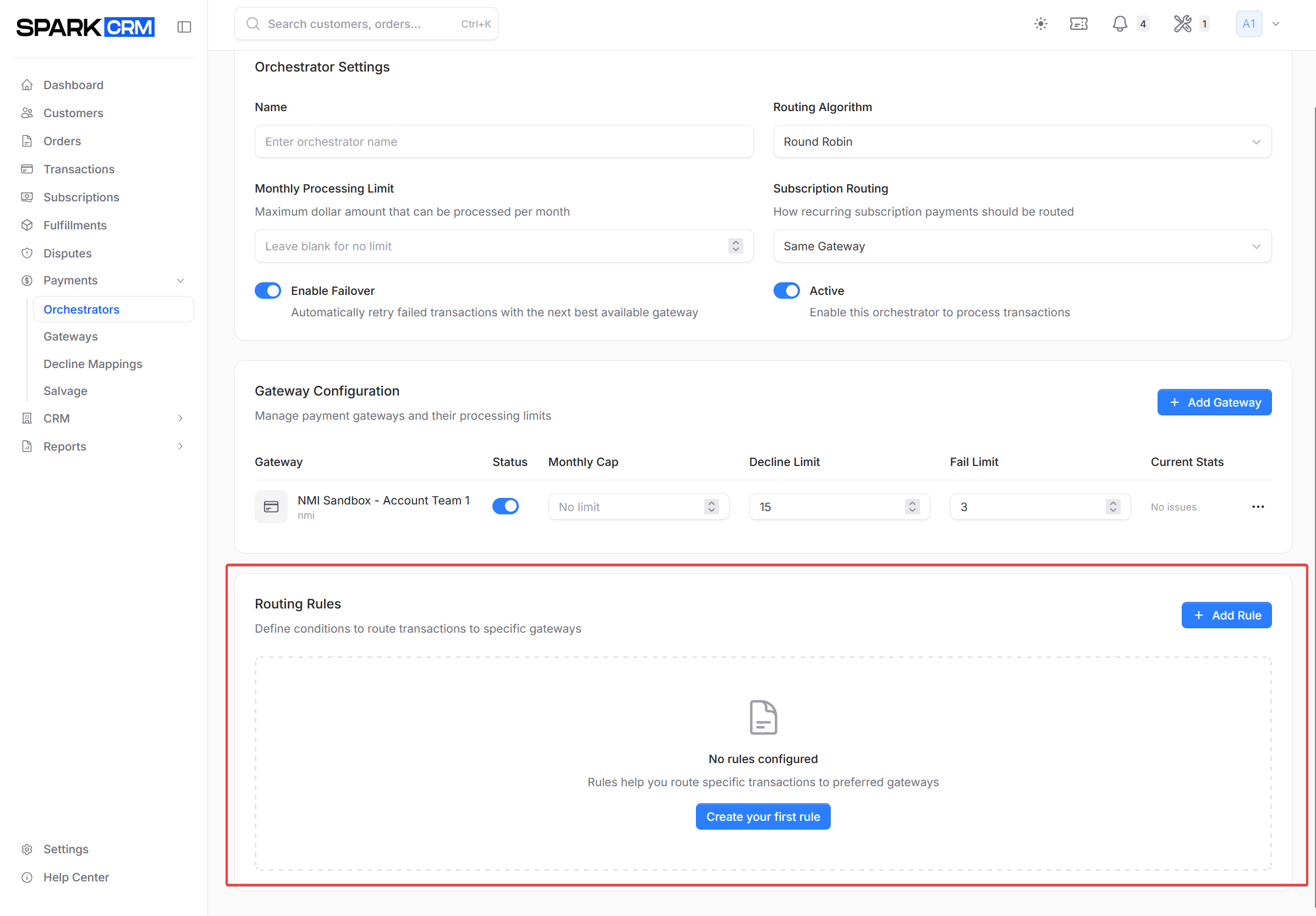
Creating a Rule
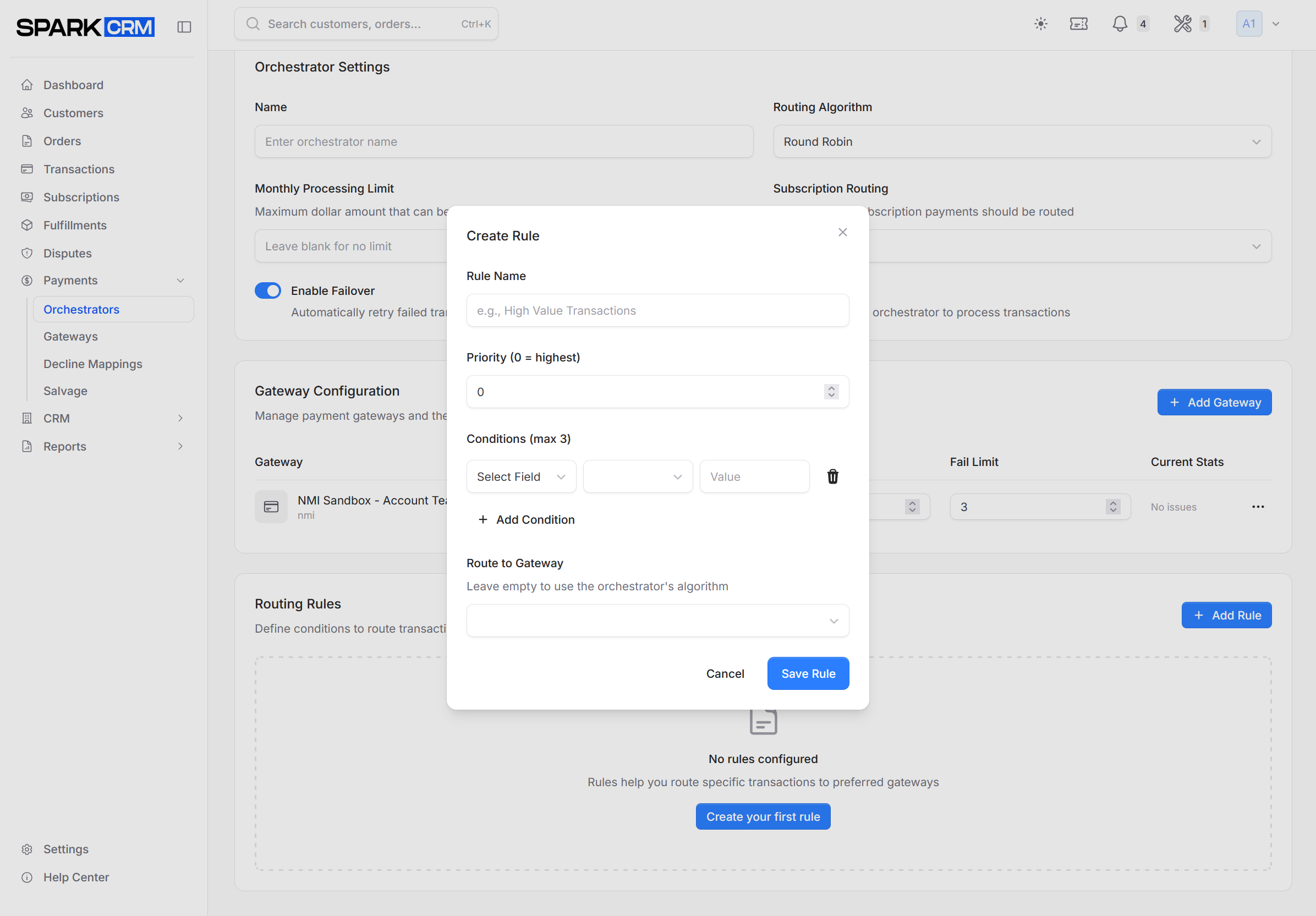
- Click Add Rule (or Create your first rule if the orchestrator has none yet) — the Create Rule dialog opens
- Enter rule name
- Set priority (lower = higher priority)
- Add conditions (up to 3)
- Select target gateway
- Click Save Rule. The rule is only staged at this point — click Save Changes at the top of the orchestrator page to persist it
Available Rule Conditions
| Field | Description | Operators |
|---|---|---|
| Currency | Transaction currency (USD, EUR, GBP, CAD, AUD) | equals, not equals |
| Amount | Transaction amount | =, !=, >, <, >=, <=, starts with (offered, but not meaningful on a number) |
| Card Brand | Visa, Mastercard, etc. | is, is not |
| Card Type | Credit, Debit, Prepaid | is, is not |
| Card Issuer | Issuing bank | is, is not |
| Card BIN | Compared against the card's first 6 digits only — a longer value can never match with = or starts with, and numeric operators compare it as a number |
=, !=, >, <, >=, <=, starts with |
| Country | Customer billing country | is, is not, is one of |
| Campaign | Pick a campaign from the dropdown (matches the campaign record itself, not its display ID) | equals, not equals |
| Is Subscription | Subscription transaction | is |
| Is Initial Subscription | First subscription charge | is |
| Day of Week | Mon, Tue, Wed, etc. | is, is one of |
| Time of Day | Time in HH:MM format | before, after |
| Gateway Volume Used | Current gateway usage % | >, <, >=, <= |
| Gateway Category | Gateway category | is, is not |
Rule Examples
Route high-value orders to primary gateway:
- Field:
Amount - Operator:
greater than - Value:
500 - Target: Primary Gateway
Route Amex to specific processor:
- Field:
Card Brand - Operator:
is - Value:
amex - Target: Amex Gateway
Route international cards:
- Field:
Country - Operator:
is not - Value:
US - Target: International Gateway
Step 5: Save
Click Create (new orchestrator) or Save Changes (existing one). Users without update permission see a read-only page with no save button.
Managing Orchestrators
Orchestrator List
The list view shows:
| Column | Description |
|---|---|
| ID | Per-team display number for the orchestrator (sortable) |
| Name | Orchestrator name (sortable; click to open) |
| Algorithm | Routing algorithm type |
| Gateways | Number of connected gateways |
| Rules | Number of routing rules |
| Status | Active/Inactive |
| Actions | Three-dot menu: Configure (or View, without update permission) and Delete |
The list shows 10 orchestrators per page.
Editing an Orchestrator
- Click the three-dot menu on the orchestrator row
- Select Configure
- Make changes
- Click Save Changes
Deleting an Orchestrator
- Click the three-dot menu
- Select Delete
- If active subscriptions bill through this orchestrator, the dialog warns you and shows a Move subscriptions to picker — choose a replacement orchestrator. Leaving it on “Don’t move — rebills will fail” will break those rebills
- Type the orchestrator name to confirm
- Click Delete
Warning: Ensure no campaigns reference this orchestrator before deleting.
Assigning Orchestrators to Campaigns
To use an orchestrator:
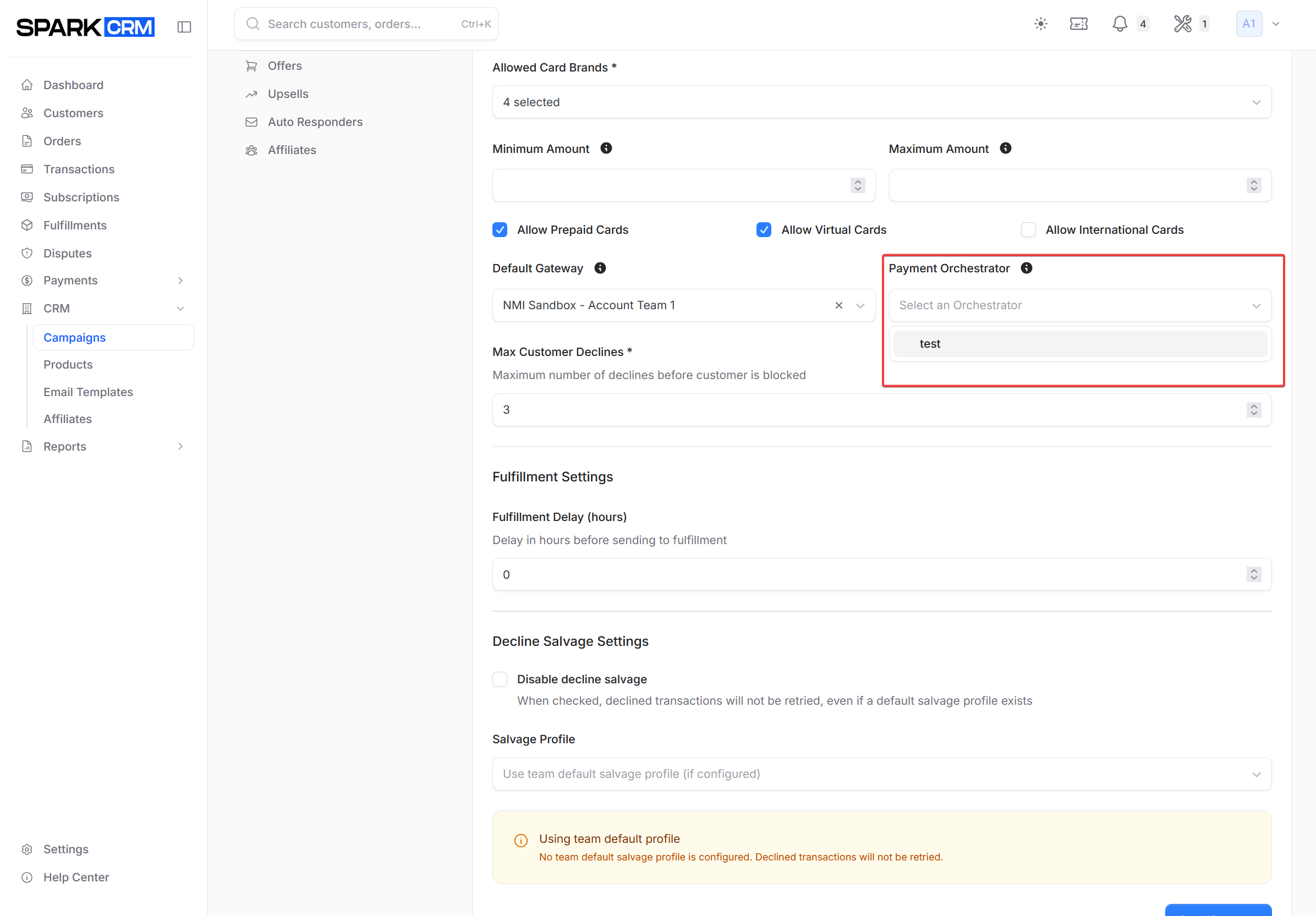
- Go to CRM > Campaigns
- Edit the campaign
- In Settings tab, select the orchestrator from Payment Orchestrator dropdown
- Save the campaign
Transactions for that campaign now route through the orchestrator by default. Exceptions: an explicit gateway_id on the API request bypasses it; an upsell configured with its own orchestrator or gateway overrides it; and the campaign’s Default Gateway takes the charge if the orchestrator has no eligible MID or no rule matches.
Failover Behavior
When failover is enabled and a gateway returns a hard failure — a timeout, connection error, authentication/credential error or gateway error, not a card decline:
- Check eligibility: failover must be enabled on the orchestrator, this must not already be a failover attempt (only one retry is made), and no Cascade Profile must already be handling hard failures for the source gateway
- Select next gateway: Choose from remaining eligible gateways
- Retry transaction: Process on alternate gateway
- Log results: Record both attempts for reporting
Which Failures Are Retried
Not all failures are retried:
| Retry | Decline Type |
|---|---|
| Yes | Processor error |
| Yes | Network timeout |
| Yes | Gateway authentication/credential error |
| No | Insufficient funds |
| No | Invalid card number |
| No | Expired card |
| No | Fraud/stolen card |
| No | Do not honor |
Soft declines such as insufficient funds are never failed over. Retry those with Cascade Profiles (immediate) or Decline Salvage (scheduled).
Decline Mappings only normalise the decline text shown to you and to your customers — they cannot change which failures the orchestrator retries. Failover eligibility is fixed in code: hard failures only.
Monitoring Performance
Gateway Counters
Each gateway tracks:
- Current decline count
- Current fail count
- Disabled status (if limits exceeded)
To reset counters:
- On the orchestrator’s Configure page, open the three-dot menu on the gateway’s row
- Click Reset Counters
This requires update permission. (The View Details dialog on the same menu is read-only and has no reset action.)
Reports
Monitor orchestrator performance via:
- Payment Report: Gateway approval rates
- Salvage Report: Decline Salvage recovery (attempts, successful salvages, revenue recovered) — this covers Decline Salvage, not orchestrator failover. Failover outcomes appear in the Payment Report’s gateway/orchestrator views and as system notes on the order
Best Practices
Start Simple
- Begin with Round Robin or Highest Approval Rate
- Add rules only when data shows specific needs
- Monitor for 2-4 weeks before optimizing
Gateway Setup
- Include at least 2 gateways for failover
- Set appropriate decline/fail limits
- Use monthly caps to balance volume
Rules
- Keep rules focused and simple
- Use priority to control evaluation order
- Test rules with sandbox before production
Monitoring
- Check gateway counters weekly
- Review Payment Report for approval trends
- Adjust rules based on data
Troubleshooting
Transactions Not Routing
Check:
- Orchestrator is Active
- Campaign is assigned to orchestrator
- At least one gateway is active in orchestrator
- Gateway supports the transaction currency
All Transactions Going to One Gateway
Check:
- Algorithm type (may be working as expected)
- Rules that match all transactions
- Other gateways disabled by limits
Failover Not Working
Check:
- Failover enabled on orchestrator
- The failure was a hard failure (timeout, connection/auth error, gateway error) — plain card declines are never failed over
- This was not already a failover attempt (only one retry is made per transaction)
- No Cascade Profile on the source gateway is already handling its hard failures (cascade takes precedence)
- Alternate gateways available
- Alternate gateways support the currency
Gateway Keeps Getting Disabled
Check:
- Decline/fail limits may be too low
- Gateway may have underlying issues
- Test connection on the gateway
Related Topics
- Payment Gateways - Configure individual gateways
- Cascade Profiles - Immediate per-gateway decline cascading
- Decline Mappings - Normalise decline text
- Decline Salvage - Advanced decline recovery