

The Settings page provides centralized access to most account configuration options. Settings are organized into four main categories. (Feature switches such as email, phone and address validation are enabled separately under Account (top right) >> Billing.)
Access: Every panel is reachable from the Settings page, but the actions inside are permission-gated. Account owners and account administrators can do everything. Any other member needs an account-type team plus the matching permission for that panel (smtp:*, coupons:*, webhooks:*, bin_blacklist:*, test_cards:*, tax:*, fulfillment:*, customer_blacklist:*, api:*); the built-in Customer Support roles hold none of these. A few panels are locked down further: Test Data is limited to account owners and administrators. Disputes can be viewed by any member, but only owners and administrators can connect or disconnect Dispute.com. Hosted Payments can be viewed by any member, but only the account owner, an account administrator, or a member with the gateway:update permission can rotate the publishable key or change the allowed origins. API Tokens requires an account-type team plus the matching api:* permission for anyone who is not the owner or an account administrator. Demo teams cannot edit Hosted Payments or API tokens.
Navigation: Left Sidebar > Settings
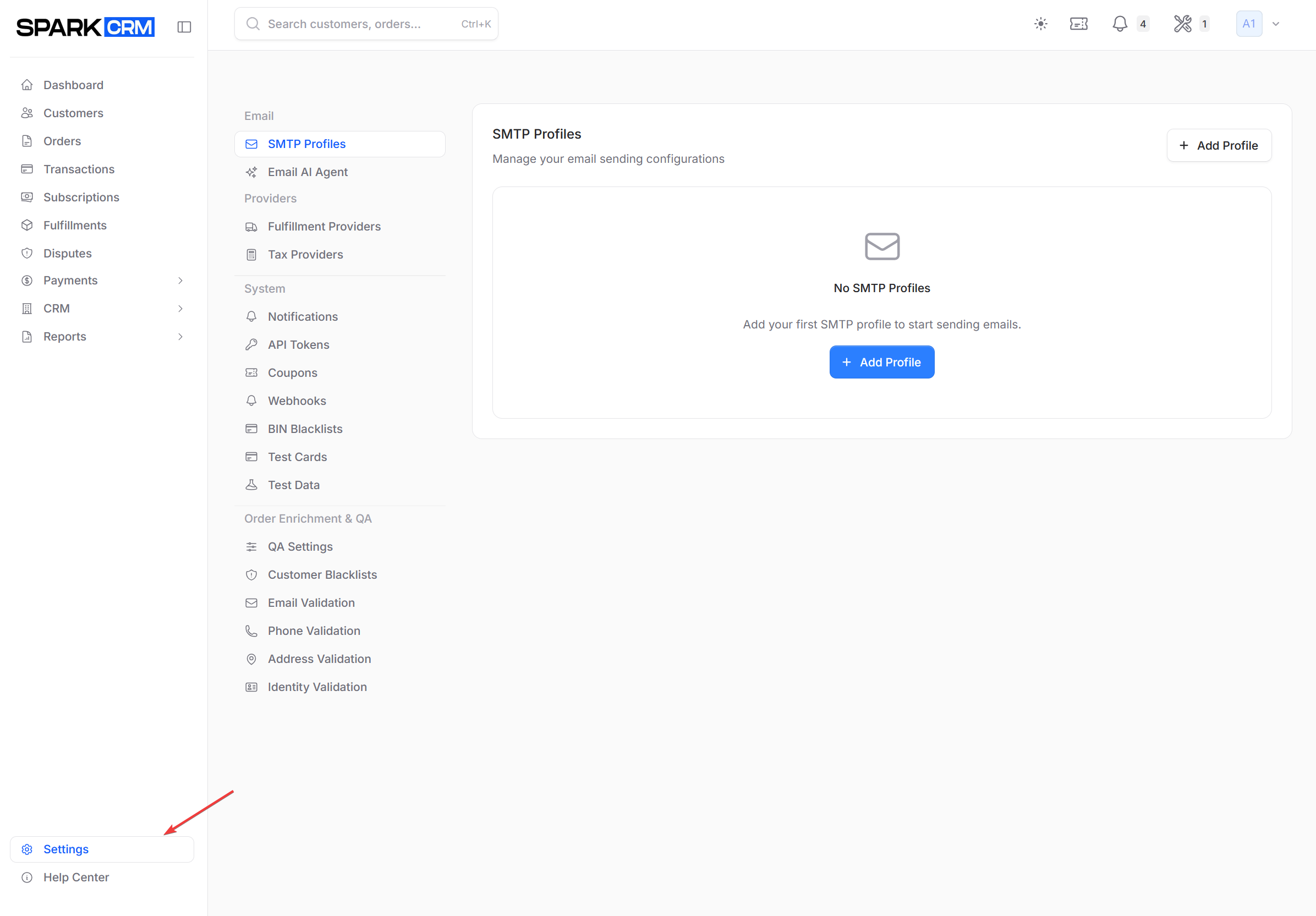
Settings Categories
Configure email sending and AI-powered customer service.
| Setting | Description |
|---|---|
| SMTP Profiles | Configure email sending services |
| Email AI Agent | AI-powered email customer service (if enabled) |
Providers
Connect third-party service providers for fulfillment, tax calculation, and dispute management.
| Setting | Description |
|---|---|
| Fulfillment Providers | Configure shipping and fulfillment services |
| Tax Providers | Configure tax calculation services |
| Disputes | Connect your Dispute.com API key for chargeback alerts and RDR (only account owners and administrators can connect or disconnect) |
System
Core system settings for API access, notifications, discounts, hosting connections, and test tooling.
| Setting | Description |
|---|---|
| Notifications | Configure alert and notification preferences |
| API Tokens | Manage API authentication tokens |
| Hosted Payments | Embed the secure card form and charge with tokens |
| Cloudflare | Connect your own Cloudflare account so published funnels deploy into it, and enable R2 media storage |
| Coupons | Create and manage discount codes |
| Webhooks | Configure event notification webhooks |
| BIN Blacklists | Block specific 6-digit card BINs |
| Test Cards | Configure test payment cards |
| Test Data | Review and clear test customers, orders, transactions, subscriptions, and fulfillments (account owners and administrators only) |
| Cart Abandon | Set how many minutes an order with no transactions waits before it is marked Cart Abandoned (default 20, allowed range 1-1440) |
Order Enrichment & QA
Configure data validation and quality assurance workflows.
| Setting | Description |
|---|---|
| QA Settings | Configure order quality assurance rules |
| Customer Blacklists | Block customers by email, phone, IP, or address |
| Email Validation | Configure email verification service |
| Phone Validation | Configure phone verification service |
| Address Validation | Configure address verification service |
| Identity Validation | Configure identity verification service |
Quick Reference
| Task | Location |
|---|---|
| Add email sending provider | Settings > SMTP Profiles |
| Create API token | Settings > API Tokens |
| Embed hosted card form | Settings > Hosted Payments |
| Create discount code | Settings > Coupons |
| Configure webhooks | Settings > Webhooks |
| Block a card BIN | Settings > BIN Blacklists |
| Block a customer | Settings > Customer Blacklists |
| Enable email validation | Account (top right) >> Billing (rules are then configured in Settings > Email Validation) |
| Configure QA rules | Settings > QA Settings |
| Set up test cards | Settings > Test Cards |
Navigation
The Settings page uses a tabbed interface:
- Desktop: Left sidebar navigation with grouped sections
- Mobile: Dropdown menu for section selection
Click any setting in the left menu to load that configuration panel.
Related Topics
- Team Management - Team members and billing
- Payment Processing - Gateways and orchestrators