

Spark CRM provides tools for testing your integration without processing real transactions.
Navigation: Settings > Test Cards / Test Data
Test Cards
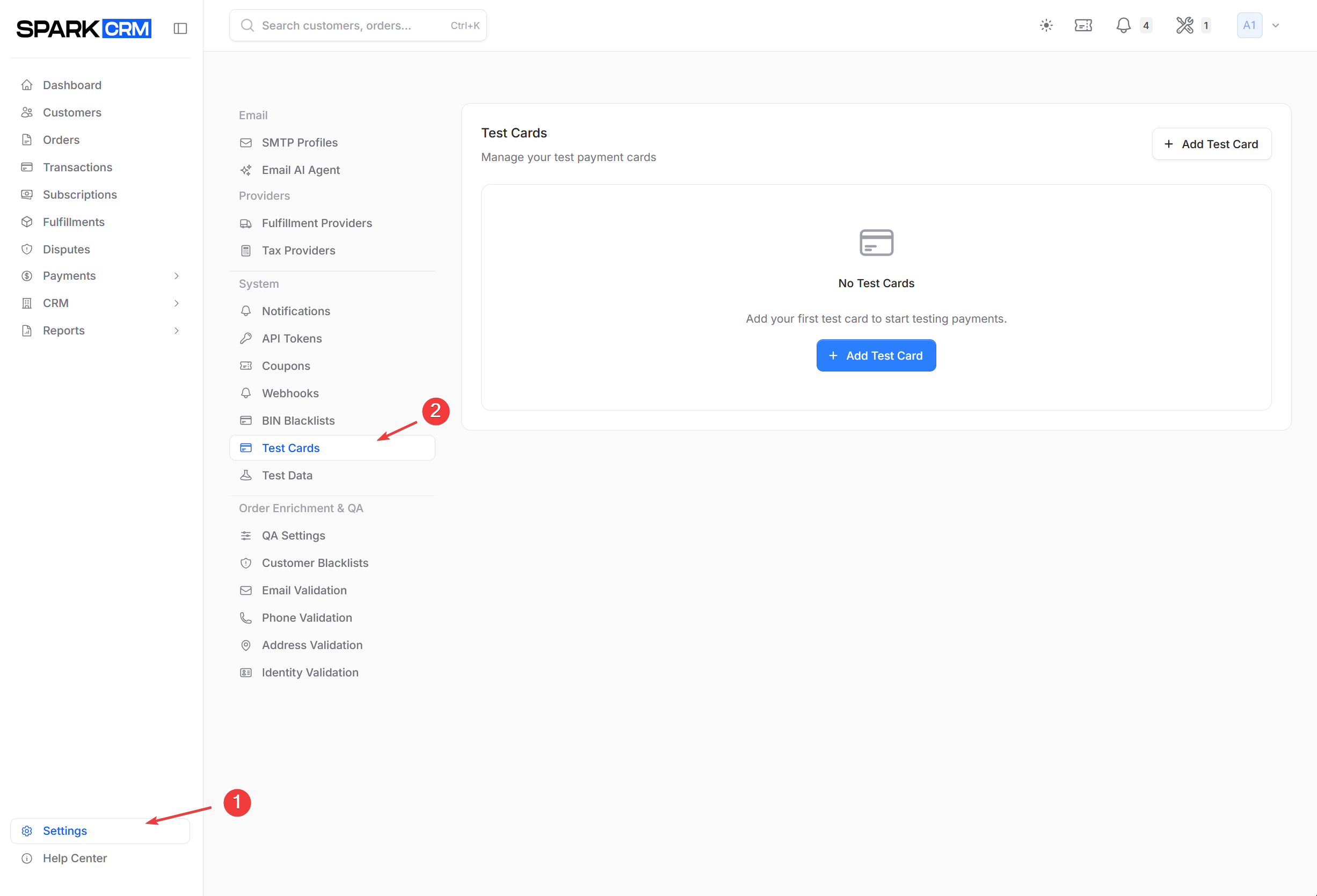
Navigation: Settings > Test Cards
Configure card numbers that bypass the payment gateway entirely and return a simulated response. A test card configured here short-circuits any gateway assigned to the order — production gateways included — so no real charge is ever sent. Scope is per-team, and only cards marked Active take effect (an inactive card falls through to the real gateway).
Overview
Test cards allow you to simulate different payment scenarios:
- Successful transactions
- Declined transactions
- Specific error codes
Default Test Cards
On a Sandbox gateway these numbers map to specific decline messages on authorization-only (zero-amount / auth) transactions. On a normal sale the Sandbox gateway ignores the card number entirely and follows its Mode.
| Card Number | Result |
|---|---|
4111111111111111 |
Recognised as a built-in test PAN — flags the order and customer as test — but the BIN lookup still runs and the card is still sent to the gateway. On a Sandbox gateway it approves only because Always Approve approves every card. |
4000000000000002 |
Insufficient Funds |
4000000000000010 |
Invalid CVV |
4000000000000036 |
Expired Card |
4000000000000069 |
Invalid Card Number |
4000000000000127 |
Incorrect CVC |
For all test cards:
- Expiry: Any future date
- CVV: any 3 digits — Sandbox gateway only. For a card configured in Settings > Test Cards the CVV selects the outcome (see CVV-Based Response Codes); any CVV outside that list is treated as a decline.
- ZIP: Any valid format
Custom Test Cards
Add custom test card configurations:
- Go to Settings > Test Cards
- Click Add Test Card
- Enter the full 16-digit card number. The field is masked as
9999 9999 9999 9999and must be exactly 16 digits — partial numbers, prefixes and wildcards are not supported, and 15-digit Amex PANs cannot be saved. - Click Create Test Card (or Update Test Card when editing).
The response is not stored on the card — it is chosen per transaction by the CVV submitted at checkout (see CVV-Based Response Codes).
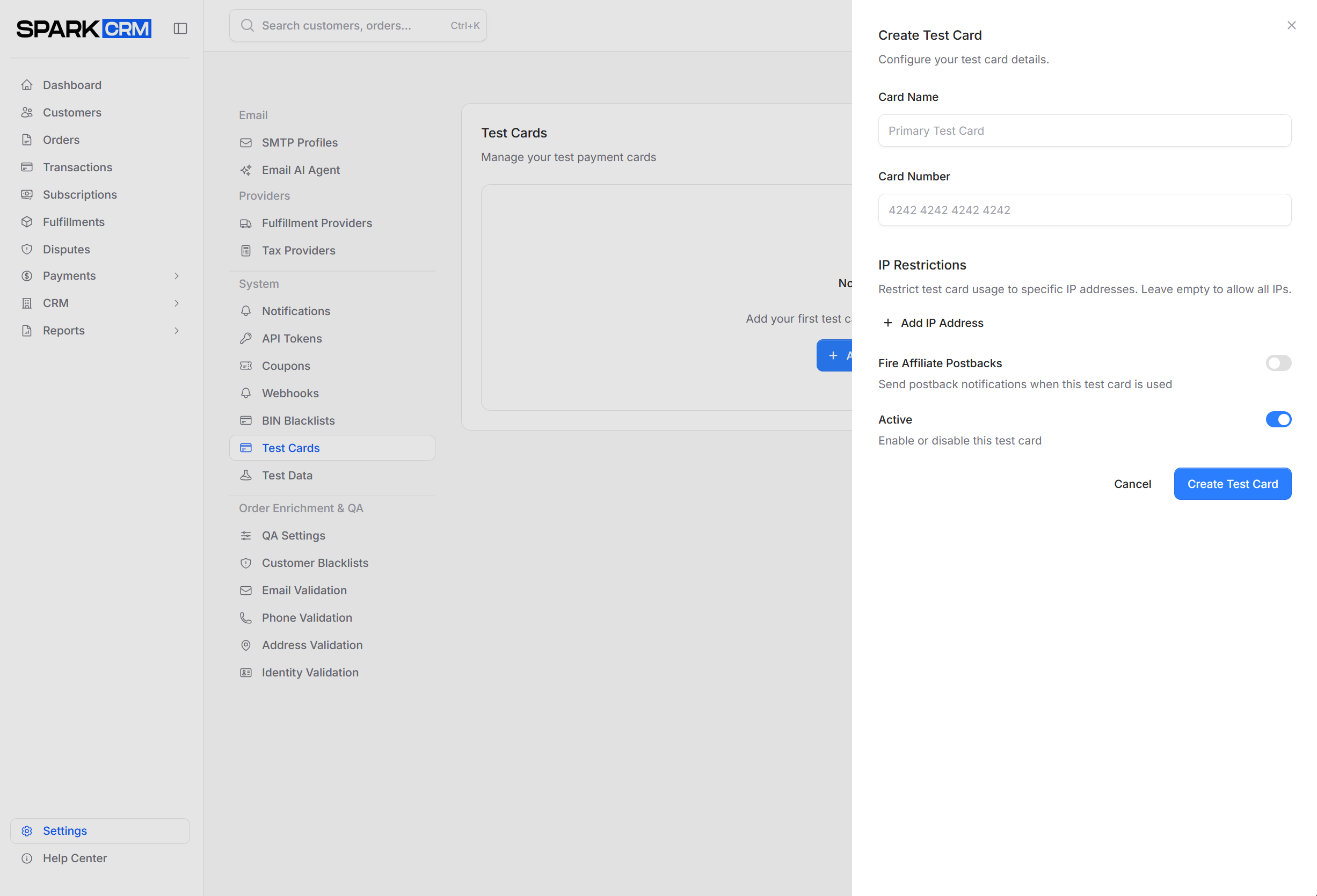
Configuration Options
| Field | Description |
|---|---|
| Card Name | Required. Label for the card, max 255 characters (e.g. “Primary Test Card”) |
| Card Number | Required. Exactly 16 digits, entered masked as 9999 9999 9999 9999; matched by exact equality at charge time |
| IP Restrictions | Optional list of IP addresses (Add IP Address). Leave empty to allow any IP. Enforced on API-submitted orders |
| Fire Affiliate Postbacks | Off by default. When on, affiliate postbacks still fire for orders paid with this card |
| Active | On by default. An inactive card is ignored and falls through to the real gateway |
Test Card Responses
Test cards always return one of the responses listed in CVV-Based Response Codes below. Which one is returned is chosen per transaction by the CVV you submit — it cannot be configured on the card itself.
CVV-Based Response Codes
You can control the response of a team-specific test card transaction by entering a specific CVV code. This allows you to simulate different payment outcomes without needing separate card numbers for each scenario.
When processing a test card configured in Settings > Test Cards, the CVV value determines the result:
| CVV | Response | Message |
|---|---|---|
100 |
Success | Transaction approved |
200 |
Declined | Transaction declined |
300 |
Insufficient Funds | Insufficient funds |
400 |
Expired Card | Card expired |
500 |
Invalid Card | Invalid card number |
600 |
CVV Mismatch | CVV mismatch |
700 |
Processor Error | Processor error |
800 |
Network Error | Network error |
900 |
Card Expired | Card expired |
901 |
Suspected Fraud | Suspected fraud |
Example: To simulate a declined transaction, use any test card configured in Settings > Test Cards with CVV 200. To simulate an insufficient funds decline, use CVV 300. If no CVV is submitted at all the transaction defaults to approved (the CVV falls back to 100) — this is what happens on subscription rebills unless your team has card data capture enabled, in which case the CVV stored at the initial sale is reused and selects the outcome. A CVV that is present but is not one of the codes above is treated as a plain decline.
Test Data
Navigation: Settings > Test Data
Review and clear the test orders, customers, transactions, subscriptions and fulfillments in your account. (Test records are created by processing an order with a test card — this page does not generate them.)
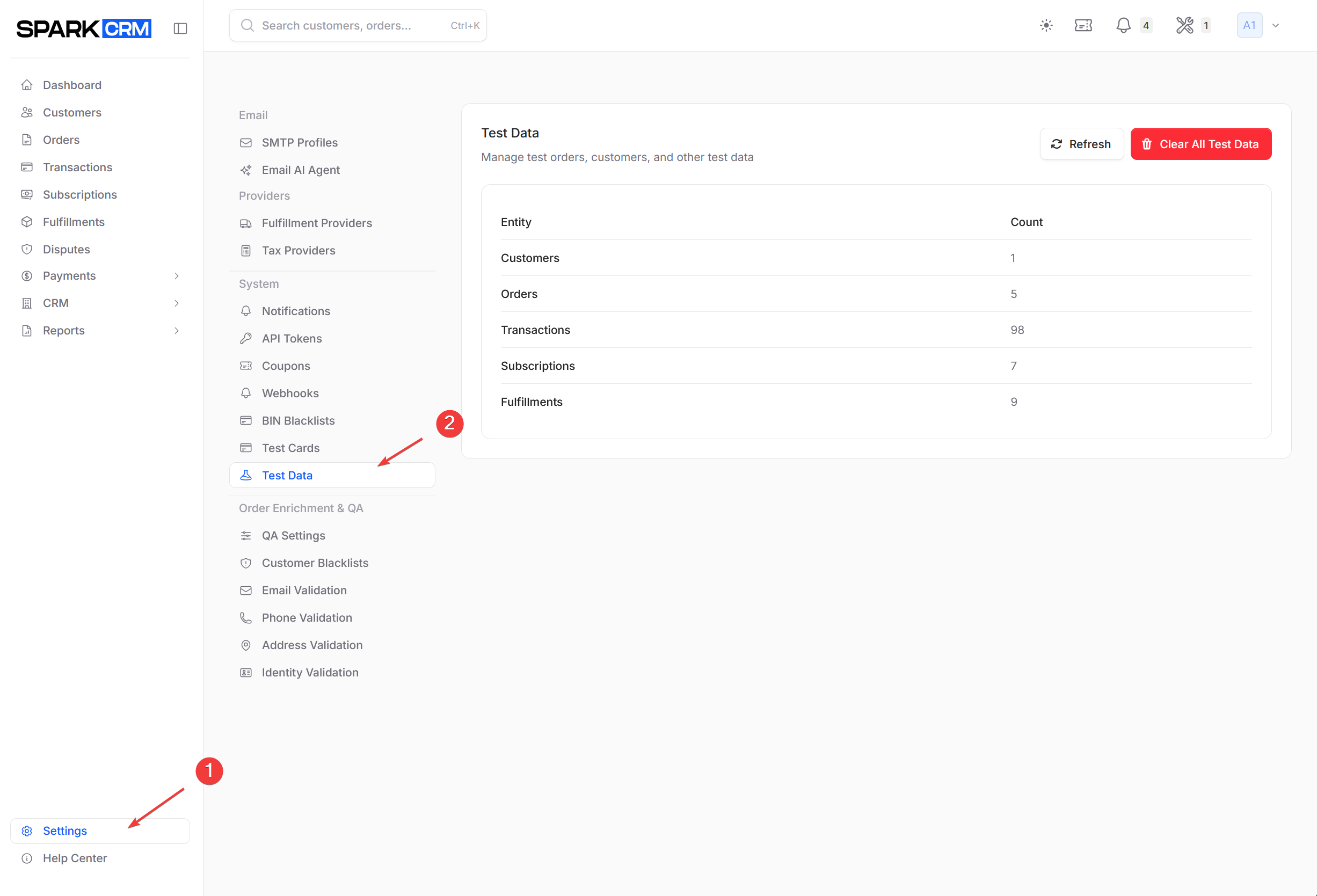
Reviewing Test Data
- Go to Settings > Test Data
- Read the current count of test Customers, Orders, Transactions, Subscriptions and Fulfillments
- Click Refresh to recount
The table and its buttons only appear when at least one of those counts is greater than zero.
Test Data Markers
Test data is marked with flags rather than special numbering:
is_testflag on the orderis_testflag on the customer record (customer numbers always use theCUSTprefix, whether or not the customer is a test customer)is_testflag on the transaction, plustest_card_idpointing at the test card that was used- The test card itself records its test count, last used time and last result
- Always excluded from account reports — there is no toggle to include test data on them
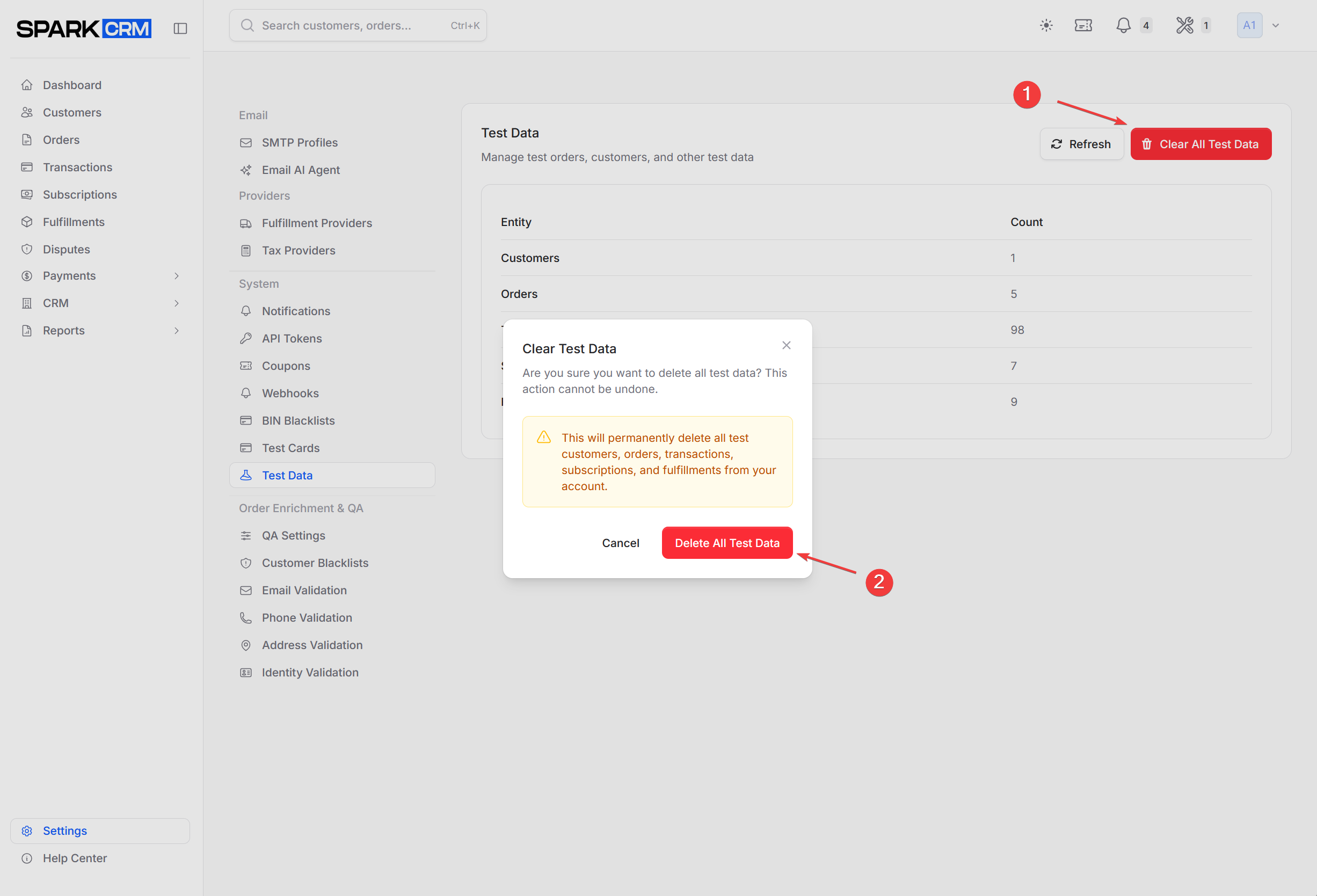
Cleaning Up Test Data
Remove test data when no longer needed:
- Go to Settings > Test Data
- Click Clear All Test Data (this button only appears when your account actually contains test records), then confirm with Delete All Test Data
Clearing is all-or-nothing — you cannot choose which record types to remove.
Warning: Test records are soft-deleted — they disappear from the app and cannot be restored from the UI. Product line-item rows (orders_products, transactions_products, subscriptions_products, fulfillments_products) are removed outright.
Test customers that have at least one live (non-test) order are skipped, and the result tells you which customers were skipped and which live orders protected them. Their orders, transactions and subscriptions that are themselves flagged as test are still cleared.
Sandbox Gateway
For comprehensive testing, use a Sandbox gateway:
Creating Sandbox Gateway
- Go to Payments > Gateways
- Click New Gateway
- Select Sandbox (Testing)
- Configure mode:
- Always Approve: All transactions succeed
- Always Decline: All transactions fail
- Random: Mix based on decline percentage
- Click Create Gateway
Sandbox Modes
| Mode | Description |
|---|---|
| Always Approve | Every transaction succeeds |
| Always Decline | Every transaction fails |
| Random | Configurable success/fail rate |
For Random mode, set Decline Percentage (e.g., 20 = 20% decline rate).
Testing Workflow
Recommended Testing Steps
-
Set up Sandbox gateway
- Create a gateway of type Sandbox (Testing) and pick a Mode (Always Approve / Always Decline / Random)
-
Create test campaign
- Assign Sandbox gateway
- Add test products
-
Process test orders
- Use test card numbers
- Test various scenarios
-
Verify results
- Check order created correctly
- Verify transaction recorded
- Test fulfillment flow
-
Test edge cases
- Declined transactions
- Refunds and voids
- Subscription renewals
Excluding Test Data from Reports
Test data can skew your business analytics, so it is kept out of reporting automatically:
- Orders are flagged as test automatically when the card used is configured in Settings > Test Cards or is one of the built-in test PANs — there is no manual “test order” checkbox. (The REST subscription-create endpoint is the one place an
is_testflag can be passed directly, and it applies to the subscription.) - Reports filter by test flag
- Dashboard excludes test transactions
Report Filters
Account reports always exclude test data — there is no include/exclude toggle.
The one exception is the Customer Service provider report, which has an Include test orders checkbox that is on by default; unchecking it excludes test orders.
Best Practices
Testing
- Always test in sandbox before production
- Test all payment scenarios
- Verify error handling
- Test webhook delivery
Test Data Management
- Clean up old test data periodically
- Use meaningful test customer names
- Document test scenarios
- Keep test and production separate
Going Live
- Test complete workflow in sandbox
- Create production gateway
- Update campaign to production gateway
- Process small real transaction
- Verify everything works
- Go fully live
Troubleshooting
Test Card Not Working
Check:
- The card is configured in Settings > Test Cards and is marked Active (a deactivated card falls through to the real gateway)
- The card number is correct — it is matched by exact equality against the full 16 digits
- Gateway type does not matter — Settings test cards bypass any gateway, including production
- If the card has IP Restrictions, the request is coming from one of the listed IPs (API orders from other IPs are rejected with “IP address not allowed for this test card”)
- Built-in test PANs are not short-circuited: they only mark the order as test and are still sent to the gateway
Test Data Not Appearing
Check:
- An order was actually processed with a test card — that is the only thing that creates test records
- Correct date range selected
- Not filtered out by report settings
Can’t Delete Test Data
Check:
- Clearing test data requires account owner or administrator (the page 403s for anyone else)
- Deleting an individual test card requires the
test_cards:deletepermission on an Account-type team — Admin-type teams get read-only access to test cards - Test customers with at least one live (non-test) order are skipped by design and will remain after clearing
Related Topics
- Payment Gateways - Gateway configuration
- Getting Started - First order workflow