

Coupons allow you to offer discounts to customers through promotional codes.
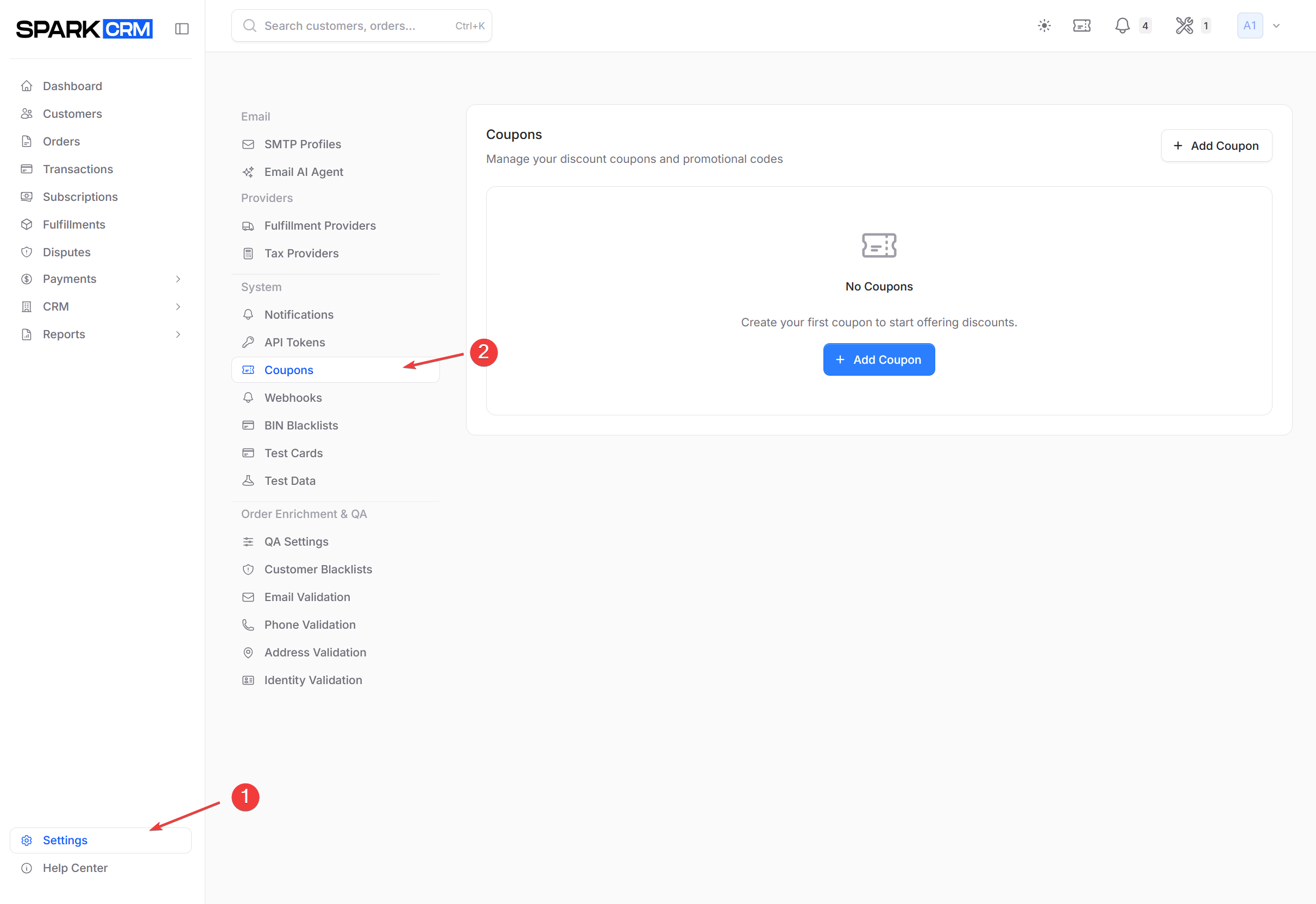
Navigation: Settings > Coupons
Overview
Create discount codes that customers can apply at checkout to take a percentage, a flat amount, the shipping charge, or a fixed cart price off their orders.
Coupon Types
Spark CRM supports four coupon types:
| Type | Description | Example |
|---|---|---|
| Percentage Off | Discount as a % of the cart subtotal | 20% off |
| Fixed Amount Off | Flat dollar discount, capped at the subtotal | $10 off |
| Free Shipping | Discount equals the cart’s shipping charge | Free shipping |
| Fixed Price | Sets the cart to a fixed price (discount = subtotal − the value you enter) | Whole cart for $49 |
Creating a Coupon
Step 1: Navigate to Coupons
- Go to Settings in the sidebar
- Click Coupons in the left menu
The Coupons tab is listed for everyone, but the panel itself only loads for users who pass the coupon permission check — account owners and administrators, or a member of an Account-type team who has been granted coupons:view_any. Anyone else sees an Access Restricted card. Members who are not owners or administrators additionally need coupons:create, coupons:update and coupons:delete. Editing and deleting are possible only on an Account-type team, and only for coupons owned by your current team — that restriction applies to owners and administrators too.
Step 2: Create New Coupon
- Click Add Coupon button
- Fill in the coupon details:
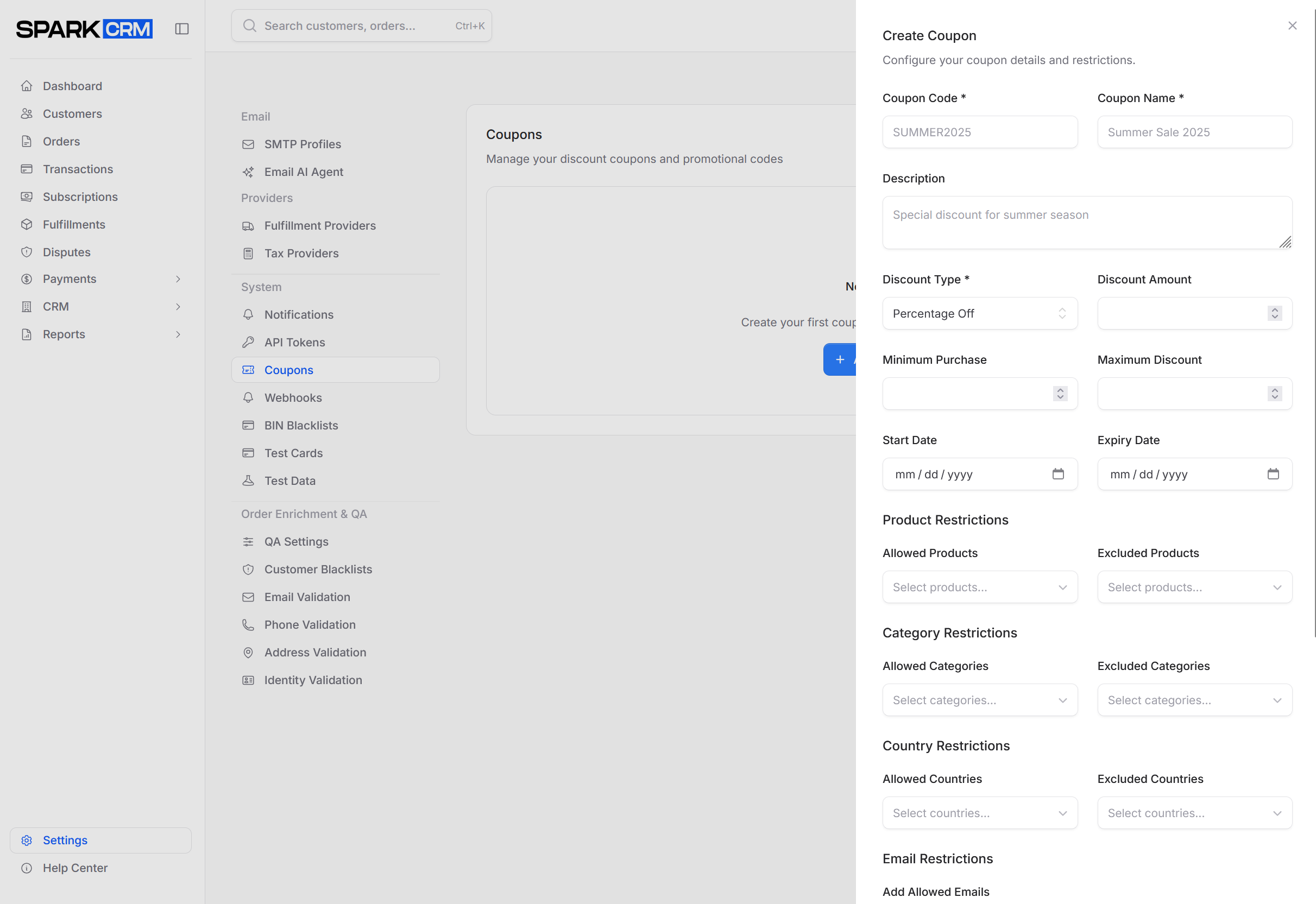
| Field | Description |
|---|---|
| Coupon Code * | Unique code the customer types at checkout (e.g., SAVE20). Must be unique within your team. |
| Coupon Name * | Required internal name, shown under the code in the coupon list |
| Description | Optional internal note |
| Discount Type * | Percentage Off, Fixed Amount Off, Free Shipping, or Fixed Price |
| Discount Amount | Discount value (20 for 20%, 10 for $10). Hidden when the Discount Type is Free Shipping — enter any value (0 is fine) before switching the type, as the field is still required on save. |
| Minimum Purchase | Minimum cart subtotal required (compared before shipping and tax) |
| Maximum Discount | Caps the calculated discount at this dollar amount |
| Product / Category / Country Restrictions | Optional allow and exclude lists checked against the cart at checkout |
| Email Restrictions | Optional list of allowed customer emails |
| Total Usage Limit | Total redemption limit across all customers (leave blank for unlimited; 0 is also treated as unlimited) |
| Per Customer Limit | Limit per individual customer (leave blank for unlimited) |
| Start Date | Date the coupon becomes valid (date only — stored as midnight UTC) |
| Expiry Date | Date the coupon expires (date only) |
| Active | Enable or disable the coupon |
| First Time Customers Only | Restricts the coupon to customers with no prior non-pending orders |
Step 3: Save
Click Create Coupon to save the new coupon. When you are editing an existing coupon, the same button reads Update Coupon.
Coupon Configuration Details
Coupon Code
- Must be unique within your team
- Case-insensitive (SAVE20 = save20)
- Recommended: Use memorable, relevant codes
Percentage Off Discount
- Discount Amount represents a percentage (20 = 20% off)
- Applied to the cart subtotal
- Rounded to the nearest cent when applied at checkout (the API validate endpoint returns the unrounded figure)
Fixed Amount Off Discount
- Discount Amount represents a dollar amount
- Applied to the cart subtotal
- Capped at the cart subtotal at checkout, so the customer is never discounted more than the goods are worth
Usage Limits
Total Usage Limit: Total times the coupon can be redeemed
- Leave empty for unlimited (0 is also treated as unlimited)
- Tracks across all customers
Per Customer Limit: Limit per individual
- Leave empty for unlimited
- Identified by the customer record (
customer_id), not by the email string. On the checkout page the customer is looked up from the email entered, so a shopper who orders under a different email — or who has no customer record yet — is treated as a new individual.
Date Restrictions
Start Date: Coupon becomes active on this date Expiry Date: Coupon becomes invalid after this date
- Both optional
- Date only — no time of day; a date is stored as midnight UTC
- The API rejects an expiry date that is not after the start date; the settings form does not currently validate the ordering
- Use for time-limited promotions
Minimum Purchase
- The cart subtotal — before shipping and tax — must meet this threshold
- Useful for “Get $10 off orders over $50”
Managing Coupons
Coupon List
The list displays all coupons:
| Column | Description |
|---|---|
| Code | Coupon code, with the coupon name shown underneath |
| Type | Discount type |
| Discount | Discount amount, formatted by type (20%, $10.00, or Free Shipping; Fixed Price shows the raw amount) |
| Status | Active/Inactive |
| Usage / Limit | Redemptions so far / the total usage limit (shows ∞ when no limit is set) |
| Expires | Expiration date |
| Created By | Team for coupons you created, or CS when the coupon came from your Customer Service provider |
Editing a Coupon
- Find the coupon in the list
- Click the ⋯ menu at the end of the row and choose Edit (shown only if you have permission to update coupons)
- Modify settings in the flyout panel
- Click Update Coupon
Deactivating a Coupon
Use the row ⋯ menu and choose Deactivate to switch a coupon off without deleting it (the same item reads Activate when it is off). You can also uncheck Active in the edit form.
Deleting a Coupon
- Open the row ⋯ menu and choose Delete (shown only if you have permission to delete coupons)
- Confirm in the dialog
Deletion is a soft delete: the coupon disappears from the Coupons list, and its code becomes available for a new, unrelated coupon.
Coupon Validation via API
The API provides a coupon validation endpoint:
POST /v1/coupons/{code}/validateRequest:
{
  "subtotal": 99.99
}
subtotal is required. customer_email, country, product_ids and category_ids are accepted by the validator but are not evaluated by this endpoint — it checks only active status, the date window, the total usage limit and the minimum purchase. Per-customer limits, first-time-customer and allowed-email, country, product and category restrictions are enforced at checkout, so a code this endpoint calls valid can still be rejected on the order.
Response:
{
  "success": true,
  "is_valid": true,
  "discount_amount": 19.998,
  "coupon": { "code": "SAVE20", "type": "percentage", "...": "..." },
  "validation_errors": []
}
discount_amount is returned unrounded; round it for display. discount_amount here is the model-level figure: Free Shipping coupons return 0 (shipping is applied at checkout) and Fixed Amount coupons are not capped at the subtotal. Use the checkout total for the amount the customer actually sees. When the coupon fails validation the call still returns HTTP 200 with is_valid: false and the reasons in validation_errors. An unknown code returns HTTP 404 with {"success": false, "message": "Coupon not found", "is_valid": false}.
Campaign Integration
Coupons are validated during checkout:
- Customer enters coupon code
- System validates:
- Code exists and is active
- Usage limits not exceeded (total and per customer)
- Date restrictions met
- Minimum purchase met (cart subtotal)
- Product, category, country and email restrictions met
- Discount applied to order
Only one coupon applies per order — entering a second code replaces the first.
Best Practices
Code Naming
- Descriptive: SUMMER2026, WELCOME10
- Short: Easy to type on mobile
- Unique: Avoid confusion with past codes
Usage Limits
- Set limits to control promotion costs
- Use per-customer limits for acquisition offers
- Monitor high-volume codes closely
Expiration
- Always set expiration for time-limited promos
- Leave open for ongoing referral codes
- Deactivate instead of delete for reporting
Testing
- Test coupons with sandbox orders
- Verify discount calculations
- Check edge cases (minimum purchase, usage limits)
Troubleshooting
Coupon Not Working
Check:
- Coupon is Active
- Within date range
- Usage limits not reached
- Cart subtotal meets the Minimum Purchase
Wrong Discount Applied
Check:
- Coupon type (Percentage Off vs Fixed Amount Off vs Fixed Price)
- Discount Amount is correct
- Which code the order actually carries — only one coupon applies per order, and entering a second code replaces the first (check the order’s cart
coupon_code)
Customer Can’t Find Coupon
Check:
- Exact code spelling
- Code isn’t expired
- Per-customer limit not reached
Related Topics
- Campaigns - Campaign configuration
- API Reference - Coupon API endpoints